


Best Text-to-Speech Apps for Seniors (2026)
The best text to speech apps for seniors in 2026: easy, mostly free ways to hear mail, books, news and documents read aloud on phone, tablet or speaker.
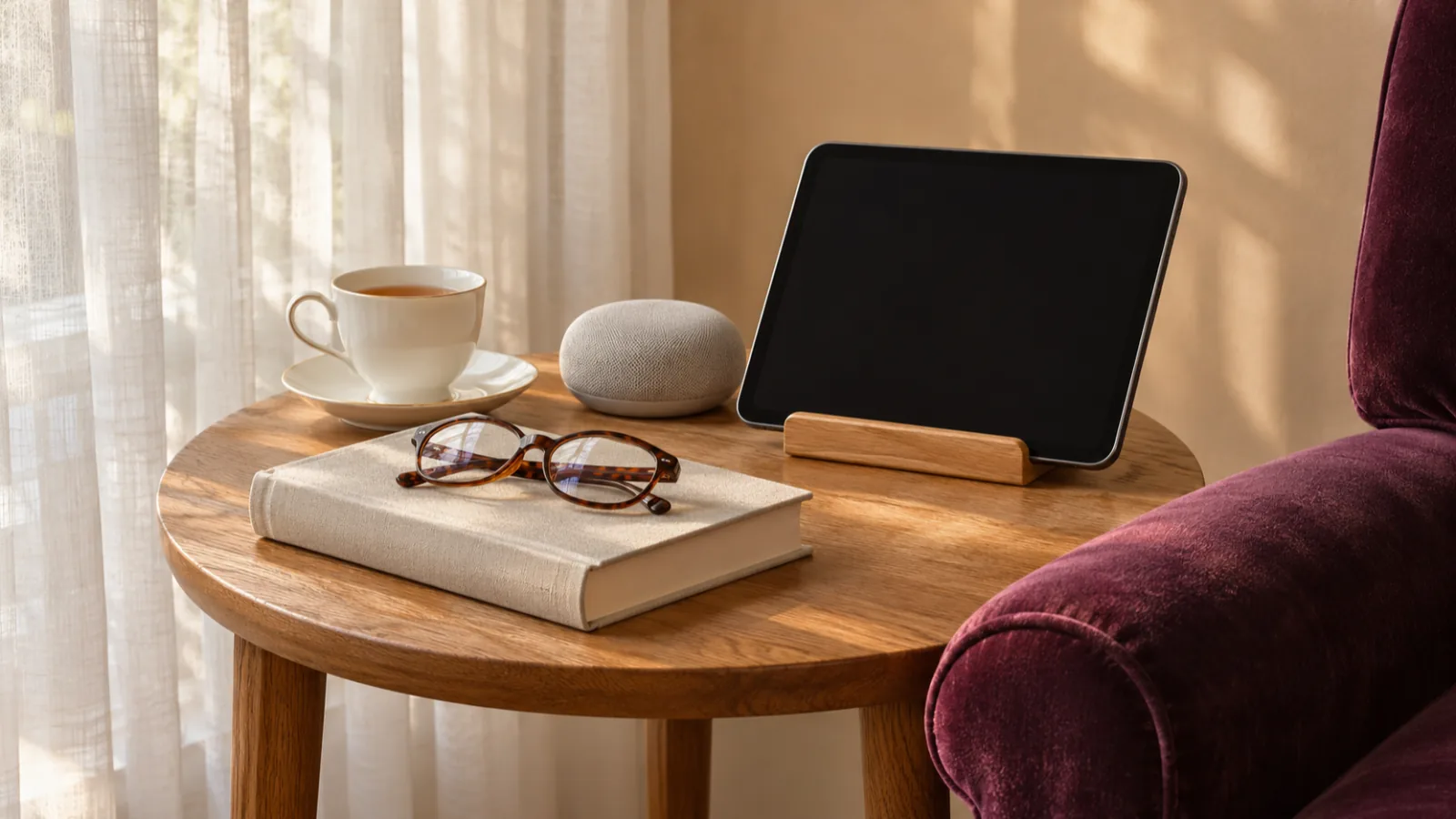
The best text-to-speech apps for seniors in 2026 are the free readers already on iPhone, iPad and Android, Speechly for letters, documents and books with natural voices, Alexa for Kindle books read aloud by voice command, Libby for free library audiobooks, and Seeing AI for reading mail with the camera.
The easiest start is free: Speak Screen on iPhone and iPad, and Select to Speak on Android, read anything on screen.
For printed mail and letters, a camera app like Seeing AI or a photo in Speechly reads the page aloud.
For books without a screen, Alexa can read eligible Kindle books, and Libby lends audiobooks free with a library card.
US readers with low vision or trouble holding a book can get free talking books from the National Library Service.
The best text to speech apps for seniors read mail, books, news and documents aloud with as few taps as possible, so tired eyes, small print or shaky hands don't stand between you and what you want to read. We compared eight options for 2026, most of them free, on how easy they are to start, how clear the voices sound, and what they can read, with every setting and price checked on official pages on November 18, 2026.
Short version: start with the free reader already on your phone or tablet. If you want letters, documents and books read aloud with natural voices and your place saved, add one app such as Speechly. For books without looking at a screen at all, ask Alexa or try the free US National Library Service.
Quick picks: the best text to speech apps for seniors
| Product | Best for | Works on | Price (Nov 2026) |
|---|---|---|---|
| Speechly | Letters, documents and books with natural voices | iPhone, iPad, Android, Mac, Windows | Free plan; $14.99/mo or $139/yr |
| Apple Speak Screen and Accessibility Reader | Hearing anything on screen | iPhone, iPad, Mac | Free |
| Android Select to Speak and Reading mode | Hearing anything on screen | Android phones and tablets | Free |
| Alexa and Kindle | Books read aloud by voice command | Echo speakers, Kindle app, Fire, Kindle | Free features; books extra |
| Libby | Free library audiobooks | iPhone, iPad, Android, web | Free with a library card |
| Seeing AI | Reading mail and labels with the camera | iPhone, iPad, Android | Free |
| Microsoft Edge Read aloud | News and web pages on a computer | Windows, Mac | Free |
| NLS Talking Books and BARD | Free talking books (US) | Phone, tablet, Alexa, by mail | Free if eligible |
What to read, and which app reads it
| You want to hear | Easiest option |
|---|---|
| A text message, email or news article on your phone | Speak Screen (iPhone, iPad) or Select to Speak (Android) |
| A printed letter, bill or menu | Seeing AI, or a photo in Speechly |
| A long document or PDF, over several sittings | Speechly |
| A novel without looking at a screen | Alexa reading a Kindle book, or a Libby audiobook |
| The news on a computer | Microsoft Edge Read aloud |
What makes a text-to-speech app good for seniors
We looked for four things:
- Few steps. One gesture, one button or one spoken command to start reading.
- Clear, adjustable voices. You should be able to slow the voice down and pick one that's easy for your ears.
- A saved place. Stopping for lunch shouldn't mean starting the chapter again.
- Reads printed paper too. Much of what older adults need to read, from bank letters to pharmacy leaflets, still arrives on paper.
If print is getting harder to read, see an eye doctor; changes in vision can have treatable causes. The National Eye Institute recommends asking about vision rehabilitation when vision loss gets in the way of daily life. These apps help you read; they don't replace eye care.
1. Speechly: best for letters, documents and books with natural voices
Speechly is a text-to-speech reader app for iPhone, iPad, Android, Mac and Windows. It reads PDFs, Word documents, ebooks, web pages, emails and pasted text aloud with 25+ natural AI voices, which many people find easier to follow than older computer voices.
It suits seniors who read more than a paragraph at a time: a long letter from the bank, a club newsletter, a book.
Standout features:
- Read paper by taking a photo. Photograph a letter, bill, handout or book page and listen to it.
- Natural voices you can preview. Listen to a few and keep the one that sounds clearest to you, with American and British English accents and seven other languages.
- Slow it down or speed it up, from 0.5× to 2×.
- Your place is saved automatically, and you can continue on another device signed in to the same account.
- Keeps reading with the screen off, so you can set the phone down and just listen.
- 75,000+ free public-domain books in a built-in catalog, so there's always a classic to start.
- No account needed to start on iPhone, iPad and Android; you can sign in later.
Downsides: Speechly needs an internet connection to play its voices, and there's no browser extension, web app or Chromebook app. It doesn't read Kindle or Audible books. The free plan covers two files with premium voices, so regular use means a subscription.
Price: free to download with no card required. Premium is $14.99/month or $139/year for unlimited listening on every device.
2. Apple Speak Screen and Accessibility Reader: best free option on iPhone and iPad
Every iPhone and iPad can read its screen aloud for free. Turn it on once in Settings > Accessibility > Read & Speak and switch on Speak Screen.
To use it: swipe down with two fingers from the very top of the screen, and your iPhone reads everything on it. Or simply ask Siri to "Speak screen." A small controller appears so you can pause, slow down or go back, per Apple's guide. Our step-by-step guide to using Speak Screen on iPhone and iPad shows each tap.
On iOS 26 and later, Accessibility Reader in the same menu opens any app's text in a clean view with larger text and your choice of colors, and reads it aloud when you tap Play. Start it by triple-clicking the side button. For bigger text everywhere, go to Settings > Accessibility > Display & Text Size > Larger Text.
Downsides: no saved place in long documents, and the two-finger swipe takes a little practice.
Price: free.
3. Android Select to Speak and Reading mode: best free option on Android
Android phones and tablets have Google's free Select to Speak. Go to Settings > Accessibility > Select to Speak and turn on the Select to Speak shortcut.
To use it: swipe up with two fingers (three if TalkBack is on) or tap the Accessibility button, then tap Play to hear everything on the screen, or tap a paragraph to hear just that, per Google's help page. If you don't see the setting, update the Android Accessibility Suite app from Google Play.
For news articles, Google's free Reading mode app shows the article in large, clean text and reads it aloud. It needs Android 9 or later, works on phones only, and doesn't support PDFs or emails.
Downsides: steps differ a little between phone brands, and there's no saved place.
Price: free.
4. Alexa and Kindle: best for books by voice command
If you have an Echo speaker and Kindle books, Alexa can read eligible Kindle books aloud. Ask for the book by name, then control it with your voice: pause, skip a chapter or change the speed. Amazon notes that this reading feature isn't available on Alexa+.
If you'd rather read on a tablet, the free Kindle app and Fire tablets have Assistive Reader, which reads eligible books aloud and highlights the words. Open a book, tap the top of the page, tap Aa, then More, and turn on Assistive Reader, per Amazon's help page. Our guide to making Kindle read aloud covers every device.
Downsides: both use a computer voice rather than a narrator, and not every Kindle book works.
Price: free features; you buy or borrow the books.
5. Libby: best for free audiobooks
Libby, from OverDrive, lets you borrow audiobooks, ebooks and magazines from thousands of public libraries for free with a library card. Audiobooks are read by human narrators, which many listeners enjoy more than any computer voice.
Helpful details: speed adjusts from 0.6× to 3× in small steps, per OverDrive's accessibility page. Loans download over Wi-Fi so they play without a connection, and they return themselves on the due date, so there are no late fees, per Libby's help. Our guide to free audiobooks you can get legally lists more sources.
Downsides: popular books often have a waiting list, and setup needs a library card number. A librarian can usually help with the first loan.
Price: free.
6. Seeing AI: best for reading mail with the camera
Seeing AI is a free app from Microsoft for iPhone, iPad and Android. Point the phone's camera at a letter, envelope or menu and it starts reading the text out loud as soon as it sees it. It can also read full documents, scan product barcodes and recognize banknotes, per its App Store listing.
Downsides: you need to hold the phone steady over the page, which takes practice. For medicine labels and doses, always confirm with your pharmacist rather than relying on an app.
Price: free.
7. Microsoft Edge Read aloud: best for news on a computer
If you read the news on a Windows PC or a Mac, the free Microsoft Edge browser reads web pages and PDFs aloud. Open an article and press Ctrl+Shift+U on Windows or Command+Shift+U on a Mac, or right-click the page and choose Read aloud, per Microsoft's shortcut list. Choose Voice options to change the voice and slow it down.
Downsides: it only reads what's open in Edge, and the most natural voices need an internet connection.
Price: free.
8. NLS Talking Books and BARD: best free books for readers who can't easily read print
The National Library Service for the Blind and Print Disabled, part of the Library of Congress, lends talking books, braille books and magazines free to US residents with low vision, blindness, or a physical or reading disability that makes reading print hard. That includes many older adults with macular degeneration, glaucoma or trouble holding a book.
Sign up through your state's network library. Books and magazines can come free by mail, through the free BARD Mobile app on iPhone, Android and Fire tablets, or through the My Talking Books skill on Alexa speakers.
Downsides: you need to register and qualify, and it's for books and magazines, not your own mail.
Price: free.
How we chose
We compared each option on what matters most to older readers, using official help pages and app store listings checked on November 18, 2026:
- Ease of starting: how many taps, swipes or words it takes to start reading.
- Voice clarity and speed control: natural voices and the ability to slow them down.
- What it reads: screens, documents, printed paper and books.
- Picking up where you left off.
- Cost: free first, then yearly prices.
How to choose the right text-to-speech app for you
Pick by what you want to hear:
- Messages, emails and articles on your phone: turn on Speak Screen (iPhone, iPad) or Select to Speak (Android). It's free and already there.
- Printed letters and bills: Seeing AI, or take a photo in Speechly.
- Long documents and books you'll read over several days: Speechly keeps your place and reads with natural voices on your phone, tablet and computer.
- Books without a screen: Alexa reading your Kindle books, Libby audiobooks, or NLS talking books if you qualify.
- News on a computer: Read aloud in Microsoft Edge.
Setting it up for a parent or grandparent? Turn on one built-in reader, add at most one app, put it on the home screen, and practice together twice. Write the gesture or voice command on an index card next to the device. Our guide to reading accessibility for older adults covers text size, contrast and other settings.
If voices are hard to make out at any speed, it may be worth booking a hearing check as well.
The bottom line
Turn on the free reader that's already on your phone or tablet, and borrow audiobooks from your library with Libby. If you want one app that reads letters, documents and books aloud with clear, natural voices and remembers your place, download Speechly free and listen to the next letter that arrives.
Every pick at a glance
Letters, documents and books with natural voices and a saved place
Free plan (two files with premium voices); Premium $14.99/month or $139/year
iPhone, iPad, Android, Mac, Windows
Hearing anything on an iPhone or iPad screen
Free, built in
iPhone, iPad, Mac
Hearing anything on an Android phone or tablet
Free
Android
Kindle books read aloud by voice command or in the Kindle app
Free features; you buy or borrow the books
Echo devices, iPhone, iPad, Android, Fire tablets, Kindle e-readers
Free audiobooks from your public library
Free with a library card
iPhone, iPad, Android, Web
Reading mail, labels and menus with the camera
Free
iPhone, iPad, Android
News and web pages read aloud on a computer
Free
Windows, Mac
Frequently asked questions
What is the easiest text-to-speech app for seniors?
The one already on the device. On iPhone or iPad, turn on Speak Screen and swipe down with two fingers from the top to hear the screen, or ask Siri to "Speak screen." On Android, turn on Select to Speak and swipe up with two fingers.
Is there a free app that reads mail aloud?
Yes. Seeing AI is free on iPhone, iPad and Android and reads printed text as soon as the camera sees it. On iPhone, the built-in Magnifier app can read text aloud too, and Speechly can read a photo of a letter.
Can Alexa read books to seniors?
Yes. Echo speakers and other Alexa devices can read eligible Kindle books aloud, and you control them by voice. Amazon says this feature isn't available on Alexa+.
What can I do if the voice is hard to understand?
Slow the speed down a step, try a different voice, and use headphones or a speaker closer to you. If many sounds are hard to make out, a hearing check is worth booking.
Are there free audiobooks for older adults?
Yes. Libby lends audiobooks free with a public library card, and in the US the National Library Service lends talking books free to people with low vision or a disability that makes reading print hard.
How do I set up text to speech for an elderly parent?
Turn on the built-in reader and test it with them, add one app at most, put it on the home screen, and write the gesture or voice command on a card. Fewer steps matter more than more features.
Listen with Speechly
Natural AI voices on iPhone, iPad, Android, Mac and Windows, with word highlighting and your place saved on every device. Free to download.
Prices and features of other products were checked on November 18, 2026 and can change. Speechly is not affiliated with the other companies named here.

Reading Accessibility for Older Adults: A Practical Guide
Reading accessibility for older adults: the eye, hearing and hand changes that make reading harder, and the print, phone and listening fixes that help.
Best Text-to-Speech Apps for Low Vision (2026)
The best text to speech apps for low vision in 2026, from free iPhone and Android readers to camera apps and AI voices, compared with prices checked.
Where to Find Free Audiobooks Legally
Where to find free audiobooks legally: Libby and Hoopla bestsellers with a library card, 21,000+ LibriVox classics, and how to spot pirated copies.