


How Teachers Can Use Text to Speech in the Classroom
How teachers can use text to speech in the classroom: 10 lesson ideas by subject, a 15-minute student mini-lesson, free tools and what research shows.
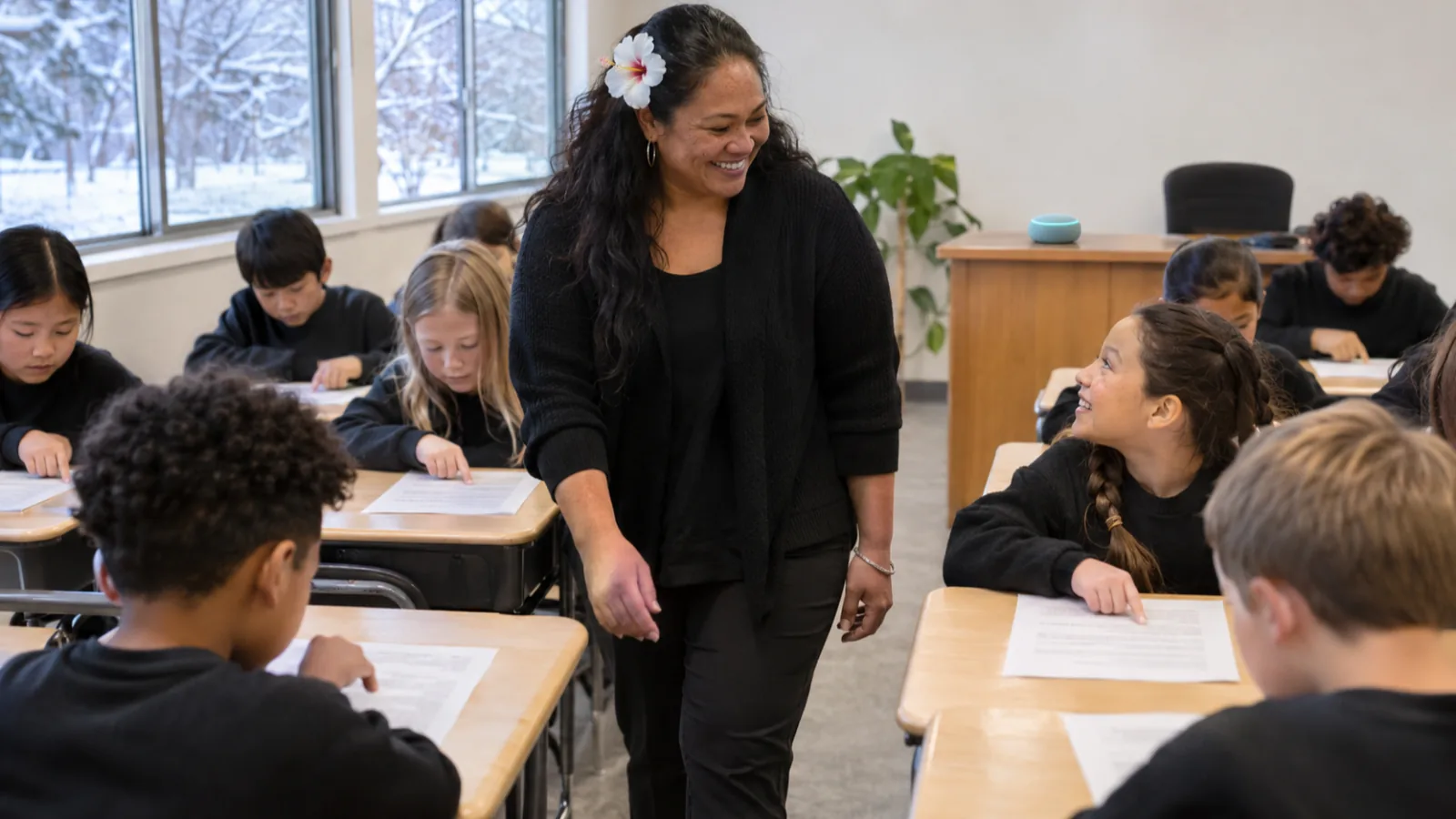
Teachers can use text to speech in the classroom by offering it as an option on every reading, running read-along stations with word highlighting, letting students hear their own drafts before revising, and using it for directions and test accommodations. Teach students one shortcut first, and keep phonics and decoding instruction separate.
Offer text to speech to every student as an option, not only to students with an IEP. It matches the Universal Design for Learning idea of giving students more than one way to take in information.
Turn on word-by-word highlighting and ask students to follow the words with their eyes. Listening alone is a different task from reading along.
Use it where the goal is understanding content or checking writing, not where the skill being taught is decoding.
Spend 15 minutes teaching the shortcut, the speed control and your headphone norms before you rely on it in a lesson.
Research shows a modest average benefit for students with reading disabilities, so pair it with good instruction rather than expecting it to work alone.
How teachers can use text to speech in the classroom comes down to three jobs: an option on every reading so all students can reach grade-level content, a revision tool so students hear their own writing, and a support for directions, accommodations and English learners. The ten ideas below show how to run each one in a real lesson, with the free tools already on your students' devices.
Text to speech works best when the whole class knows how to use it and when it's tied to a clear lesson goal. If you're still picking tools, our guide to text to speech for teachers has setup steps for every device. This guide is about what to do with it once it's on.
How teachers can use text to speech in the classroom: 10 ideas
| # | Idea | Best for | When to skip it |
|---|---|---|---|
| 1 | Offer it on every reading | All students, any subject | Decoding and fluency lessons |
| 2 | Read-along stations | Small-group rotations | — |
| 3 | Preview a text before discussion | Dense nonfiction, primary sources | Short, easy texts |
| 4 | Replayable directions | Multistep tasks, early readers | One-step instructions |
| 5 | Science and social studies texts | Content classes | — |
| 6 | Math word problems | Students who can do the math but stall on the words | Tests that measure reading |
| 7 | Hear-your-draft revision | Writing workshop | Spelling practice |
| 8 | Listening to written feedback | Students who skip your comments | — |
| 9 | Pronunciation for English learners | ELL and world language classes | — |
| 10 | Accommodations and testing | Students with IEP or 504 read-aloud | Only where test rules allow |
Set up once: tools, headphones and norms
Use the tool built into your students' devices. It's free, your district already manages it, and students don't need new accounts.
| Device | Tool | How students start it |
|---|---|---|
| Chromebook | Select-to-speak | Highlight text, press Search + S |
| iPad | Speak Selection and Speak Screen | Select text, tap Speak; or swipe down with two fingers from the top |
| Windows or Mac laptop | Read Aloud in Microsoft Edge | Ctrl+Shift+U (Command+Shift+U on a Mac) |
| Any computer with Chrome | Reading mode | Alt+Shift+R (Cmd+Option+R on a Mac), then Play |
| Word documents | Immersive Reader or Read Aloud | View > Immersive Reader, or Ctrl+Alt+Space |
Before the first lesson, turn on word highlighting. On Chromebooks it's under Open select-to-speak settings > Highlight each word as it is spoken, per Google's Chromebook help. On iPads, open Settings > Accessibility > Read & Speak, per Apple's iPad guide. In Chrome's reading mode, choose Settings > Voice highlight > Word, per Google.
Then set three norms:
- Headphones for independent listening. Label a set of cheap wired earbuds with names and keep them in a bin.
- Eyes on the words. Students follow the highlighting, not the ceiling. That keeps it reading, not just listening.
- Anyone can use it. Say so out loud. Students who need it most are often the least willing to be the only one using it.
Check your files too. Scanned worksheets and image-only PDFs have no text for these tools to read. Export from the original document, or run the scan through OCR first. Our guide on making reading materials accessible covers this step.
Text to speech during whole-class and small-group reading
Offer it as an option on every reading
The simplest change is also the biggest: make text to speech available on every reading you assign, to every student. This fits the UDL Guidelines from CAST, which ask teachers to support multiple ways to perceive information. A student who reads two grades below level can still follow the chapter everyone else is discussing.
Run a read-along station
In a rotation, one station is the read-along table. Students open the same passage, put on headphones, set a comfortable speed and follow the highlighted words. Give them one task to bring back, such as "find two causes" or "mark one sentence you disagree with," so the station has a purpose beyond pressing play.
Preview dense texts before discussion
Assign a primary source or a dense article as a read-along the night before or at the start of class. Students arrive having heard it once. Your class time goes to the argument, not to getting through the words.
Make directions replayable
Paste multistep directions into a document students can open and play. Instead of raising a hand to ask "what was step three?", they replay it. This helps early readers and anyone who loses track of spoken instructions.
Text to speech by subject
English language arts
Use it for access to the class novel or a mentor text, not for decoding practice. Students with reading difficulties can listen to the chapter and still do the same analysis and discussion. Keep phonics and fluency work on the page, with you.
Science and social studies
Content classes are where text to speech pays off fastest. The goal is understanding photosynthesis or the causes of a war, not reading a dense paragraph unaided. Pair a read-along with a short graphic organizer so students stop and record key ideas.
Math
Word problems trip up students who can do the math but stall on the words. Let them hear the problem, then solve it. On tests, follow your state's rules: some sections allow it, some don't.
English learners and world languages
Hearing a sentence while seeing it connects spelling with sound, and students can replay a word as often as they need without asking in front of the class. Immersive Reader can also translate words or whole documents. Our guide to text to speech for ESL and ELL students goes further.
Use text to speech for student writing and feedback
Hear-your-draft revision
Before students hand in a draft, they listen to it once with Read Aloud in Word or Edge. Missing words, doubled words and run-on sentences are easier to hear than to see. Ask them to mark three places that sounded wrong, then fix those.
Listen to your written feedback
Students who struggle with reading often skip long comments. If your feedback is in a document, they can select it and have it read aloud. Keep comments short and specific so they're worth hearing.
Teach students to use it: a 15-minute mini-lesson
Students won't use a tool they've never practiced. Run this once at the start of the year, and again for new students.
- Model it (3 minutes). Project a short passage and start it with the shortcut. Show the highlighting.
- Show the controls (2 minutes). Pause, change speed, jump back a sentence.
- Practice (5 minutes). Every student opens the same passage, starts it themselves and changes the speed once.
- Set the norms (2 minutes). Headphones, eyes on the words, anyone can use it.
- Quick check (3 minutes). Students answer one question about the passage. Ask who found it helpful and who found it distracting.
Start students at a normal pace. Let them speed up once they're comfortable following the highlighting.
Text to speech on tests and in IEPs
If a student's IEP or 504 plan includes read-aloud, text to speech gives them that support without waiting for an adult. Let them practice daily with the same kind of tool they'll use on tests. Testing rules vary by state, test and section, so check your state's accessibility manual. Our guide to IEP and 504 accommodations for reading explains how to write them.
What does the research say about text to speech in the classroom?
The evidence supports text to speech as a way into content, with modest effects and plenty of open questions.
- Students with reading disabilities: A 2018 meta-analysis by Wood and colleagues pooled 22 studies and found a small-to-moderate average improvement in reading comprehension (d = 0.35). After adjusting for possible publication bias, the estimate fell to 0.24, and the authors called for better-designed studies.
- Reading while listening in general: A 2023 meta-analysis by Clinton-Lisell of 30 studies found a small overall comprehension benefit from reading while listening compared with reading alone. It was larger when the audio set the pace than when readers went at their own pace.
- Decoding still needs direct teaching: The Institute of Education Sciences' K-3 foundational reading practice guide rates teaching sound-letter links and decoding as backed by strong evidence.
In practice: text to speech opens up content while students build their own reading skills in separate, explicit instruction.
Common mistakes to avoid
- Turning off highlighting. Students then listen without looking, which is a different task.
- Making it only for "those kids." It turns a support into a label. Offer it to everyone.
- Using it in decoding lessons. It does the decoding for the student, which defeats the lesson.
- Uploading student work to unapproved apps. Use your district's tools, and leave names and identifying details out of anything else.
- Never checking in. After a week, ask each student what's working and adjust the speed or voice.
Where Speechly fits for teachers
The built-in tools above are the right choice for students on school devices. Speechly is a text-to-speech app that's useful for your own prep, or for students on iPads if your district approves it. It runs on iPhone, iPad, Android, Mac and Windows and reads PDFs, Word documents, EPUBs, web pages and photos of printed text with 25+ natural AI voices and word-by-word highlighting.
- Check a worksheet before you assign it: take a photo of a printed handout and listen to it to hear where students will stumble.
- Get through curriculum PDFs: open a long PDF and listen on the commute. On iPhone and iPad, Speechly can skip repeating headers and footers.
- On a Mac: select text in any app and press ⌘E. On Windows: press Alt+R. A floating player reads it aloud.
- On iPads: Speechly needs iOS 17 or later and an A12 chip or newer, which includes the iPad 8th generation, iPad mini 5 and iPad Pro 3rd generation and later.
Speechly has no Chromebook app, browser extension or offline listening, so it doesn't replace Select-to-speak on school Chromebooks. The free plan includes two text-to-speech files with premium voices; Premium is $14.99/month or $139/year. See how it works for students.
The bottom line
Make text to speech an option on every reading, turn on word highlighting, and teach the shortcut in a 15-minute mini-lesson before you rely on it. Use it for content, revision and directions, and keep decoding instruction on the page. For your own lesson prep and long PDFs, download Speechly free and try it on next week's reading.
Frequently asked questions
Should every student be allowed to use text to speech?
For most classwork, yes. Offering it to everyone removes the stigma and helps students who don't have a formal plan. Limit it only where the lesson goal is decoding or reading fluency, and follow testing rules on assessments.
Does text to speech make students lazy readers?
There's no good evidence for that. Text to speech changes how a student takes in a text, not the thinking the task asks for. Keep daily decoding and fluency practice in place so students still build their own reading skills.
What is the best free text to speech tool for a classroom?
The one built into your students' devices: Select-to-speak on Chromebooks, Speak Screen on iPads, and Immersive Reader or Read Aloud in Microsoft Word and Edge. They're free, managed by your district and need no new accounts.
Do students need headphones to use text to speech in class?
Yes, for independent work. Cheap wired headphones or earbuds labeled with each student's name are enough. For whole-class read-alongs, play it through the room speakers instead.
Can text to speech help English language learners?
It can. Hearing a text while seeing it links spelling to pronunciation, and students can replay a sentence as often as they need. Pair it with discussion and teacher modeling rather than using it alone.
How do I know if text to speech is helping a student?
Compare their comprehension on similar texts with and without it, and watch whether they follow the highlighted words. Ask the student too. If they stop using it or drift off while it plays, adjust the speed, the voice or the task.
Listen with Speechly
Natural AI voices on iPhone, iPad, Android, Mac and Windows, with word highlighting and your place saved on every device. Free to download.
Prices and features of other products were checked on November 18, 2026 and can change. Speechly is not affiliated with the other companies named here.

Text to Speech for Teachers: Free Tools, Setup and Classroom Uses
Text to speech for teachers: the free read-aloud tools on Chromebooks, iPads, Word and Edge, how to set each one up, and 6 classroom uses that work.

Best Text-to-Speech Tools for Teachers and Classrooms (2026)
The best text to speech tools for teachers and classrooms in 2026: free built-in tools, Read&Write, Mote, Kami and more, compared on devices and price.

IEP and 504 Plan Accommodations for Reading
IEP and 504 plan accommodations for reading: a full list, how to word them so they're used, test rules, and what to do if the school says no.