


How to Listen to Documents on AirPods and Headphones
How to listen to documents on AirPods and headphones: free steps for PDFs and Word files on iPhone, Android, Mac and Windows, controls and quick fixes.
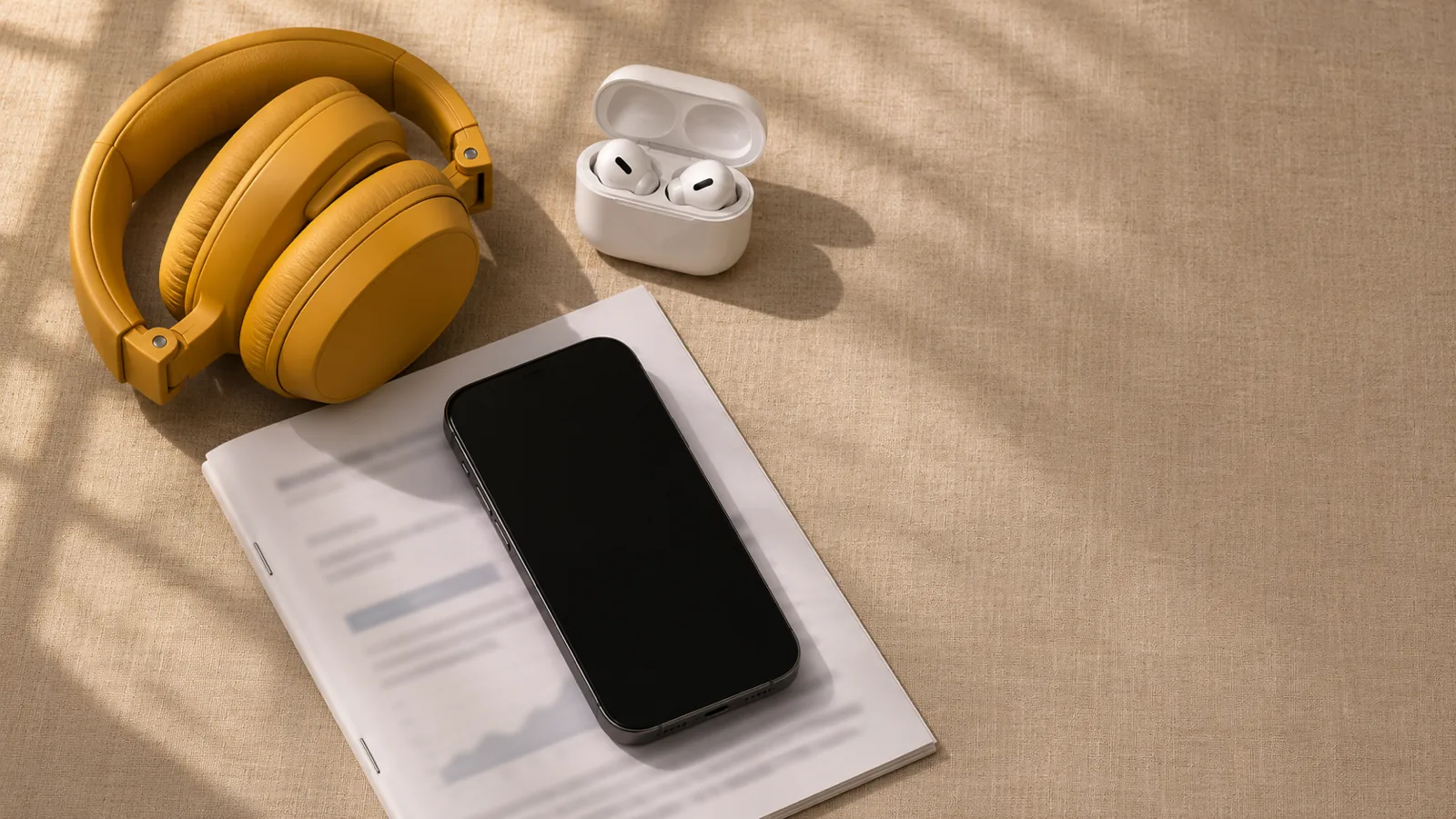
To listen to documents on AirPods and headphones, connect them to your phone or computer, open the document, and start a read-aloud tool: Speak Screen on iPhone, Select to Speak on Android, Read Aloud in Word or Edge on a computer, or a text-to-speech app. The voice plays through whatever headphones are connected.
Any read-aloud tool plays through the headphones that are connected, so the setup is: connect, open the document, start reading.
On iPhone, Speak Screen reads any open PDF or document; Accessibility Reader on iOS 26 and later and Word's Read Aloud keep going better when the phone is locked.
On Android, turn on Read in background in Select to Speak so reading continues while you put the phone away.
On most AirPods, press the stem to pause or resume; removing an AirPod pauses audio when Automatic Ear Detection is on.
A text-to-speech app like Speechly reads whole PDFs, Word files and eBooks with your phone locked and saves your place.
Here's how to listen to documents on AirPods and headphones: connect your headphones, open the document, then start a read-aloud tool. On an iPhone, swipe down from the top with two fingers to start Speak Screen. On Android, start Select to Speak and tap Play. On a computer, use Read Aloud in Word or Edge. The voice plays in whatever headphones are connected, AirPods or not.
Below are the exact steps for each device, the AirPods controls that matter for long reads, and fixes for audio that stops or comes out of the speaker. If you'd rather have natural AI voices and your place saved, Speechly for iPhone reads whole PDFs and Word files with your phone locked.
How to listen to documents on AirPods and headphones in 3 steps
- Connect your headphones. Pair them once, then check they're the active output before you press play.
- Open the document and start reading. Use the built-in tool for your device (below) or a text-to-speech app.
- Put the device away and control it by ear. Choose a tool that keeps reading with the screen off, and use your headphone controls to pause.
| Device | Free read-aloud tool | Keeps reading when locked? |
|---|---|---|
| iPhone and iPad | Speak Screen, Accessibility Reader (iOS 26+) | Accessibility Reader yes; Speak Screen not dependably |
| Android | Select to Speak | Turn on Read in background |
| Word app on any phone | Read Aloud | Yes, per Microsoft |
| Mac | Speak selection (Option-Esc) | Not applicable |
| Windows | Edge Read aloud, Word Read Aloud | Not applicable |
How to listen to documents on AirPods with an iPhone
Connect your AirPods
Open the AirPods case next to your unlocked iPhone and tap Connect the first time. After that, they connect when you put them in. To check where audio is going, open Control Center, touch and hold the music controls, and tap the AirPlay icon to pick your AirPods.
Read a PDF or document with Speak Screen
Speak Screen reads whatever is on screen, so it works in Files, Books, Mail attachments and most document apps. From Apple's Speak Screen guide:
- Go to Settings > Accessibility > Read & Speak (Spoken Content on iOS 18 and earlier) and turn on Speak Screen.
- Open the PDF or document.
- Swipe down from the top with two fingers, or say "Siri, speak screen" with your AirPods in.
- Use the controller to pause, skip or change the speed.
It also reads page numbers and running headers. More detail in how to make your iPhone read a PDF aloud.
Keep it reading with your iPhone in your pocket
Speak Screen follows the display, so it isn't dependable once the phone locks. For listening on a walk, use one of these:
- Accessibility Reader (iOS 26 and later): turn it on in Read & Speak, open the document, triple-click the side button or tap Share > Accessibility Reader, press Play, then lock the phone. Apple's Accessibility Reader guide has every way to open it.
- Word's Read Aloud: in the Word app on iPhone, tap the pen icon, open the Review tab and tap Read Aloud. Microsoft says it keeps reading with the screen locked (Microsoft's instructions).
AirPods controls for long reads
From Apple's AirPods controls page, on AirPods Pro and AirPods (3rd generation and later):
- Press the stem to pause or resume.
- Double-press to skip forward and triple-press to skip back, in apps that support it.
- Take one AirPod out to pause, and put it back to resume. This needs Automatic Ear Detection, found in Settings under your AirPods' name.
- Swipe up or down on the stem to change the volume on AirPods Pro 2 and later, or ask Siri.
How to listen to documents on headphones with Android
- Pair your headphones in Settings > Connected devices > Pair new device (the menu name varies by phone maker).
- Turn on Select to Speak in Settings > Accessibility > Select to Speak and turn on its shortcut. If it's missing, update Android Accessibility Suite from Google Play.
- In Select to Speak's settings, turn on Read in background so reading continues when you switch apps or scroll.
- Open the PDF or document, start Select to Speak (a two-finger swipe up or the Accessibility button) and tap Play.
Google's Select to Speak guide covers the toolbar. For Word files, the Word app for Android has Read Aloud in its menu too.
How to listen to documents on headphones with a Mac or Windows PC
Mac: connect AirPods from Control Center > Sound or System Settings > Bluetooth. Then turn on Speak selection in System Settings > Accessibility > Read & Speak (Spoken Content on macOS 15 and earlier), select text in any document and press Option-Esc. For PDFs, see our guide to listening to PDFs on a Mac.
Windows: pair your headphones in Settings > Bluetooth & devices > Add device. Open a PDF in Microsoft Edge and press Ctrl+Shift+U for Read aloud, or open a Word file and press Ctrl+Alt+Space. Our guide to listening to Word documents has every version.
How to listen to documents on AirPods with Speechly
Built-in tools read what's on screen and work best for a few pages. For a 60-page report, a textbook chapter or an eBook, a reader app that holds the whole file is easier on the ears.
- Download Speechly (iOS 17 or later, iPhone XR/XS or newer). You can start without an account.
- Import a PDF, Word document, EPUB or TXT file, paste a link, or take a photo of a printed page.
- Pick one of 25+ natural AI voices. You can preview each one first.
- Press play, then lock your phone. Speechly keeps reading in your AirPods with the screen off.
When you look at the screen, each word is highlighted as it's read. The speed goes from 0.5× to 2×, and PDFs can skip repeating headers and footers on iPhone and iPad. Speechly saves your place, so you can pick up on Android, Mac or Windows with the same account. On a Mac, select text in any app and press ⌘E; on Windows, press Alt+R. The free plan includes two text-to-speech files with premium voices; Premium is $14.99/month or $139/year.
Troubleshooting
- The voice comes out of the phone speaker. Open Control Center, tap the AirPlay icon on the music controls and pick your headphones. On Android, swipe down and choose the output in the media panel.
- Reading pauses on its own. An AirPod slipped out or Automatic Ear Detection misread the fit. Reseat it, or turn the setting off.
- Reading stops when the phone locks. Switch from Speak Screen to Accessibility Reader, Word's Read Aloud or a reader app, or turn on Read in background on Android.
- Only one AirPod plays. Put both in the case, close the lid for a few seconds and try again. Check Settings > Accessibility > Audio & Visual > Balance is centered.
- The voice is too quiet. Raise the volume while it's speaking, not before. On iPhone, also check Settings > Sounds & Haptics > Headphone Safety.
- AirPods switched to your Mac or iPad. Pick them again from the AirPlay menu, or set Connect to This iPhone to When Last Connected to This iPhone in your AirPods settings.
Tips for listening to documents on headphones
- Keep the volume moderate. The World Health Organization advises keeping personal devices below 60% of maximum volume.
- Stay aware outdoors. Use Transparency or Adaptive mode on AirPods Pro, or take one earbud out near traffic.
- Speed up gradually. Start near 1× for dense documents and raise the speed as the material gets familiar.
- Load files on Wi-Fi. Download the document to your phone before you leave so a dead zone can't interrupt it.
Frequently asked questions
Can AirPods read a PDF to me?
AirPods play audio; your device does the reading. Open the PDF on your iPhone, start Speak Screen with a two-finger swipe down, and the voice plays in your AirPods. A text-to-speech app reads the whole file in one go.
Do these steps work with non-Apple headphones?
Yes. Speak Screen, Select to Speak, Word's Read Aloud and text-to-speech apps play through any wired or Bluetooth headphones. Only AirPods-specific features, such as Automatic Ear Detection and stem controls, need AirPods.
Can I use Siri on AirPods to start reading a document?
Yes, with Speak Screen turned on. Open the document, then say "Siri, speak screen" and your iPhone reads it from the top into your AirPods.
Why does reading stop when I take out an AirPod?
Automatic Ear Detection pauses audio when you remove an AirPod. Put it back to resume, or turn the setting off in Settings under your AirPods' name.
Can I listen to a document on AirPods with my iPhone locked?
Yes, with the right tool. Accessibility Reader on iOS 26 and later, Word's Read Aloud and text-to-speech apps like Speechly keep reading with the screen off. Speak Screen isn't dependable once the phone locks.
Listen on your iPhone and iPad
PDFs, documents, web pages and photos of text, read aloud in natural AI voices with word highlighting, even with the screen off.
Prices and features of other products were checked on November 18, 2026 and can change. Speechly is not affiliated with the other companies named here.

How to Make Your iPhone Read a PDF Aloud
How to make your iPhone read a PDF aloud for free on iOS 26 and 27: Speak Screen, Siri and Accessibility Reader steps, plus a fix for scanned PDFs.

How to Listen to Word Documents
How to listen to Word documents on Windows, Mac, iPhone and Android: Read Aloud steps and shortcuts, free ways without Word, and natural AI voices.
How to Listen to Work Documents on the Go
How to listen to work documents on the go: exact steps for Word, PDFs and Google Docs on iPhone and Android, and how to keep audio playing when locked.