


How to Listen to Text While Driving Safely
How to listen to text while driving safely: set up messages, articles and documents before you go, use CarPlay or Android Auto, and keep your eyes up.
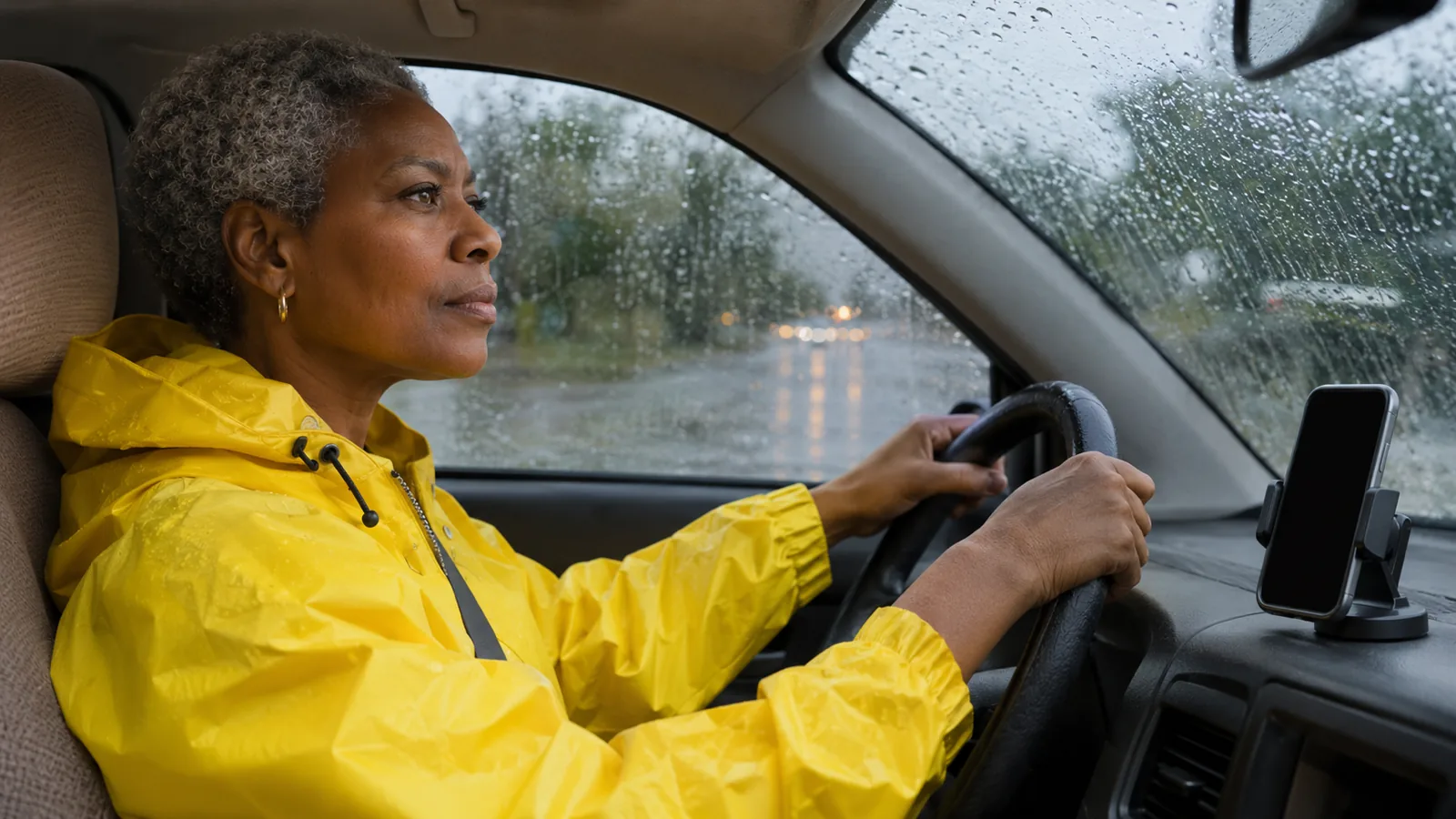
To listen to text while driving safely, set everything up before you move: choose the article or document, start playback, mount or pocket your phone, and connect to CarPlay, Android Auto or Bluetooth. Let Siri or Google read incoming messages aloud, keep material light, and pull over before touching the screen.
Do all setup while parked: pick the text, press play, then lock and mount the phone. Never select text or browse while the car is moving.
CarPlay and Android Auto read incoming messages aloud by voice; turn on Announce Messages on iPhone, or say "Hey Google, read my messages" on Android.
AAA Foundation research rated listening to an audiobook as a low cognitive load, while composing texts by voice rated far higher.
Pick light material for the car and save dense reading for when you can stop, reread and take notes.
Hands-free isn't risk-free. Pause the audio whenever traffic, weather or a new route needs your full attention.
Here's how to listen to text while driving safely: do all the setup before the car moves. Pick the article, document or messages you want, start playback, lock and mount your phone, and let CarPlay, Android Auto or Bluetooth play it through the car's speakers. From then on, use voice commands only, and pull over if you need to touch the screen.
This guide covers incoming messages on iPhone and Android, longer reads like articles and PDFs, what research says about listening at the wheel, and fixes for audio that won't play in the car. For documents read in natural voices with your place saved, Speechly works on iPhone and Android.
How to listen to text while driving safely: the before-you-drive checklist
- Choose the text while parked. Open the article or document, paste the link, or queue up the newsletter you want. Don't browse once you're moving.
- Connect to the car first. Plug in or wait for CarPlay, Android Auto or Bluetooth to connect, so audio doesn't jump from the phone speaker mid-sentence.
- Press play, then lock the phone. Use a tool that keeps reading with the screen off (see below).
- Mount it or put it away. A mount keeps navigation visible; a bag or console keeps temptation out of reach.
- Set a comfortable speed and volume. You should still hear sirens, horns and your navigation prompts.
- Turn on Driving Focus or Do Not Disturb. Fewer alerts means fewer glances.
- Pause when the road gets hard. Merges, heavy rain, roadworks and unfamiliar routes need your whole attention.
Is it safe to listen to text while driving?
Listening is one of the lower-risk things you can do in a car, but it isn't risk-free, and it depends on what you're listening to and how much you handle the phone.
In a 2013 study for the AAA Foundation for Traffic Safety, University of Utah researchers rated in-car tasks on a five-point cognitive-distraction scale. Listening to the radio scored 1.21 and an audiobook 1.75, while composing email with a speech-to-text system scored 3.06, the highest of the tasks tested. The study's message was that "hands-free" doesn't mean risk-free.
What that means in practice:
| Lower load | Higher load |
|---|---|
| Listening to a narrative article or a familiar book | Dictating replies, emails or notes |
| Hearing a short message read aloud | Back-and-forth voice conversations with an assistant |
| One long piece started before you drive | Skipping, searching or switching documents |
The law matters too. As of the Governors Highway Safety Association's October 2025 update, 33 US states plus DC ban hand-held phone use for all drivers, and 49 states ban texting while driving. Rules differ by state and country, so check yours.
How to listen to text while driving with an iPhone and CarPlay
Have Siri read new messages aloud
Siri can announce incoming texts on CarPlay and read them to you. From Apple's CarPlay guide:
- Open Settings > Notifications > Announce Notifications.
- Tap CarPlay, then turn on Announce Messages.
- To limit what's read, tap Messages under Announce Notifications and choose Time Sensitive and Direct Messages.
You can also ask "Siri, read my messages" at any time. Our guide to making your iPhone read messages aloud covers replies and settings.
Turn on Driving Focus
From Apple's Driving Focus page, go to Settings > Focus, tap Add, then Driving. Under While Driving, choose Activate With CarPlay or When Connected to Car Bluetooth so it turns on by itself. Auto-Reply tells people you're driving.
Listen to articles and documents
For anything longer than a text, start it before you set off:
- Web articles: open the article in Safari, tap the Page Menu button in the address bar, tap Listen to Page, then lock the phone. It needs iOS 17 or later. See how to listen to articles with the screen off.
- Text in other apps (iOS 26 and later): open it in Accessibility Reader, press Play, then lock.
- PDFs, Word files and long reads: use a text-to-speech app (below).
Avoid Speak Screen for driving. It reads what's on the display and isn't dependable once the phone locks, which tempts you to pick the phone back up.
How to listen to text while driving with Android and Android Auto
Have Google read new messages aloud
From Google's Android Auto help:
- Say "Hey Google" or tap the microphone, then ask Gemini or Google Assistant to read your messages.
- Tap a message notification on the car screen to hear it.
- For a message you missed, open the notification center on the car screen and tap Play aloud.
Listen to articles and documents
Select to Speak reads what's on screen, so it's built for glancing, not driving. For longer text, start a reader app while parked, press play, lock the phone, and let it play through the car's Bluetooth or Android Auto. Whether a given app's audio and controls show up in Android Auto depends on the app, so test it once in the driveway.
What should you listen to while driving?
Match the material to the drive. Good picks:
- Narrative articles, essays and newsletters you'd read for interest, not for a test.
- Fiction and classic books, where missing a sentence costs little.
- Work documents you've already read once, as a refresher.
Save these for when you can stop: dense textbooks, contracts, anything with tables or numbers, and material you need to take notes on. If you catch yourself rewinding, the drive is taking your attention, which is how it should be. Our guide to turning your commute into reading time has ideas by trip length.
How to listen to documents while driving with Speechly
Speechly is a text-to-speech reader app for iPhone, iPad, Android, Mac and Windows. It suits driving because you set it up once and then leave the phone alone.
- Before you leave, open Speechly and add your reading: import a PDF, Word file or EPUB, paste a link or text, or take a photo of a printed page.
- Check the length. Speechly estimates how long each document takes to listen to, so pick one that fits your drive.
- Choose a voice and speed. Pick one of 25+ natural AI voices and set a comfortable pace; the range is 0.5× to 2×, and around 1× suits driving.
- Connect to the car, press play, lock the phone. Speechly keeps reading with the screen off.
It saves your place automatically, so you can stop when you park and finish on another device, such as Speechly for Mac at your desk. The free plan includes two text-to-speech files with premium voices; Premium is $14.99/month or $139/year.
Troubleshooting
- Audio plays from the phone, not the car. Make sure Bluetooth or CarPlay connected before you pressed play. On iPhone, pick the car in Control Center's AirPlay menu before you set off.
- Siri doesn't announce texts in CarPlay. Check Announce Messages under Settings > Notifications > Announce Notifications > CarPlay, and that Messages notifications are allowed.
- Android Auto won't read messages. Update Android Auto and the Google app, and check that "Hey Google" is on.
- Reading stops when the phone locks. Switch from Speak Screen to Listen to Page, Accessibility Reader or a reader app.
- The navigation voice is hard to hear. Lower the reading volume or speed. If you miss a turn prompt, pause the reading for the rest of the route.
Tips for listening safely
- Never handle the screen while moving. If a document ends or something needs changing, wait for a stop or pull over safely.
- Keep it to one piece per drive so you're never tempted to pick the next.
- Skip listening in bad conditions. Silence is the right choice in storms, heavy traffic and new places.
- Don't dictate replies on the move unless you must. Voice composing was the highest-load task in the AAA Foundation study.
Frequently asked questions
Is it legal to listen to text while driving?
Listening to audio is generally legal, but holding or handling a phone often isn't. As of the Governors Highway Safety Association's October 2025 update, 33 US states plus DC ban hand-held phone use for all drivers, and 49 ban texting. Check your local law.
Can my iPhone read text messages while I drive?
Yes. With CarPlay, turn on Settings > Notifications > Announce Notifications > CarPlay > Announce Messages, and Siri reads new texts aloud. You can also ask Siri to read your messages at any time.
Can Android Auto read my texts aloud?
Yes. Say "Hey Google" or tap the microphone and ask Gemini or Google Assistant to read your messages, or tap a message notification on the car screen to hear it.
Can I listen to a PDF while driving?
Yes, if you start it before you set off. Open it in a text-to-speech app, press play, lock the phone and let it read through your car's speakers. Don't scroll or switch documents on the move.
What's the safest speed for listening while driving?
Use a comfortable, familiar pace, around normal speaking speed. Fast playback takes more concentration, so save it for when you're not driving.
Listen with Speechly
Natural AI voices on iPhone, iPad, Android, Mac and Windows, with word highlighting and your place saved on every device. Free to download.
Prices and features of other products were checked on November 18, 2026 and can change. Speechly is not affiliated with the other companies named here.

How to Make Your iPhone Read Messages Aloud
How to make your iPhone read messages aloud: Siri commands, new texts read on AirPods or CarPlay, Speak Screen for old chats, and fixes when it fails.

How to Turn Your Commute into Reading Time
How to turn your commute into reading time on a train, bus, walk or drive: 5 steps, what to read by trip length, free audiobooks and no-signal fixes.

How to Make Your Phone Read Emails Aloud
How to make your phone read emails aloud for free on iPhone and Android, in Gmail, Outlook or Mail, plus AirPods announcements and quick fixes.