


How to Make Google Play Books Read Aloud
How to make Google Play Books read aloud on Android and iPhone: free steps, a more natural voice, speed controls and fixes when Read aloud is missing.
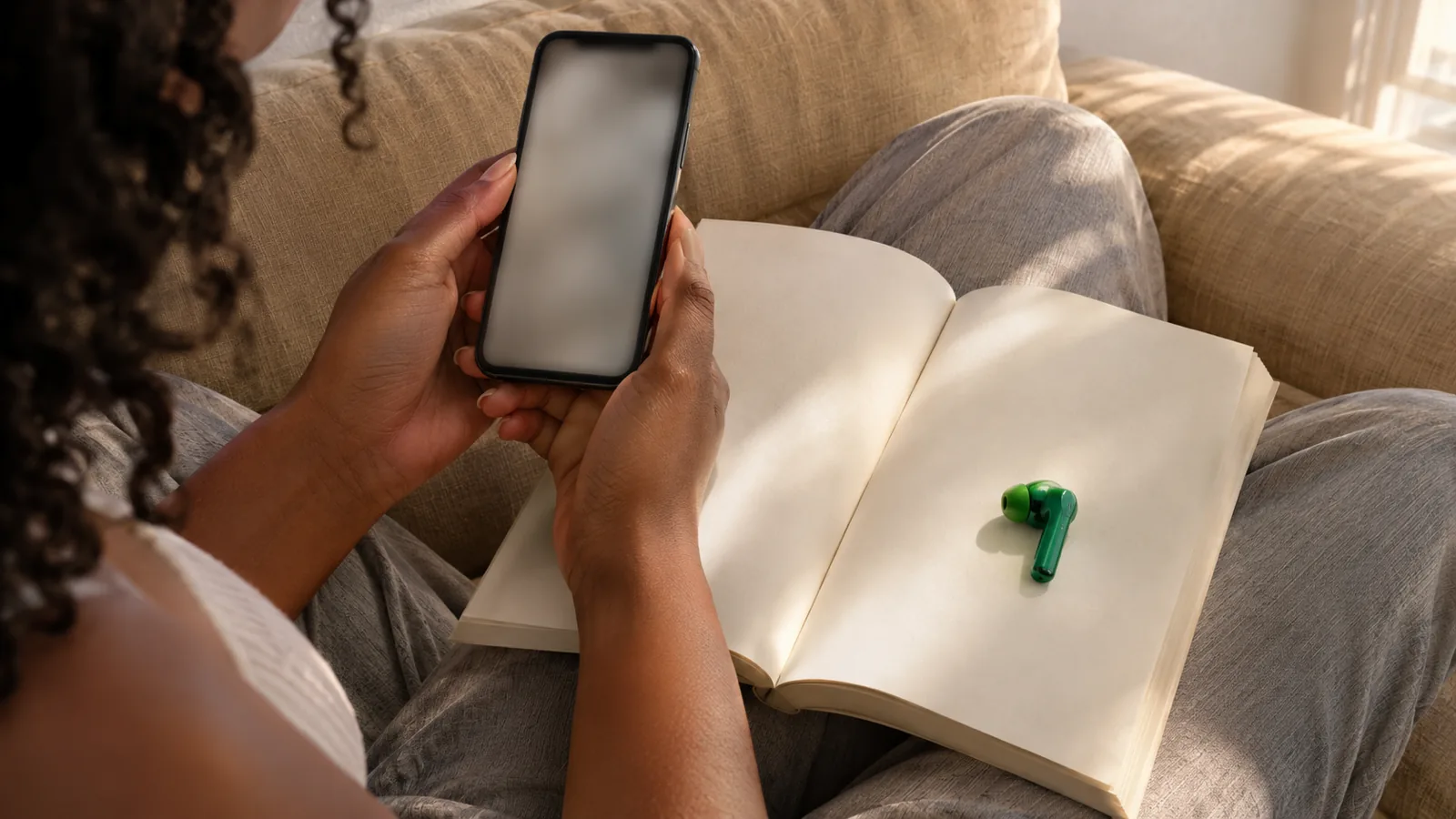
To make Google Play Books read aloud on Android, open a book, tap the page, tap Menu at the top right, then tap Read aloud. It's free, but only works in flowing text mode on books whose publishers allow it. On iPhone and iPad, Google's documented method is VoiceOver; Speak Screen is a simpler workaround.
On Android, open a book, tap the page, then tap Menu > Read aloud. It costs nothing beyond the book.
Turn on More natural reading voice and Automatically read aloud under your profile picture > Play Books Settings. The natural voice needs an internet connection.
The voice and speed come from Android's own text-to-speech settings: Settings > Accessibility > Text-to-speech output.
Read aloud only works in flowing text mode, and publishers decide whether their books allow it.
The iPhone and iPad app has no Read aloud button. Google points to VoiceOver; Apple's Speak Screen is easier for most people.
Here's how to make Google Play Books read aloud on Android: open a book, tap the page, tap Menu at the top right and tap Read aloud. Play Books starts reading from the page you're on, for free.
The iPhone app works differently, a few settings make the voice much better, and some books never show the button. All of it is below, checked against Google's and Apple's help pages on November 18, 2026. If you want natural AI voices for your own EPUBs and PDFs, Speechly is covered at the end.
Which read-aloud method works on your device?
| Device | Built-in method | Notes |
|---|---|---|
| Android phone or tablet | Menu > Read aloud in Play Books | Flowing text mode only; publisher must allow it |
| iPhone or iPad | VoiceOver (Google's method) or Speak Screen | No Read aloud button in the app |
| Computer (Play Books on the web) | Mac Speak selection or Windows Narrator | Google doesn't document Read aloud on the web |
| Children's books with narration | Read & listen | Android and iOS, narrated titles only |
How to make Google Play Books read aloud on Android
These are the steps from Google's Read Aloud help page:
- Open the Play Books app and open a book.
- Tap the page to show the reading controls.
- Tap Menu at the top right.
- Tap Read aloud.
Play Books reads continuously from where you are. Tap Menu again to stop it.
Make it start automatically
If you listen more than you read, let Play Books start Read aloud every time you open a book:
- In Play Books, tap your profile picture at the top right.
- Tap Play Books Settings.
- Turn on Automatically read aloud.
Switch to a more natural reading voice
The default voice can sound flat. Google offers a better one:
- Tap your profile picture > Play Books Settings.
- Turn on More natural reading voice.
It only works while you're connected to the internet. To listen offline, turn it off and Play Books falls back to your phone's standard voice.
Change the voice, language and speed
Play Books doesn't have its own speed slider. It uses your phone's default text-to-speech engine, so you change both voice and speed in Android settings:
- Open Settings > Accessibility > Text-to-speech output. The path can differ slightly on Samsung and other phones.
- To pick a voice, tap Settings next to Preferred engine, then Install voice data, choose your language and tap the voices to hear a sample.
- To change the speed, drag Speech rate.
Google notes that voice choices vary by country, and some regions offer only one high-quality offline voice. More options are in our guide to changing text-to-speech settings on Android.
How to make Google Play Books read aloud on iPhone and iPad
The iPhone and iPad app has no Read aloud button. Google's iOS help says to turn on VoiceOver, which makes Play Books read your ebook text automatically. VoiceOver changes how every tap and swipe works on your phone, though, so most people find Speak Screen easier.
Option 1: Speak Screen (easier)
Speak Screen is Apple's free tool for hearing everything on the screen (Apple):
- Open Settings > Accessibility > Read & Speak (called Spoken Content on iOS 18 and earlier).
- Tap Speak Screen and turn it on. Turn on Show Controller too.
- Open your book in Play Books.
- Swipe down from the top of the screen with two fingers, or ask Siri to "Speak screen."
The controller lets you pause, change the rate and skip back or forward. Set the voice and default speed under Voices and Speaking Rate on the same Read & Speak screen. Our guide to Speak Screen on iPhone and iPad explains each control.
Option 2: VoiceOver (Google's method)
Turn VoiceOver on in Settings > Accessibility > VoiceOver, or ask Siri. Open a book and Play Books reads it aloud. Learn the basic gestures first, because a single tap only selects items with VoiceOver on.
Can Google Play Books read aloud on a computer?
Not with a Play Books button. Google documents Read aloud only in the mobile app. On the Play Books web reader, your computer's own speech tools fill the gap:
- Mac: In System Settings > Accessibility > Read & Speak, turn on Speak selection. Select text in the book and press Option-Esc (Apple).
- Windows: Press Windows + Ctrl + Enter to turn on Narrator, then Narrator + Down arrow to start reading. Press Ctrl to stop (Microsoft). The Narrator key is Caps Lock or Insert.
Both work passage by passage rather than chapter by chapter, so a phone is still the better place for long listening.
Which books can Google Play Books read aloud?
Two rules decide it:
- Flowing text mode. Google says Read aloud needs the book in flowing text, the layout that reflows when you change font size. Some books also offer Original pages, a fixed layout that matches the print edition. A quick check from Google: if you touch and hold a word and a list of options appears, you're in flowing text.
- The publisher's choice. Publishers decide whether Read aloud is available for their books, so some store titles never show the option.
Your own files can work too. Play Books accepts EPUB and PDF uploads. On Android:
- For PDFs, tap your profile picture > Play Books settings and check Enable PDF uploading. EPUBs don't need this.
- In your Files or Downloads app, tap the file's More menu > Open With > Play Books or Upload to Play Books.
- Find it later under Library > Uploads.
EPUB is the safer choice for listening, because it's built to reflow. For more ways to hear EPUB files, see how to listen to an EPUB book.
Children's books with narrated audio use a separate tool, Read & listen, on Android and iOS. Tap the page, then tap Listen. Turn on Automatically turn pages in Play Books Settings so the narration doesn't stop at each page (Google).
Other ways to listen on Android
When Read aloud isn't available, Android's own tools can still read the page:
- Select to Speak: In Settings > Accessibility > Select to Speak, turn on Select to Speak shortcut. In the book, use the shortcut (a two-finger swipe up, or the Accessibility button) and tap Play to hear everything on the screen (Google). Our Select to Speak guide covers the rest.
- TalkBack: Google's Play Books help suggests turning on Settings > Accessibility > TalkBack, then turning off Explore by touch in TalkBack settings. TalkBack is a full screen reader, so it changes how you use the whole phone.
Troubleshooting: why won't Google Play Books read aloud?
- Read aloud is missing from the menu. The book is probably in Original pages view or the publisher hasn't allowed it. Switch to flowing text if the book offers it, or use Select to Speak.
- You're on an iPhone or iPad. There's no Read aloud button there. Use Speak Screen or VoiceOver.
- It stopped working offline. Turn off More natural reading voice, which needs internet.
- The voice sounds robotic or speaks the wrong language. Change the voice and language in Settings > Accessibility > Text-to-speech output, and turn on the natural reading voice when you're online.
- It reads too fast or too slow. Adjust Speech rate in the same Android settings screen.
- An uploaded PDF won't read aloud. It may not have a flowing text view. Upload an EPUB version instead, or use a reader app built for PDFs.
- No sound at all. Check your media volume and that a text-to-speech engine is set under Preferred engine.
How to listen to your own EPUBs and PDFs with Speechly
Play Books' Read aloud is free and handy for store books on Android. For DRM-free EPUBs, PDFs and documents, especially ones without flowing text, a reader app gives you more.
Speechly is a text-to-speech reader for Android, iPhone, iPad, Mac and Windows with 25+ natural AI voices:
- Install Speechly from Google Play. You can start without an account.
- Add an EPUB, PDF, Word document or TXT file, paste a link, or take a photo of a printed page.
- Pick a voice and press play. Words are highlighted as they're read, and you can jump to any sentence.
It reads at 0.5× to 2× speed, keeps going with your phone locked, and saves your place so you can continue on another device. It also includes 75,000+ free public-domain books. On a computer, select text in any app and press ⌘E on Mac or Alt+R on Windows. See how it handles PDFs, including scanned pages.
One honest limit: Speechly doesn't read DRM-protected books, so keep using Play Books for protected store purchases. The free plan includes two files with premium voices; Premium is $14.99/month or $139/year for unlimited listening. Weighing Play Books against Apple's app? Read our Apple Books vs Google Play Books comparison.
Frequently asked questions
Is Google Play Books read aloud free?
Yes. Read aloud, the natural reading voice and Android's text-to-speech settings cost nothing. You only pay for the books you buy, and free or uploaded books can be read aloud too if they open in flowing text mode.
Can Google Play Books read aloud offline?
Yes, with the standard voice. Google says More natural reading voice only works with an internet connection, so turn it off in Play Books Settings before a flight, and download the book first.
Does Google Play Books highlight words while it reads?
Google's Read aloud help doesn't mention word highlighting for ordinary ebooks. Children's books with narrated audio use Read & listen, a separate tool for young readers.
Can Google Play Books read a PDF aloud?
Google documents Read aloud for ebooks in flowing text mode, so EPUB is the safer format to upload. If a PDF has no flowing text option, use Android's Select to Speak or a reader app that handles PDFs.
What's the difference between Read aloud and a Play Books audiobook?
Read aloud is your phone's text-to-speech voice reading the ebook text for free. An audiobook is a separate purchase, narrated by a person or, for some titles, by AI narration that Google labels on the store page.
Can I make Google Play Books read aloud on Windows or Mac?
Google only documents Read aloud in the mobile app. On a computer, use the system's own tools on the Play Books web reader: Speak selection on Mac (Option-Esc) or Narrator on Windows.
Listen on your Android phone
PDFs, documents, web pages and photos of text, read aloud in natural AI voices with word highlighting and a saved library.
Prices and features of other products were checked on November 18, 2026 and can change. Speechly is not affiliated with the other companies named here.
Apple Books vs Google Play Books for Read Aloud: Which Reads to You Better?
Apple Books vs Google Play Books for read aloud: which has a real Read aloud button, nicer voices, offline listening and PDF support, with exact steps.
How to Change Text-to-Speech Settings on Android
How to change text to speech settings on Android: exact Pixel and Samsung menus to switch engine, voice, language, speed and pitch, plus quick fixes.
How to Use Select to Speak on Android
How to use Select to Speak on Android, step by step: turn it on (Pixel and Samsung), every shortcut, read photos aloud, change the voice and fix problems.