


Text to Speech for Writers and Authors: How to Hear Your Draft
Text to speech for writers and authors: hear clunky dialogue and missing words, set it up free in Word, Scrivener or Mac, and see AI audiobook rules.
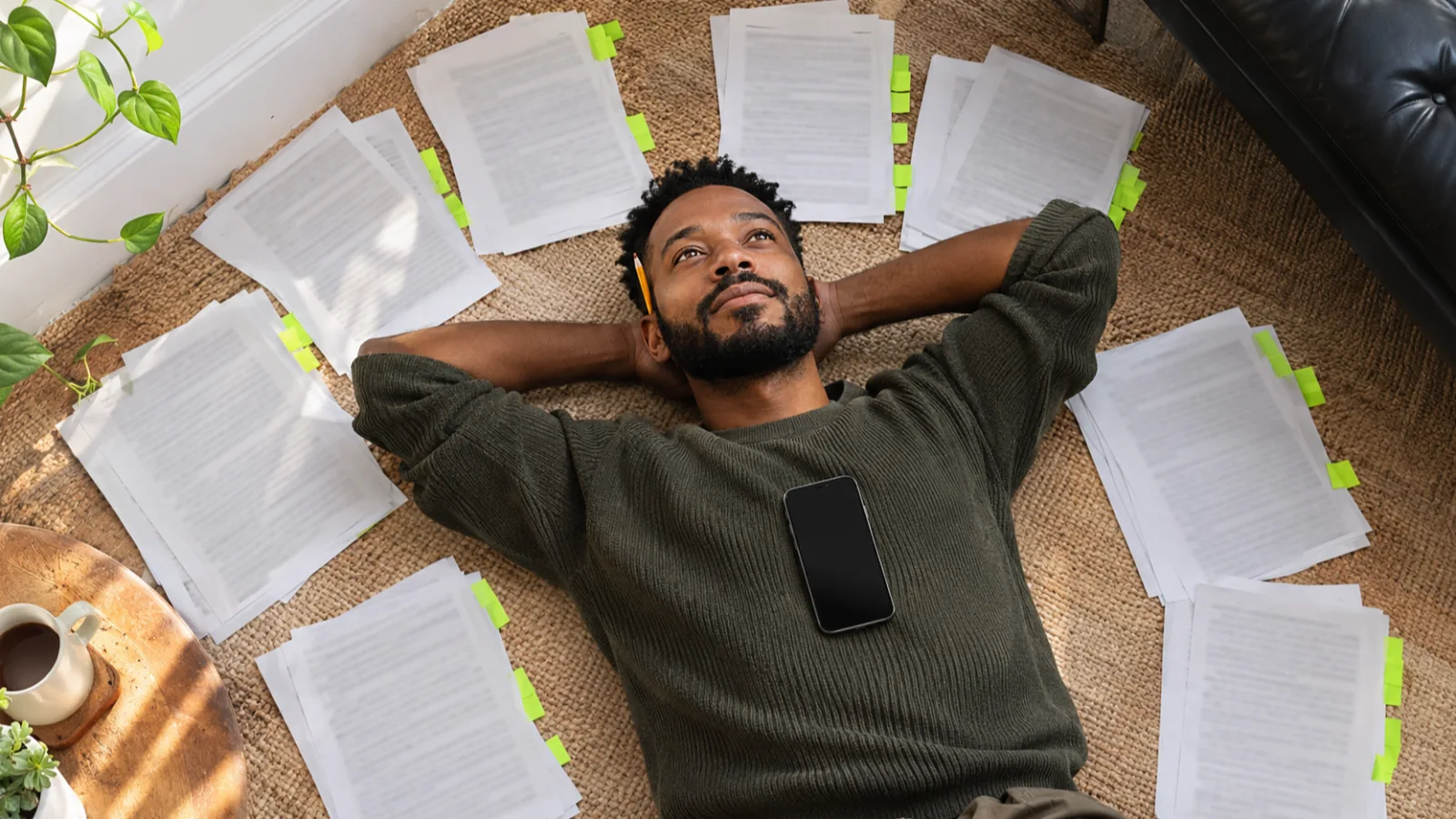
Text to speech for writers and authors works as a free second reader: a voice reads your draft exactly as written, so clunky rhythm, stiff dialogue, repeated words and missing words are easy to hear. Word, Scrivener, Dabble and every Mac and Windows PC can read a manuscript aloud; a reader app adds natural voices and phone listening.
A voice reads what you actually wrote, not what you meant, so listening catches repetition, rhythm problems and missing words that silent rereading skips.
Use it at every stage: revision passes, dialogue checks, a final proofread, research reading, and your query letter or blurb.
You already have it: Review > Read Aloud in Word, Edit > Speech > Start Speaking in Scrivener on a Mac, Read to Me in Dabble, and Option-Esc on any Mac.
Listening and selling an audiobook are different jobs. Amazon, Google and Apple each run their own programs for digitally narrated audiobooks, with their own rules.
Speechly reads selected text in any app with ⌘E on Mac or Alt+R on Windows, and opens DOCX, EPUB and PDF manuscripts on your phone.
Text to speech for writers and authors is one of the cheapest editing tools you can add to your process: a computer voice reads your draft back exactly as written, and your ears catch what your eyes skip. Clunky rhythm, dialogue nobody would say, the same word three times in a paragraph and the "the" you never typed all stand out the moment you hear them.
You don't need to buy anything to start. Word, Scrivener, Dabble, Google Docs on some plans, and every Mac and Windows PC can read your manuscript aloud. This guide covers where listening fits in your process, how to set it up in each app, and what to know before you make an AI-narrated audiobook. For natural voices on every device, Speechly reads your draft on a Mac, a Windows PC or your phone.
Why should writers listen to their own work?
Because you can't unknow what you meant to write. When you reread your own pages, your brain fills in missing words and smooths over awkward sentences. A voice that only knows what's on the page takes that shortcut away.
Writing centers have recommended reading aloud for years. The UNC Writing Center says it makes you say each word and hear how the words sound together, and Purdue OWL suggests having a friend read your paper aloud while you don't read along. Text to speech is that friend, and it never gets tired of chapter twelve. More on the reasons in why hearing your writing catches more mistakes.
What listening is good and bad at:
| Your ears catch | Your ears miss |
|---|---|
| Repeated words and pet phrases | Homophones: their/there, reign/rein |
| Sentences that run out of breath | Italics, scene breaks and formatting |
| Stilted or over-explained dialogue | Capitalization and hyphens |
| Missing and doubled words | Name spellings that drift (Katherine/Kathryn) |
| Monotonous sentence rhythm | Punctuation inside dialogue tags |
| Scenes that drag | Typos that happen to spell a real word |
So listening replaces neither a visual proofread nor a human editor. It's the pass that catches what both of those tend to miss.
How do writers and authors use text to speech?
Each stage of writing calls for a different kind of listening. Match the speed to the job.
| Stage | What you're listening for | Speed |
|---|---|---|
| Revision pass | Pacing, scenes that drag, repetition | 1× to 1.5× |
| Dialogue check | Voices that sound alike, stiff lines | 1× |
| Line edit and proofread | Missing, doubled and wrong words | 0.8× to 1× |
| Away from the desk | The story as a reader meets it | 1× to 1.25× |
| Research reading | Facts and details for the book | Whatever you can follow |
| Query letter, synopsis, blurb | Clarity and hook | 1× |
1. A revision pass for pacing
Listen to a whole chapter without stopping. Flag every spot where your attention drifts (a timestamp, a sticky note, a comment). Those are usually the places where the scene drags or explains too much. Fix them later; this pass is about hearing the chapter as a reader would.
2. A dialogue check
Dialogue is written to be heard, so it's the most obvious thing to test by ear. Listen for characters who all sound the same, speeches too long to say in one breath, and lines that tell the reader what they already know. A neutral computer voice helps here: if a line only works with an actor's delivery, it may not work on the page either.
3. A line edit and proofread
Slow down, keep the text in front of you, and pause every time something sounds off. A tool that highlights each word as it reads shows you exactly where the problem is. Our step-by-step method for proofreading by listening covers this pass in detail.
4. Listening away from your desk
Put a chapter on your phone and listen on a walk or a commute. Out of editing mode, you hear the story more like a reader does, and you come back with a short list of real problems instead of a page of nitpicks. Keep a notes app open for anything that jumps out.
5. Research reading
Historical novelists, nonfiction authors and anyone writing outside their own expertise read a lot of source material. Listening to articles, PDFs and public-domain books while you do other things gets that reading done without more screen time.
6. Your query letter, synopsis and blurb
The short pieces that sell your book are worth hearing aloud. If the hook doesn't land when a neutral voice reads it, it won't land in an agent's inbox or on a sales page either.
How to make your writing app read your manuscript aloud
Most writing apps have text to speech built in, or can use the one in your operating system. For more detail, see our guide to listening to your writing in Google Docs, Word and Scrivener.
| App | How to start | Cost |
|---|---|---|
| Microsoft Word | Review > Read Aloud | Office 2019, 2021 or Microsoft 365 |
| Scrivener (Mac) | Edit > Speech > Start Speaking | Included |
| Dabble | Read to Me (headphones button) | Paid Dabble feature |
| Google Docs | Tools > Audio > Listen to this tab | Eligible Workspace or Google AI plans |
| Any Mac app | Select text, press Option-Esc | Free, built into macOS |
| Any Windows app | Narrator: Windows+Ctrl+Enter | Free, built into Windows |
Microsoft Word
Word's Read Aloud is the strongest built-in option, with keyboard shortcuts, a speed slider and a choice of voices. On Windows and Mac it requires Office 2019, Office 2021 or Microsoft 365, according to Microsoft's Read Aloud guide.
- Click where you want to start, or select a passage.
- Go to Review > Read Aloud, or press Ctrl+Alt+Space on Windows or Ctrl+Option+Space on a Mac.
- Pause and resume with Ctrl+Space on Windows or Option+Space on a Mac. Previous and Next jump a paragraph back or forward.
- Click the gear icon to change the Reading speed and choose a voice under Voice Selection.
Scrivener
On a Mac, put your cursor where you want reading to start and choose Edit > Speech > Start Speaking. Scrivener uses your Mac's system voice, so voice and speed are set in macOS Accessibility settings, as Literature & Latte's proofreading guide explains. For Windows, the same guide points to Windows Narrator: press Windows+Ctrl+Enter to start it.
Dabble
Dabble's Read to Me reads your manuscript aloud, highlights the current sentence and scrolls along with it. Click the headphones button in the toolbar, or press Cmd+Option+R on a Mac or Ctrl+Alt+R on Windows, then press play. It's a paid feature and uses the voices from your browser and device, per Dabble's help page.
Google Docs
If your account has an eligible Google Workspace or Google AI plan, choose Tools > Audio > Listen to this tab. In the player, use Playback speed to change the speed and More > Change voice to pick a voice (Google's help page). On other accounts, use your computer's built-in speech or the free options in our Google Docs read-aloud guide.
Any app on a Mac (Pages, Ulysses, your browser)
- Open System Settings > Accessibility > Read & Speak and turn on Speak selection.
- Click the info button next to it and set Highlight content to Words.
- Select text in any app and press Option-Esc. Use the onscreen controller to change the speaking rate, and press Option-Esc again to stop.
Apple's steps are on its Speak selection support page.
How to listen to a full manuscript, step by step
A novel takes hours to hear, so plan the listening in passes instead of doing it all at once.
- Finish the draft and step away. Distance helps you hear it fresh.
- Do a pacing pass by chapter. Listen without stopping and flag where your attention drifts.
- Revise the big problems first. There's no point line-editing a scene you're about to cut.
- Do a dialogue pass on the scenes with the most conversation.
- Proofread by ear, one chapter per session, at normal speed or slower, fixing as you go.
- Finish with a visual proofread for homophones, italics and formatting.
- Listen to your query letter, synopsis and back-cover copy before you send or publish them.
Some voices stumble over invented names. If a character's name sounds wrong every time, that's the voice, not your spelling, but it's still worth noticing: if a reader can't tell how to say a name, an audiobook narrator will have to ask.
What to look for in text to speech for writers and authors
The right tool depends on how much you'll listen. For a chapter now and then, the built-in options above are enough. For a whole manuscript, these features matter most:
| Feature | Why it matters to a writer |
|---|---|
| Word-by-word highlighting | You see exactly which word tripped the voice |
| Jump to any sentence | You re-listen after a fix without starting the chapter over |
| Your file formats | It opens DOCX, EPUB or PDF, or reads straight from your writing app |
| Natural voices | Robotic voices get tiring long before chapter thirty |
| Speed control | Slower for proofreading, faster for pacing |
| Listening with the screen locked | You can review chapters on a walk |
| A clear privacy policy | It's an unpublished manuscript |
AI voice studios built for narration and voiceover are a different category. They're aimed at producing audio, not at helping you revise.
Can you use text to speech to make an audiobook of your book?
Yes, but that's a different job from listening to your draft, and each store has its own program and rules. As of November 2026, the three big ones are:
| Program | Who can use it | Cost |
|---|---|---|
| Amazon KDP Virtual Voice | Invite-only beta for eligible KDP ebooks; US marketplace only | Free during the beta |
| Google Play Books auto-narrated audiobooks | Publishers with an .epub ebook live on Google Play | No program fee during the beta |
| Apple Books digital narration | Independent authors and small publishers, through Apple's preferred partners | Free to produce |
Eligibility details matter. For Virtual Voice, Amazon's eligibility page says the ebook's primary language must be English, Spanish, Italian or French, it must be live (not on pre-order) and reflowable, it can't already have an audiobook made through ACX, and public-domain content isn't eligible.
ACX, the usual route to Audible for authors, has said in its own guidance that it accepts human narration only. Read ACX's current audio submission requirements before using any synthetic voice there.
Speechly is a reader, not an audiobook production tool. It doesn't create audio files, so use it to hear your manuscript, not to publish it.
How to listen to your writing with Speechly
The built-in tools work, but each lives in one app or on one device, and their voices get tiring over 90,000 words. Speechly is a text-to-speech reader for Mac, Windows, iPhone, iPad and Android with natural AI voices and word-by-word highlighting.
- On a Mac: select text in Scrivener, Word, Ulysses or any other app and press ⌘E. A small floating, always-on-top player reads it while your manuscript stays in view.
- On Windows: select the text and press Alt+R. A floating player reads it aloud, and recent readings are saved.
- For a whole manuscript: save it as a Word document, EPUB or PDF and open that file in Speechly. See Speechly for PDFs.
- On your phone: open the file and listen on a walk. It keeps reading with the screen locked, saves your place, and picks up on any other device you've signed in on.
After a fix, jump to any sentence and start there. Choose from 25+ voices in eight languages and set the speed from 0.5× to 2×. Speechly also estimates how long each document will take to listen to, which helps when you plan chapter-sized sessions.
There's no offline listening and no browser extension. The free plan includes two text-to-speech files with premium voices, no card required. Premium is $14.99/month or $139/year for unlimited listening on every device.
The bottom line
Listening to your draft costs nothing and catches what both you and spell check miss. Start with the read-aloud tool in the app you already write in, listen in passes, and save the visual proofread for last. When you want natural voices and your manuscript on every device, try Speechly's free plan.
Frequently asked questions
Does Scrivener have text to speech?
Yes, on a Mac: put your cursor where you want to start and choose Edit > Speech > Start Speaking. Scrivener uses your Mac's system voice, so voice and speed are set in macOS, not in Scrivener. On Windows, Literature & Latte points users to Windows Narrator.
What is the best free text to speech for writers?
The one already in your writing app. Word's Read Aloud has keyboard shortcuts and a speed slider, and any Mac app can read selected text with Option-Esc once Speak selection is on. Free voices can get tiring over a whole manuscript, which is where a dedicated reader helps.
Can I sell an audiobook made with AI narration?
Yes, through programs built for it: Amazon's Virtual Voice beta for KDP ebooks, Google Play Books auto-narrated audiobooks and Apple Books digital narration. Each has its own eligibility rules, so check the store's help pages before you generate anything.
Is it safe to upload an unpublished manuscript to a text-to-speech app?
Read the app's privacy policy first and check what it does with uploaded files. Built-in tools like Word's Read Aloud work inside your document. Speechly processes content securely and does not share it.
Should I listen to my manuscript at normal speed or faster?
Use normal speed or slower for line edits and proofreading, when you're hunting for individual words. Speed up only for a big-picture pacing pass, when you're listening for where the story drags.
Is text to speech the same as dictation for writers?
No. Text to speech reads your written words aloud, while dictation (speech to text) types what you say. Many authors draft by dictation and revise by listening.
Listen with Speechly
Natural AI voices on iPhone, iPad, Android, Mac and Windows, with word highlighting and your place saved on every device. Free to download.
Prices and features of other products were checked on November 18, 2026 and can change. Speechly is not affiliated with the other companies named here.

How to Proofread by Listening
How to proofread by listening with the read-aloud tools already in Word, Google Docs, Mac, Windows and your phone, plus what your ears will miss.

Why Hearing Your Writing Catches More Mistakes
Why hearing your writing catches more mistakes than rereading: what the studies show, which errors your ears catch, which they miss, and how to use it.

How to Listen to Your Writing in Google Docs, Word and Scrivener
How to listen to your writing in Google Docs, Word and Scrivener: exact menus and shortcuts on Mac and Windows, free options, and editing tips.