


Best Apps for Students with Dyslexia (2026)
The best apps for students with dyslexia in 2026 for reading, audiobooks, writing, spelling and lecture notes, with free options and prices checked.

The best apps for students with dyslexia in 2026 are Speechly for listening to PDFs and handouts, Read&Write for reading and writing support at school, Bookshare and Learning Ally for accessible books, built-in dictation for writing, and Grammarly for spelling. Start with your school's disability services and the free tools on your devices.
Cover four jobs: reading (text to speech), books (accessible audiobooks), writing (dictation and spelling help) and notes (transcripts).
Many of the best tools are free: Bookshare for qualifying US students, dictation on every phone and laptop, Immersive Reader and Grammarly's free plan.
Ask your school's disability services office about accommodations first; it may also provide Read&Write or note-taking software.
Apps support access to learning; they don't replace structured reading instruction or a professional assessment.
The best apps for students with dyslexia do four jobs: read text aloud, give you accessible books, help you write and spell, and capture lecture notes. We picked nine for 2026, many of them free, and checked every price and eligibility rule on official pages on November 18, 2026.
Short version: talk to your school's disability services or special education team first, because the right accommodations matter more than any app, and schools often provide the paid tools. Then fill the gaps with free built-in tools and one or two apps. Here's how Speechly supports readers with dyslexia.
Quick picks
| Product | Job | Platforms | Price |
|---|---|---|---|
| Speechly | Reading: PDFs, handouts, printed pages | iPhone, iPad, Android, Mac, Windows | Free plan; $14.99/mo or $139/yr |
| Read&Write | Reading and writing toolbar | Windows, Mac, Chromebook, mobile | $184/yr; often free via school |
| Immersive Reader + Dictate | Reading and writing in Word | Windows, Mac, web | Free reading; Dictate needs Microsoft 365 |
| Bookshare | Accessible textbooks and books | iPhone, iPad, Android, web | Free for qualifying US students |
| Learning Ally | Human-narrated audiobooks | iPhone, iPad, Android, Chromebook, web | $135/yr family membership |
| Apple Dictation + Google Voice typing | Writing by speaking | iPhone, iPad, Mac, Chrome | Free |
| Grammarly | Spelling and grammar | Windows, Mac, web, mobile | Free; Pro $12/mo |
| Otter.ai | Lecture transcripts | Web, iPhone, Android | Free 300 min/mo; .edu discount on Pro |
| Accessibility Reader + Chrome Reading mode | Fonts, spacing, line focus | Apple devices, Chrome | Free |
Prices are in US dollars on each official site on November 18, 2026. For a deeper comparison of reading apps alone, see our best text-to-speech apps for dyslexia.
Match the app to the job
| If this is hard | Try this first (free) | Paid option |
|---|---|---|
| Getting through assigned reading | Immersive Reader, Chrome Reading mode | Speechly, Read&Write |
| Getting the books in an accessible format | Bookshare | Learning Ally |
| Getting ideas onto the page | Apple Dictation, Google Docs Voice typing | Read&Write Talk&Type |
| Spelling and grammar | Grammarly Free | Grammarly Pro, Read&Write |
| Taking notes in lectures | Note-taking accommodation, Otter Basic | Otter Pro |
1. Speechly: best for listening to PDFs, handouts and printed pages
Speechly reads PDFs, Word documents, EPUB books, slides, web pages, emails and pasted text aloud with 25+ natural AI voices, highlighting each word as it's spoken so you can see and hear the text together. It runs on iPhone, iPad, Android, Mac and Windows.
Who it's for: high school and college students whose readings arrive as PDFs, slides and printed handouts, and who switch between a phone and a laptop.
Standout features:
- Printed pages: take a photo of a worksheet, handout or textbook page and listen to it.
- Any text on your laptop: on a Mac, select text in any app and press ⌘E; on Windows, press Alt+R. A floating player reads it aloud, including the instructions on an online assignment.
- Follow along: word-by-word highlighting, and tap any sentence to hear it again.
- Your pace: speed from 0.5× to 2×, so you can slow down a dense chapter as easily as speed up an easy one.
- Less noise in PDFs: on iPhone and iPad, it can skip repeating headers and footers.
- One library: your place saves automatically and syncs across devices.
Downsides: Speechly has no browser extension, web app or Chromebook app, and it doesn't play audio offline. It's a listening tool, so it doesn't offer display aids like line focus, or writing help. The free plan covers two files with premium voices, though Premium starts with a 3-day free trial.
Price: free to download. Premium is $14.99/month or $139/year for unlimited listening on every device.
2. Read&Write: best all-in-one toolbar for school
Read&Write by Everway is the literacy toolbar many schools license for students with dyslexia. Its advantage is that reading and writing help live in one place, inside Google Docs, Word, PDFs, web pages and learning platforms like Canvas.
Who it's for: students who need writing support as well as reading support, and anyone whose school already provides it.
Standout features:
- Text to speech with highlighting, and a Screenshot Reader for images and scanned PDFs.
- Talk&Type speech-to-text, word prediction and Check It for spelling and grammar.
- Picture and text dictionaries, and Simplify to make a web page easier to read.
- Screen Masking to reduce visual clutter, and Collect Highlights to turn highlighted text into study notes.
- Runs on Windows, Mac, Chromebook, iPhone, iPad and Android.
Downsides: it has a lot of tools, so ask your school for a short training session. Some features work only in Chrome and Edge.
Price: $184/year for an individual license, per Everway's pricing page. Higher-education and school pricing is quoted per institution, so ask before you buy.
3. Microsoft Immersive Reader and Dictate: best free support inside Word
If your school uses Microsoft, Word already has strong reading and writing tools.
Immersive Reader (reading): in Word for the web, select View > Immersive reader to get read-aloud with highlighting, text spacing, syllable splitting, parts of speech, Line Focus, Picture Dictionary and Translate, per Microsoft's guide. In Word for Windows, it's View > Immersive Reader; on a Mac, View > Learning Tools.
Dictate (writing): select Home > Dictate and speak; Word types what you say. On a Mac, Option+F1 starts dictation, per Microsoft's Dictate guide.
Downsides: features differ between the web, Windows and Mac versions, and Dictate needs an internet connection.
Price: Immersive Reader is free in Word for the web and Edge, and students with an eligible school email can get Office 365 A1 free. Microsoft says Dictate is for Microsoft 365 subscribers, so check whether your school's plan includes it.
4. Bookshare: best free accessible books
Bookshare is an online library of more than 1.4 million accessible titles, including school and college textbooks, in over 40 languages. It's designed for people with reading barriers, and it names dyslexia specifically.
Who it's for: US students with a documented reading barrier who need their textbooks and assigned books in a format they can listen to or customize.
Standout features:
- Books you can listen to with computer voices, or read with adjustable text, in the Bookshare Reader app.
- Bookshare Reader apps for iPhone, iPad and Android, plus Amazon Alexa.
- Works with other reading apps that support Bookshare.
Downsides: you need to qualify with proof of a reading barrier, and the voices are computer-generated rather than human.
Price: free for qualifying US students and schools, funded by the US Department of Education. Qualifying adults who aren't students pay a small annual fee.
5. Learning Ally: best for human-narrated audiobooks
Learning Ally is a nonprofit library of 80,000+ human-narrated audiobooks and textbooks for students with dyslexia and other print disabilities. Many students find a human narrator easier to follow for literature and long textbook chapters.
Who it's for: K-12 students, and college and adult learners with documented print disabilities.
Standout features:
- Human narration with synchronized text highlighting and adjustable reading speed.
- Apps for iPhone, iPad, Android and Chromebook, plus the web.
- Vocabulary and note tools, and a parent dashboard for younger students.
Downsides: eligibility requires documentation of a qualifying disability, and the catalog is smaller than Bookshare's.
Price: the family membership is $135/year and covers up to three additional eligible family members. Many schools provide Learning Ally to their students, and the nonprofit offers help for families who find the fee a burden.
6. Apple Dictation and Google Docs Voice typing: best free way to write by speaking
For many students with dyslexia, the hardest part of writing is spelling words while holding onto the idea. Dictation separates the two: say your sentences first, then edit.
On iPhone and iPad: go to Settings > General > Keyboard and turn on Enable Dictation. In any text field, tap the microphone on the keyboard and speak. Dictation adds commas, periods and question marks automatically in supported languages, per Apple's guide.
On a Mac: choose Apple menu > System Settings > Keyboard, go to Dictation and turn it on. Then press the Microphone key, if your keyboard has one, or choose Edit > Start Dictation, per Apple's Mac guide.
In Google Docs: select Tools > Voice typing and click the microphone. It works in Chrome, Edge and Safari, and you can say "period," "comma," "new line" or "new paragraph," per Google's help page. Voice commands work in English only.
Downsides: dictation makes mistakes with names and technical words, and you'll need to proofread. Listening back to your writing with text to speech is a good way to catch errors.
Price: free.
7. Grammarly: best for spelling and grammar as you write
Grammarly checks spelling and grammar as you type in your browser, in documents and in email, and suggests corrections.
Who it's for: students who want a second check on essays, emails to professors and discussion posts.
Standout features:
- Free spelling and grammar checks and tone feedback.
- Pro adds full-sentence rewrites, tone adjustment and a plagiarism checker.
Downsides: heavily phonetic misspellings can be harder for any spell checker to correct, and AI rewrite features may be restricted by your course's academic integrity policy. Check with your instructor before using rewrites on graded work.
Price: free plan with spelling and grammar checks and 100 AI prompts a month. Pro is $12/month, with a free trial.
8. Otter.ai: best for lecture transcripts
Taking notes means listening, deciding what matters and spelling it correctly at the same time, which is tiring for many students with dyslexia. Otter.ai records audio and produces a searchable transcript you can review afterward.
Who it's for: college students with a note-taking or recording accommodation.
Standout features:
- Live transcription you can search and review after class.
- Import existing recordings, such as a recorded review session.
Downsides: recording usually requires permission. Ask your disability services office to include it in your accommodations. The free plan caps each conversation at 30 minutes, shorter than most lectures.
Price: Basic is free with 300 minutes a month. Pro is $16.99/month or $8.33/month billed yearly, and students with a .edu email get 20% off.
9. Apple Accessibility Reader and Chrome Reading mode: best free display controls
Some students read more comfortably with a different font, more spacing or a highlight that follows the line. Two free tools add those controls to read-aloud.
Apple Accessibility Reader (iOS 26, iPadOS 26 and macOS 26 and later) opens an app's text in a clean view where you can change the font, colors and spacing and tap Play to listen. Turn it on in Settings > Accessibility > Read & Speak > Accessibility Reader.
Chrome Reading mode on Windows, Mac and Chromebook: right-click a page and choose Open in reading mode, or press Alt+Shift+R (Cmd+Option+R on Mac). In Settings, choose word or sentence highlighting, letter spacing, line height and Line focus, per Google's Chrome help.
Downsides: neither keeps a library or your place across devices, and both work best on articles rather than long PDFs.
Price: free.
Does assistive technology help students with dyslexia?
For reading comprehension, the evidence for text to speech is encouraging. A meta-analysis in the Journal of Learning Disabilities pooled 22 studies of text-to-speech and read-aloud tools for students with reading disabilities in grade 3 and up, and found a small-to-moderate average improvement in reading comprehension (d = 0.35).
These tools give you access to the same content as your classmates. They don't treat dyslexia, and they don't replace structured, evidence-based reading instruction. If you think you or your child may have dyslexia, a school psychologist, educational psychologist or other qualified professional can assess it. Our guide to assistive technology for dyslexia explains each category in more depth.
How we chose the best apps for students with dyslexia
We looked at the school tasks that take students with dyslexia the most extra time, and chose tools for each:
- Reading access: synchronized highlighting, speed control in both directions, and support for PDFs and printed pages.
- Books: accessible versions of assigned textbooks and literature.
- Writing: dictation and spelling support that work where students actually write.
- Notes: ways to capture lectures without writing everything by hand.
- Cost and access: free and school-provided options first, then individual prices from official pages, checked November 18, 2026.
- Respect for academic rules: we flag features that may conflict with integrity policies or need an accommodation.
How to choose the right apps for you
- Start with accommodations. In K-12, ask about an IEP or 504 plan; in college, contact disability services. Our guides to dyslexia accommodations at school and university and IEP and 504 plan reading accommodations explain what to ask for.
- Ask what your school already licenses. Read&Write, Learning Ally and Microsoft 365 are often provided free.
- Reading is the bottleneck: Bookshare for textbooks if you qualify, plus Speechly for PDFs, handouts and printed pages on your phone and laptop.
- Writing is the bottleneck: dictation to draft, Grammarly or Read&Write to check, and text to speech to listen back.
- Notes are the bottleneck: a note-taking accommodation, then Otter for transcripts.
- A font or spacing change helps you: Accessibility Reader, Chrome Reading mode or Immersive Reader.
If you're comparing paid reading apps, our Speechify alternatives page lays out the differences. Whatever you choose, try each tool on this week's real assignments for a few days before deciding.
The bottom line
The most useful setup combines school accommodations, free built-in tools and one reading app that works everywhere you study. If you want PDFs, handouts and printed pages read aloud with word highlighting on your phone and your laptop, download Speechly and try it free on your next two readings.
Every pick at a glance
Listening to PDFs, handouts and photos of printed pages
Free plan (two files); Premium $14.99/month or $139/year
iPhone, iPad, Android, Mac, Windows
Reading and writing support in one school toolbar
Individual license $184/year; often free through school
Windows, Mac, Chromebook, iPhone, iPad, Android
Free reading and writing support inside Word
Immersive Reader free in Word for the web and Edge; Dictate needs Microsoft 365
Windows, Mac, Web
Free accessible textbooks and books
Free for qualifying US students
iPhone, iPad, Android, Web
Human-narrated audiobooks and textbooks
Family membership $135/year
iPhone, iPad, Android, Chromebook, Web
Writing by speaking
Free, built in
iPhone, iPad, Mac, Chromebook, Windows
Catching spelling and grammar mistakes as you write
Free plan; Pro $12/month
Windows, Mac, Web, iPhone, iPad, Android
Lecture transcripts as a note-taking accommodation
Free (300 minutes/month); Pro from $8.33/month billed yearly; 20% off with .edu
Web, iPhone, Android
Frequently asked questions
What is the best free app for students with dyslexia?
For qualifying US students, Bookshare is the best free app, because it gives you more than 1.4 million accessible books, including textbooks. For everyday reading and writing, Immersive Reader in Word for the web, your device's built-in dictation and Grammarly's free plan cost nothing.
What apps help dyslexic students with writing?
Dictation lets you write by speaking: Apple Dictation, Google Docs Voice typing and Dictate in Word are all built in. For spelling and grammar, use Grammarly or Read&Write's Check It, and listen back to your writing with text to speech to catch mistakes.
Is text to speech allowed on tests for students with dyslexia?
Often, as a formal accommodation. In US K-12 schools it's commonly written into an IEP or 504 plan, and colleges arrange it through the disability services office. Ask early, because approval usually needs documentation.
Do I need a diagnosis to use these apps?
No for most apps: anyone can use Speechly, Grammarly, dictation or Immersive Reader. Bookshare and Learning Ally require proof of a qualifying reading barrier, and school accommodations usually need documentation.
What is the difference between Bookshare and Learning Ally?
Bookshare is a large library of accessible ebooks read by computer voices, free for qualifying US students. Learning Ally focuses on human-narrated audiobooks and textbooks, with a family membership of $135 a year.
Can apps help with dyslexia itself?
Apps help you access text and express what you know, but they don't change how dyslexia affects reading. Structured, evidence-based reading instruction and a professional assessment are the right steps if you suspect dyslexia.
Listen with Speechly
Natural AI voices on iPhone, iPad, Android, Mac and Windows, with word highlighting and your place saved on every device. Free to download.
Prices and features of other products were checked on November 18, 2026 and can change. Speechly is not affiliated with the other companies named here.

Best Text-to-Speech Apps for Dyslexia (2026)
The best text-to-speech apps for dyslexia in 2026, compared on word highlighting, photo reading, fonts and price. Three top picks are free and built in.

Dyslexia Accommodations at School and University
Dyslexia accommodations at school and university: what to ask for, how IEPs, 504s and DSA work, and why your school plan won't follow you to college.
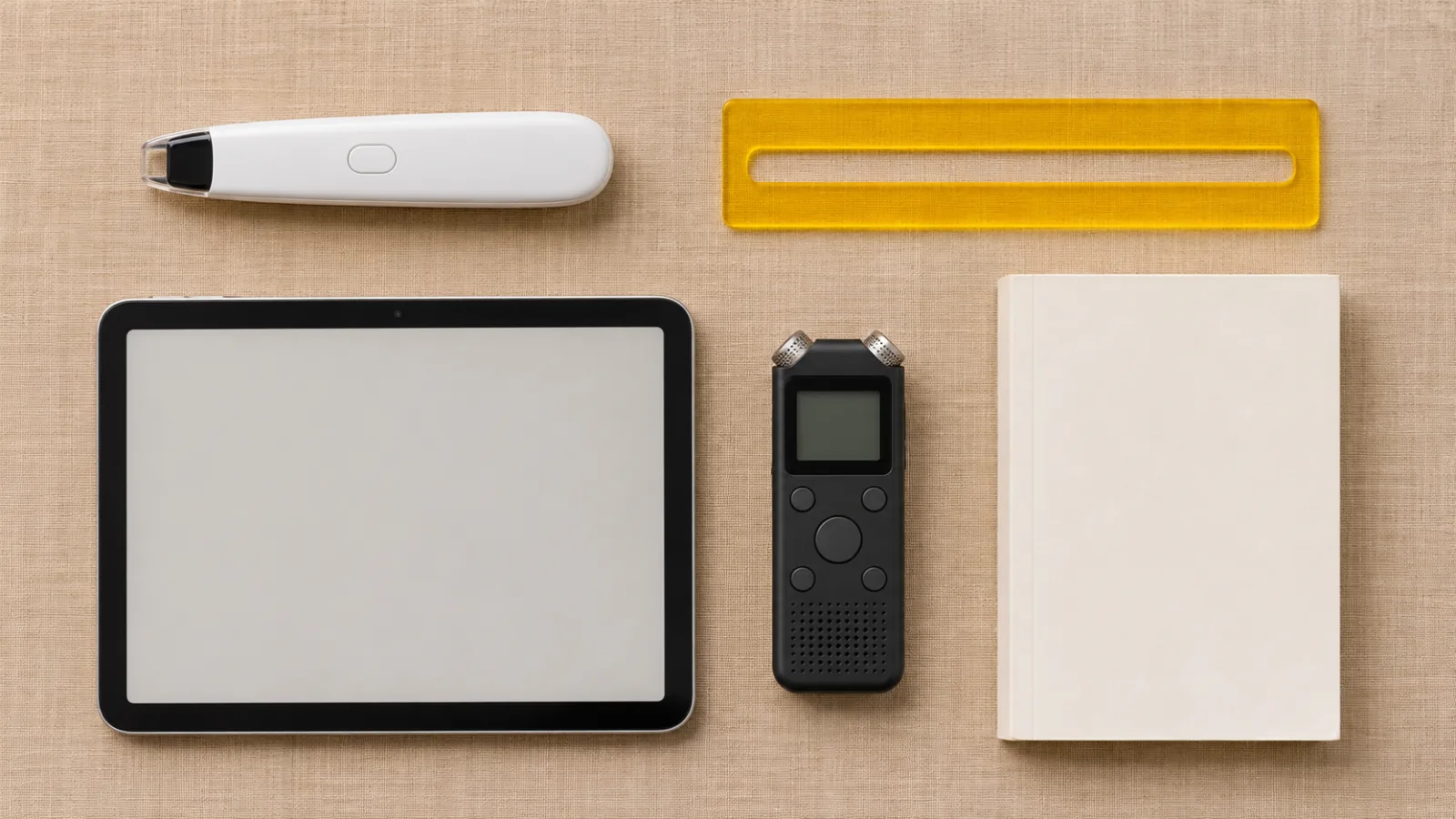
Assistive Technology for Dyslexia: A Complete Guide
Assistive technology for dyslexia by task: text to speech, dictation, reading pens and audiobooks, the free tools on your devices, and who pays for more.