


Assistive Technology for Dyslexia: A Complete Guide
Assistive technology for dyslexia by task: text to speech, dictation, reading pens and audiobooks, the free tools on your devices, and who pays for more.
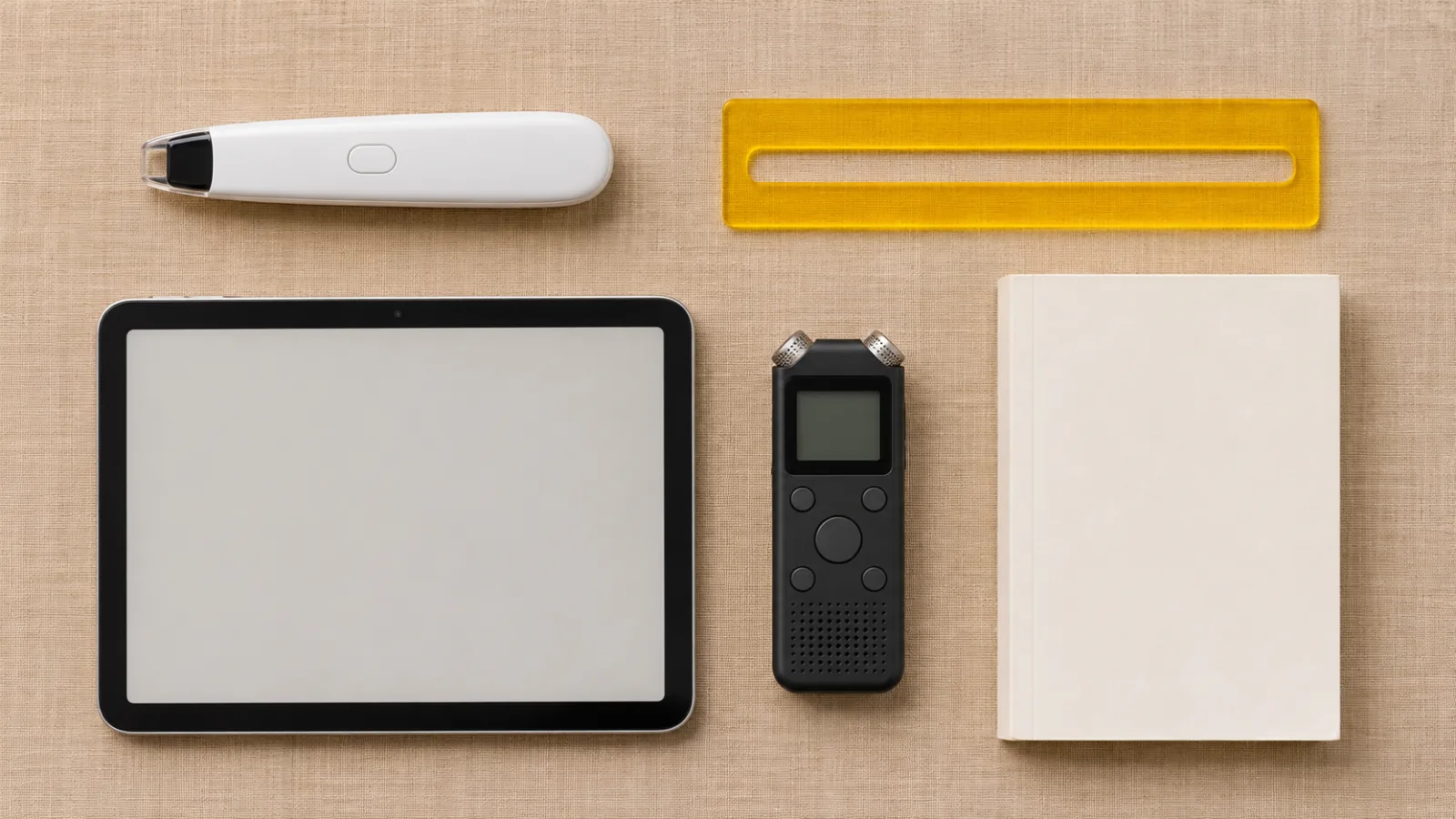
The core assistive technology for dyslexia is text to speech with word highlighting, backed by dictation for writing, apps or reading pens that read printed pages aloud, and audiobooks. Most of it is free on iPhone, iPad, Mac, Windows, Chrome and Android. It makes text accessible but doesn't replace structured reading instruction.
Text to speech that highlights each word is the core tool: a meta-analysis of 22 studies found it modestly improves reading comprehension for students with reading disabilities.
Add dictation for writing and OCR (a camera or reading pen) for printed pages, and you cover most everyday reading and writing.
iPhone, iPad, Mac, Windows, Chrome and Android all include free read-aloud and dictation; try them for a week before you pay for anything.
In US public schools, IEP teams must consider whether a student needs assistive technology. In the UK, DSA and Access to Work can pay for equipment and software.
Assistive technology gives access to text, not reading skill itself, so use it alongside evidence-based reading instruction.
Assistive technology for dyslexia is any tool that lets you work around reading and writing difficulty instead of pushing through it: software that reads text aloud, dictation that turns speech into writing, apps and pens that read printed pages, and audiobooks. This guide matches each tool to the task it solves, shows the free versions already on your devices, and explains how to get the rest through school or work.
Dyslexia makes decoding slow and tiring; it has nothing to do with intelligence. Assistive technology (AT) moves effort off decoding and onto understanding. If you want a dedicated reader later, here's how Speechly helps readers with dyslexia.
What is assistive technology for dyslexia?
It's any device, software or feature that helps you read, write or study despite dyslexia. Understood groups reading AT into text to speech, audiobooks, optical character recognition (OCR) and graphic organizers, plus smaller tools: annotation, display controls and digital dictionaries.
AT supports access, not skill. Understood says it doesn't keep people from learning to read, but the tools alone probably won't improve reading skills, so structured, evidence-based instruction still matters. Low-tech counts too: an index card under the line or a paper graphic organizer is AT.
What are the main types of assistive technology for dyslexia?
Start with the task that's hardest, then find the matching tool.
| What's hard | Type of AT | Free option to try first | Paid or specialist option |
|---|---|---|---|
| Reading digital text | Text to speech with word highlighting | Speak Selection and Accessibility Reader (Apple), Chrome Reading mode, Read Aloud in Word | Reader apps such as Speechly |
| Crowded, hard-to-track pages | Reading views and display controls | Fonts, spacing and line focus in the same tools | Read&Write Screen Masking |
| Printed pages, letters, worksheets | OCR (reading from a photo or scan) | Magnifier (Apple), Select to Speak with Google Camera (Android) | Reading pens such as C-Pen Reader 2 |
| Long books | Audiobooks and accessible libraries | Bookshare for qualifying US students, NLS for eligible US readers | Learning Ally membership |
| Spelling and writing | Dictation, word prediction, spell checkers | Windows voice typing, Mac Dictation, Google Docs voice typing | Read&Write (Co:Writer, Check It), Word Dictate with Microsoft 365 |
| Proofreading | Listening to your own writing | Any read-aloud tool | Same |
| Notes and organizing ideas | Mind maps, graphic organizers, recorded notes | Paper organizers, your phone's voice recorder | Smart pens, mind-mapping software |
Reading tools: text to speech, OCR and audiobooks
Text to speech with word highlighting
Text to speech (TTS) reads digital text aloud while highlighting each word, so you hear and see the word at the same moment. It's the most widely recommended tool, and it has research behind it.
A meta-analysis by Wood and colleagues in the Journal of Learning Disabilities pooled 22 studies of students in grade 3 and up with reading disabilities, including some college and adult students. Text-to-speech and read-aloud tools improved reading comprehension with a small-to-moderate average effect (d = 0.35), smaller (0.24) after adjusting for possible publication bias. The authors flag that many studies were low quality, so treat it as a real but modest benefit. For the day-to-day details, see how text to speech helps with dyslexia.
What to look for: word-level highlighting, speed you can turn down as well as up, natural voices, and support for what you actually read (PDFs, web pages, email).
Reading views and display controls
A reading view strips a page down to its text and lets you change how it looks. Most also read aloud.
- Apple Accessibility Reader opens text from any app in a full-screen view with your choice of font, layout and background color, and can read it aloud. Apple says it's designed for people "from dyslexia to low vision," on iPhone, iPad and Mac.
- Chrome Reading mode (right-click a page > Open in reading mode) highlights by word or sentence while it reads, and lets you change font, line height, letter spacing and line focus, per Google's Chrome help.
- Immersive Reader in Word (View > Immersive Reader) has Column Width, Page Color, Line Focus, Text Spacing, Syllables and Read Aloud on Windows. Word for the web adds Parts of Speech, Picture Dictionary and Translate, per Microsoft's Immersive Reader guide.
Layout preferences are personal, so test what helps you rather than assuming.
OCR: listening to printed pages and photos
OCR (optical character recognition) turns a photo or scan into text that can be read aloud. It covers what TTS alone can't: worksheets, mail, menus, textbooks and scanned PDFs.
- iPhone, iPad and Mac: Accessibility Reader is built into the Magnifier app, so you can point the camera at printed text and listen.
- Android: open the Google Camera app, point it at the text, start Select to Speak and drag your finger over the words, as described in Google's Select to Speak help.
- Reading pens: the C-Pen Reader 2 scans a line of print and reads it aloud, has a built-in dictionary, and needs no phone, computer or internet. It reads English, French, Spanish and Italian.
For whole documents, here's how to listen to a scanned PDF.
Audiobooks and accessible libraries
Audiobooks give you whole books without the decoding load. Three US services serve readers with print disabilities, including dyslexia:
- Bookshare: over 1.4 million accessible ebooks. Free for qualifying US students and schools; qualifying adults who aren't students pay a small yearly fee.
- Learning Ally: 80,000+ human-narrated audiobooks, with apps for iPhone, Android and the web. Families join through a membership (no price is listed on its site), and schools can sign up too.
- NLS: the Library of Congress's free library for US residents certified as having a reading disability.
Writing tools: dictation, word prediction and spell checkers
Spelling and getting ideas onto the page are common sticking points with dyslexia. Three tools take most of the load.
Dictation (speech to text)
Dictation lets you say what you mean and see it typed. Every major platform has it free:
| Where | How to start dictation |
|---|---|
| Windows 10 and 11 | Put the cursor in a text box and press Windows key + H. Automatic punctuation is under the gear icon. Needs internet. (Microsoft) |
| Mac | Turn it on in System Settings > Keyboard > Dictation, then press the Microphone key, use the Dictation shortcut or choose Edit > Start Dictation. (Apple) |
| Google Docs | Tools > Voice typing, then click the microphone. Works in Chrome, Edge and Safari. (Google) |
| Microsoft Word | Home > Dictate. Needs a Microsoft 365 subscription and internet. (Microsoft) |
| iPhone, iPad, Android | Tap the microphone on the on-screen keyboard. |
A good habit: dictate a rough draft, then fix it while listening to it read back.
Word prediction and spell checkers
Word prediction suggests the word you're typing from its first letters and the context, which helps when you know a word but can't spell it. Phone keyboards do a basic version for free.
Specialist tools go further. Read&Write by Everway bundles Co:Writer word prediction, Talk&Type dictation and the Check It writing checker with text to speech, Screen Masking, a Picture Dictionary and a Screenshot Reader for images. It runs on Windows, Mac, Chromebook, iPhone, iPad and Android, and individual K-12 teachers get it free. Many schools and colleges license it, so ask before you buy.
Proofreading by listening
Hearing your writing read aloud catches missing words and wrong homophones your eyes skip. Any TTS tool works; here's how to proofread by listening.
Study tools: notes, mind maps and focus
These don't read or write for you, but they cut the amount of text you have to handle.
- Graphic organizers and mind maps turn an essay plan or chapter into a picture of connected ideas. Paper works; mind-mapping apps make them easy to rearrange.
- Recorded notes. Record a lecture or meeting (with permission) on your phone and replay the parts you missed. Smart pens, which link handwritten notes to audio, are on the Job Accommodation Network's list of ideas.
- Focus tools like line focus, screen masking or an on-screen ruler hide everything except the line you're reading.
Free assistive technology for dyslexia on your devices
Before you buy anything, turn on what you already have. All of these are free:
| Device | Read aloud | Reading view | Read printed text |
|---|---|---|---|
| iPhone and iPad | Settings > Accessibility > Read & Speak: turn on Speak Selection, or Speak Screen (then swipe down with two fingers from the top) | Accessibility Reader, in the same menu | Magnifier |
| Mac | System Settings > Accessibility > Read & Speak > Speak selection, then select text and press Option-Esc | Accessibility Reader | Magnifier |
| Windows | Word: Review > Read Aloud, or Ctrl+Alt+Space | Immersive Reader in Word | No built-in camera reader |
| Chrome (any computer) | Reading mode's play button | Reading mode: Alt+Shift+R, or ⌘+Option+R on Mac | Not built in |
| Android | Settings > Accessibility > Select to Speak, turn on the shortcut | Reading mode app from Google Play (phones, Android 9+) | Select to Speak with Google Camera |
You can change the highlight style and color for Speak Screen and Speak Selection on iPhone and iPad (Apple), and choose word, sentence or both highlighting on a Mac (Apple).
The limits: built-in voices can sound flat over long sessions, long PDFs are clumsy, and nothing keeps your place across devices.
How to get assistive technology for dyslexia at school or work
You don't always have to pay for AT yourself.
US K-12 schools. Federal special education rules require every IEP team to "consider whether the child needs assistive technology devices and services" (34 CFR 300.324). If the IEP includes AT, the school must provide it, and 34 CFR 300.105 requires home use of school-purchased devices when the IEP team decides the child needs it. Students without an IEP can ask about a Section 504 plan. See IEP and 504 plan accommodations for reading for what to ask for.
College. Contact the disability services office with your documentation and ask which reading and writing software it provides.
US workplaces. The Job Accommodation Network gives free, confidential advice on accommodations and the ADA. Its ideas for learning disabilities include text readers, OCR, reading pens, speech recognition, word prediction and on-screen rulers. See dyslexia at work for how to ask.
UK. University students in England can apply for Disabled Students' Allowance, which can pay for specialist equipment. If you're assessed as needing a new computer, you pay the first £200, and you won't be reimbursed for anything you buy before your assessment. At work, Access to Work can fund specialist equipment and assistive software.
How to choose the right assistive technology
Pick tools for your hardest task, not the longest feature list.
- Name the task that costs you most: long PDFs, emails, spelling, printed handouts.
- Match it to a type using the table at the top.
- Try the free version for a week on your real reading.
- Check where you read. If you switch between a phone and a laptop, you need the same tool on both, with your place saved.
- Set the speed by understanding. Start at 1×, slow down for dense text, speed up only when following along feels easy.
- Upgrade only to fix a real gap, such as flat voices, PDFs that read badly, or no OCR.
What usually matters most by age:
| Who | Start with |
|---|---|
| Younger children | Audiobooks and read-aloud with highlighting, alongside reading instruction |
| Teens and students | Text to speech for textbooks and PDFs, dictation for essays, AT written into the IEP or 504 plan |
| Adults at work | Read-aloud for email and reports, dictation, OCR for paper, and an accommodation request if you need more |
For a side-by-side comparison of apps, see the best text-to-speech apps for dyslexia.
Where Speechly fits
Speechly is a text-to-speech reader app for iPhone, iPad, Android, Mac and Windows. It reads PDFs, Word documents, EPUB books, web pages, emails and photos of printed text aloud with 25+ natural AI voices, highlighting each word as it's read. That covers two rows of the table above, text to speech and OCR, in one app.
- Download Speechly free. The free plan includes two text-to-speech files with premium voices; no card needed.
- Open a PDF or Word file, paste a link, or take a photo of a worksheet or letter.
- Press play and follow the highlighted words. Jump to any sentence to start there.
- Set the speed anywhere from 0.5× to 2×.
- On a Mac, select text in any app and press ⌘E; on Windows, select it and press Alt+R. A small floating player reads it aloud.
Your place is saved, so you can start a chapter on your laptop and finish it on your phone. On iPhone and iPad it can skip repeating headers and footers in PDFs. Premium is $14.99/month or $139/year for unlimited listening on every device. Speechly has no browser extension or Chromebook app, and it's a reading tool, so pair it with the free writing tools above.
The bottom line
Assistive technology for dyslexia works best as a small, steady kit: text to speech with highlighting for reading, OCR for paper, dictation for writing, and audiobooks for books. Turn on the free tools today, ask your school or employer about the rest, and keep reading instruction going alongside them. To listen to your PDFs, documents and printed pages on every device, download Speechly free and try it on the next thing you need to read.
Frequently asked questions
What is the most common assistive technology for dyslexia?
Text to speech. It reads digital text aloud, usually highlighting each word as it's spoken, so you can follow along. It's built into iPhone, iPad, Mac, Chrome, Microsoft Word and Android, and dedicated apps add natural voices and support for PDFs and photos of printed pages.
Is using assistive technology for dyslexia cheating?
No. It removes the decoding barrier so you can show what you understand, the same way glasses remove a vision barrier. US law requires IEP teams to consider assistive technology, and text readers and speech recognition software are standard workplace accommodation ideas.
Will text to speech stop my child from learning to read?
No. Understood notes that assistive technology doesn't keep people from learning to read, but also that the tools alone probably won't improve reading skills. Use it alongside structured, evidence-based reading instruction, not instead of it.
Is assistive technology for dyslexia free?
Much of it is. Read-aloud, reading views and dictation are free on iPhone, iPad, Mac, Windows, Chrome and Android. Paid tools such as Read&Write or dedicated text-to-speech apps add natural voices, more file types and extra writing support.
Can a school provide assistive technology for dyslexia?
Yes. Under IDEA, every IEP team must consider whether a student needs assistive technology, and the school must provide devices or services the IEP includes, even for home use when the team decides it's needed. Many colleges offer it through their disability services office.
What assistive technology helps adults with dyslexia at work?
Text readers, OCR, reading pens, speech recognition, word prediction and on-screen rulers are among the accommodation ideas the Job Accommodation Network lists for learning disabilities. Start with the free read-aloud and dictation on your work computer, then ask about accommodations if you need more.
Listen with Speechly
Natural AI voices on iPhone, iPad, Android, Mac and Windows, with word highlighting and your place saved on every device. Free to download.
Prices and features of other products were checked on November 18, 2026 and can change. Speechly is not affiliated with the other companies named here.

Best Text-to-Speech Apps for Dyslexia (2026)
The best text-to-speech apps for dyslexia in 2026, compared on word highlighting, photo reading, fonts and price. Three top picks are free and built in.
How Text to Speech Helps with Dyslexia
How text to speech helps with dyslexia: 7 ways it eases reading, what the research really shows, and the free settings to turn on today on any device.

Dyslexia Accommodations at School and University
Dyslexia accommodations at school and university: what to ask for, how IEPs, 504s and DSA work, and why your school plan won't follow you to college.