


How to Listen to a Scanned PDF
Scanned PDF silent in Read Aloud? Here's how to listen to a scanned PDF: free OCR in Chrome, Google Drive or Adobe, then play it on any device.
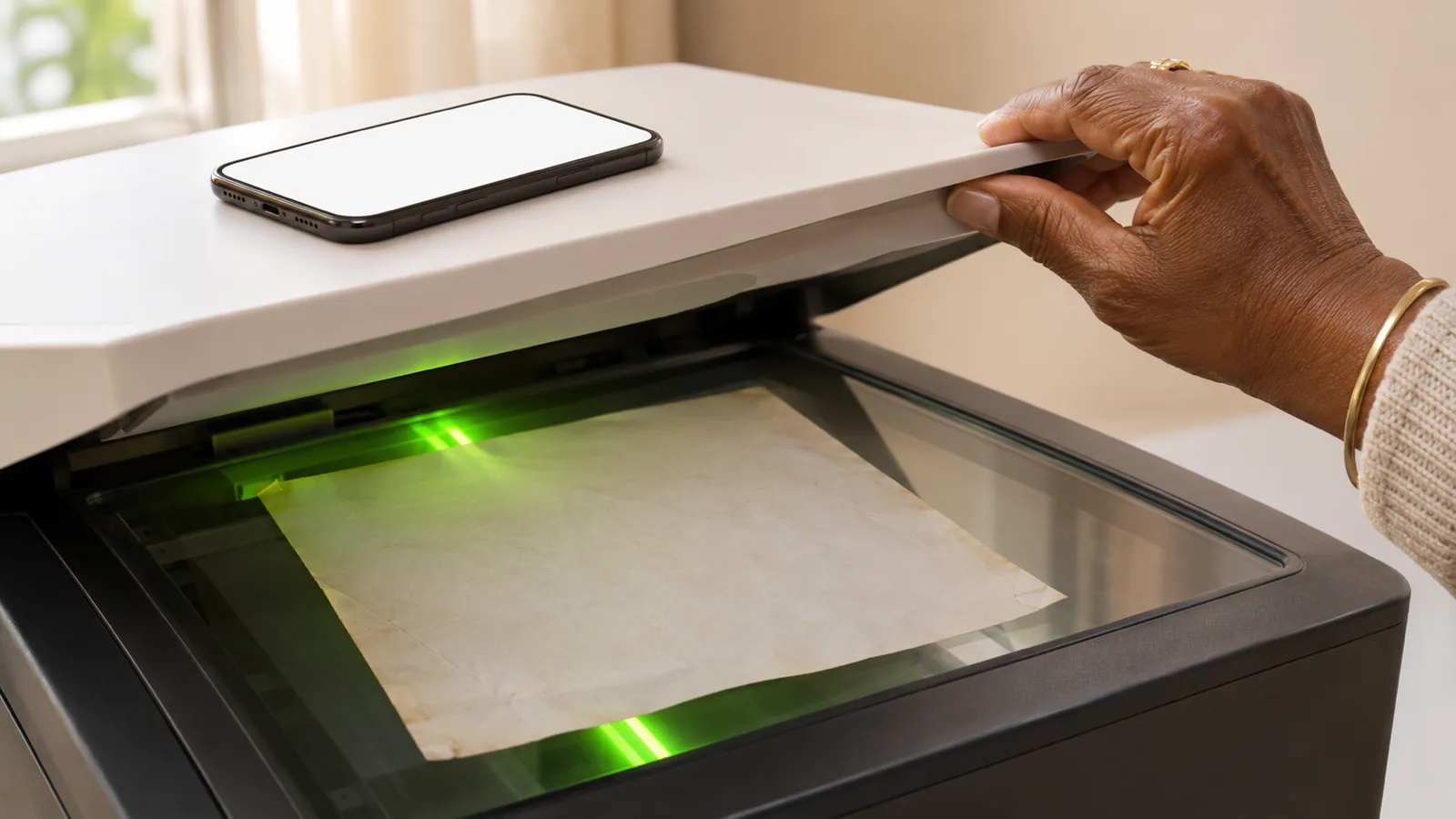
To listen to a scanned PDF, run OCR (optical character recognition) to turn the page images into real text, then open the result in any read-aloud tool. Free ways to do it: open the PDF in Chrome on a computer, use Google Drive's Open with > Google Docs, or upload it to Adobe's free online OCR tool.
A scanned PDF is a stack of page photos, so read-aloud tools find no words to speak until OCR adds a text layer.
Quick test: if you can't select a single word or find one with Ctrl+F (⌘F on Mac), the PDF is scanned.
Free OCR: Chrome on a computer does it automatically on your device, Google Drive converts files up to 2 MB, and Adobe's online tool needs a free sign-in to download.
Acrobat Pro adds a text layer with All tools > Scan & OCR > Recognize text; after that, the free Acrobat Reader's Read Out Loud can speak it.
If you still have the paper, take a photo of each page in a reader app instead of scanning to PDF first.
Here is how to listen to a scanned PDF: turn the page images into real text with OCR (optical character recognition), then press play in any read-aloud tool. A scanned PDF is just photos of pages, so Read Aloud in Edge, Acrobat or your phone has no words to speak. The fix takes a few minutes and costs nothing.
Below are five free ways to add the missing text, the paid Acrobat route, and how to listen with natural voices in Speechly's PDF reader once the text is there.
How to tell if your PDF is scanned
Try to select a single word. If your cursor draws a box over the whole page instead of highlighting the word, the PDF is scanned.
Two more quick tests:
- Press Ctrl+F (⌘F on Mac) and search for a word you can see on the page. No results means there is no text layer.
- Start Read Aloud. If it reads nothing or skips straight past the page, the page is an image.
Some PDFs are mixed: typed pages with a few scanned pages in the middle. Read-aloud tools go quiet only on the scanned ones.
Which method should you use?
On a computer with a private file, use Chrome. For a small file, Google Drive. For a searchable PDF you can keep and open anywhere, Adobe's online tool.
| Method | Cost | Works on | Best for |
|---|---|---|---|
| Chrome PDF viewer | Free | Computers | Private files; OCR runs on your device |
| Google Drive > Google Docs | Free | Computer browser | Files up to 2 MB |
| Adobe online OCR | Free (sign-in to download) | Web browser | A searchable PDF you can keep |
| Live Text or Google Lens | Free | iPhone, Android | One or two pages |
| OCRmyPDF | Free, open source | Mac, Windows, Linux | Big batches, private files |
| Acrobat Pro | Paid | Windows, Mac | People who already pay for Acrobat |
How to read a scanned PDF aloud in Chrome
Chrome recognizes scanned PDFs by itself. Google says scanned PDFs opened in Chrome's PDF viewer on a computer are automatically converted to be searchable and selectable, and the conversion happens on your device without sending any data to Google or third parties.
- Drag the PDF into a Chrome window, or right-click it and choose Open with > Google Chrome.
- Wait a few seconds for the text to become selectable. Long scans take longer.
- Drag across the text you want, or press Ctrl+A (⌘A on Mac) to select everything.
- Have it read aloud:
- Mac: turn on Speak selection in System Settings > Accessibility > Read & Speak (Spoken Content in older macOS versions). Then press Option-Esc, the default shortcut.
- Windows: copy the text (Ctrl+C), paste it into Word and select Review > Read Aloud. Word's Read Aloud needs Microsoft 365 or Office 2019 or later.
Chrome doesn't save the recognized text into the file. For a searchable copy you can open in any app or on your phone, use Google Drive or Adobe below.
On a Chromebook, Chrome's PDF viewer also extracts text from scanned PDFs so screen readers such as ChromeVox can read them. The setting is Extract text from PDF, under Text-to-Speech in Accessibility settings.
How to OCR a scanned PDF for free with Google Drive
Google Drive turns a scanned PDF into an editable Google Doc. It's free with a Google account, but Google's limits are strict: the file should be 2 MB or smaller, text at least 10 pixels high, and pages right side up.
- On a computer, go to drive.google.com and upload the PDF.
- Right-click the file and choose Open with > Google Docs.
- A new Google Doc opens with the recognized text. Skim it for obvious errors, especially names and numbers.
- Listen to it:
- Choose File > Download > PDF Document (.pdf), open that file in Microsoft Edge and press Ctrl+Shift+U (Command+Shift+U on Mac) to start Read aloud.
- Or choose Microsoft Word (.docx) and open it in Word or any app that reads DOCX files.
- If your Google Workspace or Google AI plan includes it, Docs can read the tab itself: Tools > Audio > Listen to this tab (Google's help page).
Google warns that lists, tables, columns, footnotes and endnotes are not likely to be detected, so academic papers and textbooks can come out in a jumbled order. For those, see how to listen to two-column PDFs.
How to make Adobe Acrobat read a scanned PDF out loud
Free: Adobe's online OCR tool
Adobe's online OCR tool is free and runs in a web browser, with nothing to install.
- Select Select a file, or drag the PDF onto the page.
- OCR runs automatically.
- Sign in with a free Adobe account to download the searchable PDF.
The new file keeps the look of the scan but now has selectable text, so Edge, Acrobat Reader, your phone's read-aloud features and reader apps can all speak it.
Paid: Acrobat Pro
The free Acrobat Reader can't run OCR. Adobe lists turning scanned documents into searchable PDFs as an Acrobat Pro feature (US$19.99/month on an annual plan as of November 2026, with a 7-day free trial). The steps are in Adobe's guide to recognizing text:
- Open the scanned PDF and select All tools > Scan & OCR.
- Select In this file.
- Choose the page range and the language of the document, then select Recognize Text.
- Save the file. Acrobat has added a searchable text layer.
To hear it, in Acrobat or the free Acrobat Reader:
- Choose View > Read Out Loud > Activate Read Out Loud. In the newer Windows layout, open Menu first if you don't see View.
- Choose Read This Page Only or Read To End of Document from the same submenu.
| Action | Windows | Mac |
|---|---|---|
| Turn Read Out Loud on or off | Shift+Ctrl+Y | Shift+⌘+Y |
| Read the current page | Shift+Ctrl+V | Shift+⌘+V |
| Read to the end | Shift+Ctrl+B | Shift+⌘+B |
| Pause | Shift+Ctrl+C | Shift+⌘+C |
| Stop | Shift+Ctrl+E | Shift+⌘+E |
More detail in how to make Adobe Acrobat read a PDF out loud.
How to listen to a scanned PDF on iPhone or Android
For a whole document, run Adobe's online OCR tool in your phone's browser, download the searchable PDF, and open it in a reader app. For a page or two, a screenshot is faster.
iPhone: First turn on Speak Selection in Settings > Accessibility > Read & Speak (Spoken Content on iOS 18 and earlier). Take a screenshot of the PDF page and open it in Photos. Touch and hold a word, drag the grab points over the text you want, then tap Speak.
Android: Take a screenshot. Open the Google app, tap the Google Lens icon in the search bar, and pick the screenshot under Screenshots. Tap the text or drag the corners of the box over it, tap Select text, then tap Listen, as Google's Lens help describes.
How to listen to a scanned PDF with Speechly
Built-in voices are fine for a page. For a 60-page scanned course pack or an old report, you want natural voices, highlighting so you can follow along, and a saved place.
- Make the PDF searchable with one of the free OCR methods above.
- Open it in Speechly on iPhone, iPad, Android, Mac or Windows.
- Pick one of 25+ natural AI voices and press play. Each word is highlighted as it's read, and you can jump to any sentence and start there.
- Set the speed anywhere from 0.5× to 2×. On a phone, reading continues with the screen locked.
On iPhone and iPad, Speechly can skip repeating headers and footers, so you don't hear a running title on every page. It saves your place and syncs it across devices when you sign in.
Already have the text selected in Chrome? On a Mac, press ⌘E to hear it in Speechly's floating player. On Windows, press Alt+R.
Still have the paper copy? Skip the scanner: take a photo of each page in Speechly and listen right away. The free plan includes two files with premium voices; Premium is $14.99/month or $139/year for unlimited listening.
Why won't my scanned PDF read aloud? Troubleshooting
Read Aloud still says nothing after OCR. The text layer wasn't added or wasn't saved. Try selecting a word in the new file. If you can't, run OCR again and make sure you open the new file, not the original.
It reads nonsense or swaps letters. OCR misread blurry, tilted or faint text. Google recommends sharp images with even lighting and clear contrast. If you're scanning yourself, use at least 300 DPI, the resolution Tesseract's documentation says its open-source OCR engine works best with. Keep the page flat, then run OCR again.
Sentences jump between columns. OCR read straight across a two-column layout, and Google Drive rarely detects columns. Try another OCR method and listen a page at a time.
The page number and title are read on every page. That's header and footer text the OCR found. Delete it in the Google Doc, or use a reader that skips headers and footers. More fixes in why some PDFs read strangely.
Google Drive won't convert the file. It's probably over 2 MB. Split it into smaller PDFs, or use Chrome or Adobe's online tool instead.
Accented letters or another language come out garbled. Set the document's language before running OCR. In Acrobat, it's in the Recognize Text dialog.
Pages are sideways or upside down. Rotate them before OCR. Google Drive needs pages right side up.
How to make a scanned PDF searchable offline with OCRmyPDF
OCRmyPDF is a free, open-source command-line tool that adds a text layer to scanned PDFs on your own computer. It suits big batches and private files.
- Install on a Mac with Homebrew:
brew install ocrmypdf. Windows takes a few more steps, listed in the installation guide. - Basic use:
ocrmypdf input.pdf output.pdf - Straighten tilted scans: add
--deskew. Fix sideways pages: add--rotate-pages. - Mixed PDFs that already have text on some pages: add
--skip-textto OCR only the scanned ones. - Other languages: English is the default. On a Mac, install the language packs with
brew install tesseract-lang, then use-l frafor French or-l eng+frafor both.
To learn what OCR does well and where it struggles, read what OCR is and how apps read text from images.
Frequently asked questions
Can text to speech read a scanned PDF?
Not directly. Text to speech needs real characters, and a scanned PDF only contains pictures of pages. Run OCR first to add a text layer, and any read-aloud tool can then read it.
Can Adobe Acrobat Reader read a scanned PDF out loud?
Only after the PDF has a text layer. The free Reader can't run OCR itself, so convert the file first with Adobe's free online OCR tool or another method, then use View > Read Out Loud > Activate Read Out Loud.
Can Microsoft Edge read a scanned PDF aloud?
Not until it has been through OCR, because Read aloud needs text it can select. Convert the file first, open the new copy in Edge, and press Ctrl+Shift+U (Command+Shift+U on Mac).
Is there a free way to OCR a scanned PDF?
Yes. Chrome on a computer recognizes scanned PDFs automatically, Google Drive converts PDFs up to 2 MB when you open them with Google Docs, and Adobe's online OCR tool is free with a sign-in to download. OCRmyPDF is a free, open-source option for large batches.
Is it safe to upload a scanned PDF to an online OCR tool?
For private documents, use a method that stays on your computer. Google says Chrome's OCR runs on your device without sending data to Google or third parties, and OCRmyPDF runs locally too. Adobe's online tool processes files on Adobe's servers and says they are deleted unless you sign in to save them.
Does OCR work on handwriting?
Much less reliably than on printed text. Handwritten pages often come out with missing or wrong words, so check the result against the page before relying on it.
Will OCR change how my PDF looks?
Usually not. Acrobat and OCRmyPDF add an invisible text layer behind the scanned page image, so the page looks the same. Google Drive is different: it creates a new Google Doc with the text, and only some formatting carries over.
Listen with Speechly
Natural AI voices on iPhone, iPad, Android, Mac and Windows, with word highlighting and your place saved on every device. Free to download.
Prices and features of other products were checked on November 17, 2026 and can change. Speechly is not affiliated with the other companies named here.
What Is OCR? How Apps Read Text from Images
What is OCR? How apps read text from images in 5 steps, why they misread words, and the free OCR already on your iPhone, Android, Mac or PC.
How to Read a PDF Aloud for Free
How to read a PDF aloud for free on Windows, Mac, iPhone, Android or Chromebook: exact steps, shortcuts, and the fix for PDFs that won't read.

Why Some PDFs Read Strangely (and How to Fix It)
Why some PDFs read strangely and how to fix it: what causes gibberish, jumbled columns and repeated page numbers, plus a 2-minute test and a fix for each.