


What Is OCR? How Apps Read Text from Images
What is OCR? How apps read text from images in 5 steps, why they misread words, and the free OCR already on your iPhone, Android, Mac or PC.
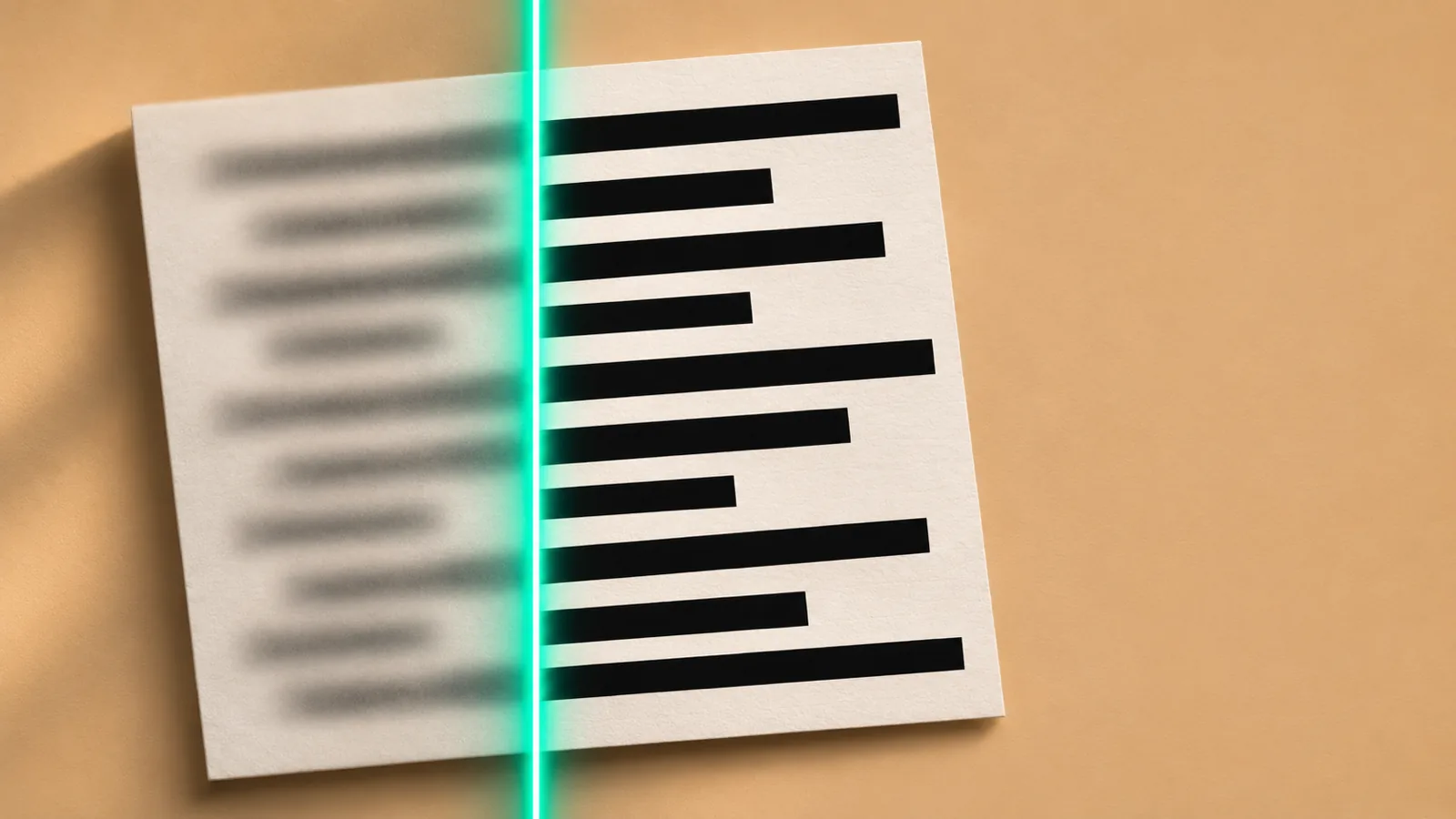
OCR (optical character recognition) is how apps read text from images: it turns the pixels of a photo, screenshot or scan into real text you can copy, search or hear. The app cleans up the image, finds the text, recognizes the words with a trained model, fixes likely errors and puts everything in reading order.
A photo or scan of a page is only pixels. OCR turns it into real characters you can copy, search, translate or have read aloud.
Apps do it in five stages: clean up the image, find the text, recognize the words, correct likely errors, then work out the reading order.
Modern OCR reads whole lines with neural networks instead of matching one letter at a time, so it copes far better with unusual fonts and imperfect photos.
Blur, shadows, tilted pages, low resolution, handwriting and multi-column layouts cause most OCR mistakes, and most are fixed before you take the photo.
You likely already have free OCR: Live Text on iPhone, iPad and Mac, Google Lens on Android, and Text actions in the Windows 11 Snipping Tool.
What is OCR? How apps read text from images, in short: OCR (optical character recognition) turns a picture of words into real text. When your phone copies a phone number from a photo, or a reader app speaks a page you just photographed, OCR found the lines, recognized each word and handed the app text it can use.
Below: the five steps every OCR engine follows, why it misreads words, the free OCR already on your devices, and how a photo of a page becomes something you can listen to.
What is OCR?
OCR is software that looks at an image and works out which characters are in it. The input is pixels: a photo, a screenshot, a scanned page or a paused video. The output is text you can select, copy, search, translate, edit or have read aloud.
That step matters more than it seems. A photo of a page and a typed page can look identical, but to a computer the photo contains no words at all. That's why Ctrl+F finds nothing in a scanned PDF and a read-aloud tool goes silent on it. OCR adds the missing words.
You probably use it more often than you realize:
- Copying a phone number or address from a photo
- Turning a scanned contract or book into a searchable PDF
- Translating a menu by pointing your camera at it
- Pulling totals from receipts and invoices in expense apps
- Listening to a printed page with a text-to-speech app
OCR, ICR and OMR: what's the difference?
You'll see a few related terms on product pages:
| Term | What it reads | Typical use |
|---|---|---|
| OCR (optical character recognition) | Printed or typed characters | Books, letters, screenshots, signs |
| ICR (intelligent character recognition) | Handwritten and hand-printed characters | Filled-in forms, notes |
| OMR (optical mark recognition) | Marks, such as filled bubbles and ticked boxes | Exam answer sheets, surveys, ballots |
In everyday apps, "OCR" and "text recognition" usually cover all of this.
How do apps read text from images? The 5 steps of OCR
Every OCR engine, from your phone's camera to a cloud service, does roughly the same five jobs in order.
1. Clean up the image
First the app makes the text easier to see. It straightens a tilted page, corrects perspective when the photo was taken at an angle, evens out shadows and boosts contrast. Many engines, Tesseract included, also convert the image to pure black and white (binarization) before reading it.
Input quality matters most here. The documentation for Tesseract, a free, open-source OCR engine, says it works best on images of at least 300 dpi. It also warns that dark scanner borders can be misread as extra characters and that skewed pages hurt line detection.
2. Find where the text is
Next comes text detection: drawing boxes around every area that contains text and ignoring photos, logos and background. A street sign might be one line; a newspaper page, dozens of blocks.
3. Recognize the characters and words
This is the "recognition" in OCR, and it's where the method has changed most.
- The older way: one character at a time. The engine cuts each line into individual characters and compares each shape with stored letter patterns. It works well on clean print in common fonts, and badly on anything else.
- The modern way: whole lines with a neural network. A model trained on huge numbers of text images reads a full line at once, using the surrounding letters as context. That's far more tolerant of unusual fonts, blur and angled photos.
Both still exist. Tesseract 4 added a neural network engine focused on line recognition and kept its legacy engine, which recognizes character patterns. Apple's Vision framework offers a fast path that finds individual characters (Apple compares it to traditional OCR) and an accurate path that finds whole lines with a neural network, which Apple says is much more in line with how humans read.
4. Correct likely mistakes
Raw recognition makes errors a person never would: "rn" read as "m", "0" as "O", "1" as "l". So most engines run a language-correction pass that checks results against a dictionary and the surrounding words, then swaps in the likelier reading.
Developers can tune this. Apple's Vision lets apps add custom words for medical or technical terms, and Tesseract lets you switch its dictionaries off for text that isn't ordinary words, such as part numbers. Engines also attach a confidence score to each result, so an app can flag words it isn't sure about.
5. Put everything in reading order
Finally the engine groups words into lines, lines into paragraphs and paragraphs into blocks, decides the order a person would read them in, and records where each piece sits in the image.
Here's how Google's ML Kit, a text recognition toolkit for Android and iOS apps, structures its results:
| Level | What it is | Example |
|---|---|---|
| Block | A group of lines, such as a paragraph or column | A whole paragraph |
| Line | Words along the same line | "Chapter One" |
| Element | A word (in most Latin-script languages) | "Chapter" |
| Symbol | A single character | "C" |
Each level comes with its text, a bounding box, a confidence score and the recognized language. Google Cloud Vision returns a similar page, block, paragraph and word hierarchy for dense documents.
Those positions are what let you tap a single word in a photo, and what keep an invisible text layer lined up behind a scanned page in a searchable PDF.
Why does OCR make mistakes?
OCR is very accurate on a sharp photo of a clean printed page. Most errors come from a handful of causes:
| Problem | What happens | Fix |
|---|---|---|
| Blur or camera shake | Letters merge or break apart | Hold steady, tap to focus, use good light |
| Shadows and glare | Parts of letters disappear | Face the page toward the light; skip the flash on glossy paper |
| Tilted or curved pages | Lines get split or merged | Shoot straight on; flatten book pages |
| Low resolution | Small print turns into guesses | Move closer, or scan at 300 dpi or more |
| Decorative fonts | Wrong characters | Expect to proofread |
| Handwriting | Far more errors than print | Use a handwriting-capable tool and check every line |
| Columns, tables, sidebars | Text from different parts of the page gets mixed | Crop to one column or section |
| Mixed languages | Words "corrected" into the wrong language | Set the document language if the app allows it |
The last two catch people out. A page can be recognized letter-perfectly and still come out wrong because the engine read across two columns as one line. And Apple's documentation notes that Vision biases its results toward English unless an app says which languages to expect.
Where can I use OCR for free?
You likely have good OCR built in already:
| Device | Tool | How to use it |
|---|---|---|
| iPhone and iPad | Live Text | In Photos, touch and hold a word, drag the grab points, then tap Copy (or Select All). In Camera, point at text and tap the Live Text button. Turn it on in Settings > General > Language & Region > Live Text (Apple's guide) |
| Mac | Live Text in Preview | Open the image, drag to select text, Control-click the selection and choose Copy Text. If you can't select it, choose Tools > Text Selection (Apple's guide) |
| Android | Google Lens | In the Google app, tap Google Lens, take or choose a photo, tap Select text, then choose Copy, Translate or Listen (Google's guide) |
| Windows 11 | Snipping Tool | Press Windows logo key + Shift + S, capture the area, then in the Snipping Tool select Text actions and Copy all text (Microsoft's guide) |
| Any computer | Tesseract | Free, open-source command-line engine for developers and batch jobs; recognizes more than 100 languages |
Worth knowing:
- Live Text on iPhone needs an iPhone XS, iPhone XR or later with iOS 15 or later; Live Text in paused video needs iOS 16. Apple lists supported languages and regions on its feature availability page.
- On-device processing: Microsoft says all of the Snipping Tool's text recognition runs on your device, and Apple says the same for its Vision framework.
- Scanned PDFs: our guide on how to listen to a scanned PDF covers free ways to add a text layer first.
How do I get the best OCR results from a photo?
Most bad OCR results are fixed before you press the shutter:
- Use even, bright light. Daylight from a window beats a ceiling light that casts your phone's shadow on the page.
- Shoot straight down. Hold the phone parallel to the page.
- Fill the frame with the text, leaving a small margin around the edges.
- Flatten the page. Press a book open near the spine, where the curve bends the lines.
- One page or column at a time. Smaller, simpler areas give a cleaner reading order.
- Check names and numbers. A dictionary can't catch a wrong digit in a date, price or account number.
A short history of OCR
OCR is older than computers, and it has been tied to reading aloud for most of its life:
| When | Milestone |
|---|---|
| 1920s | Emanuel Goldberg builds one of the first known OCR machines, which reads characters and converts them into telegraph code |
| 1976 | The Kurzweil Reading Machine combines a flatbed scanner, OCR and a speech synthesizer to read print aloud for blind people |
| 1985–1994 | Tesseract is developed at Hewlett-Packard Laboratories in Bristol, UK |
| 2005 | HP open-sources Tesseract; Google develops it from 2006 to 2017, and it's free under the Apache 2.0 license |
| iOS 15 | Apple adds Live Text, building OCR into the iPhone's Camera and Photos apps |
For the speech side of that story, see our short history of text to speech.
How OCR and text to speech work together
OCR is what lets a voice read paper. A text-to-speech voice can only speak characters, so any app that reads a photo aloud runs OCR first and sends the recognized text to the voice.
You can try the pairing for free. On Android, Google Lens has a Listen button for text it selects. On iPhone, turn on Speak Selection in Settings > Accessibility > Read & Speak (called Spoken Content on older iOS versions), select Live Text in a photo, then tap Speak.
Two things decide how good the audio sounds:
- OCR accuracy. Every recognition error becomes a speech error. Misread "m" as "rn" and "modern" becomes "rnodern", and the voice will say it.
- Reading order. If the engine reads across two columns, the voice reads nonsense. Crop multi-column pages before you listen.
The word positions from step 5 matter too: because the app knows where each word sits, it can highlight words as they're spoken. Our guide on how to read text from an image aloud walks through every device, and our roundup of the best scan-to-speech OCR apps compares dedicated readers.
Listen to photos of printed pages with Speechly
Speechly is a text-to-speech reader for iPhone, iPad, Android, Mac and Windows. Take a photo of a book page, handout, worksheet or letter, and Speechly reads it aloud with a natural voice.
- 25+ natural AI voices in eight languages, which you can preview on the voices page
- Word-by-word highlighting, and you can jump to any sentence and start there
- Speed from 0.5× to 2×, and your place is saved so you can pick up on any device
- Also reads PDFs, Word documents, EPUB books, web pages and pasted text
Speechly is free to download, and the free plan includes two text-to-speech files with premium voices, no card required. Premium is $14.99/month or $139/year for unlimited listening on every device.
Frequently asked questions
What does OCR stand for?
OCR stands for optical character recognition. Apps also call it text recognition, text detection or text extraction, and Apple calls its version Live Text.
Is OCR a form of AI?
Modern OCR is. Today's engines use neural networks trained on large numbers of text images to recognize whole lines and words. Older OCR compared each character with stored font templates, which is why it struggled with unusual fonts and photos.
Does OCR work on handwriting?
Sometimes. Neat, printed handwriting often works, and some services, such as Google Cloud Vision's document mode, include handwriting extraction. Joined-up or messy writing produces far more errors than print, so check the result against the page.
Is OCR done on my phone or in the cloud?
It depends on the app. Apple says all text recognition in its Vision framework, which iPhone, iPad and Mac apps use, happens on the device, and Microsoft says the same for the Snipping Tool. Web tools and cloud services usually upload the image to a server.
Can OCR read any language?
No engine reads every language. Tesseract recognizes more than 100 languages, Google's ML Kit reads Latin, Chinese, Devanagari, Japanese and Korean scripts, and Apple lists Live Text's languages on its feature availability page.
Can AI chatbots read text in images?
Many AI assistants that accept photos can read and summarize the text in them. Dedicated OCR is still the better choice when you need the exact wording, the position of every word, or a whole document processed the same way every time.
Why does my OCR text come out jumbled?
Usually because of the layout, not the letters. Columns, tables, captions and sidebars confuse the reading order, so lines from different parts of the page get merged. Crop to one column or photograph one section at a time.
Listen with Speechly
Natural AI voices on iPhone, iPad, Android, Mac and Windows, with word highlighting and your place saved on every device. Free to download.
Prices and features of other products were checked on November 18, 2026 and can change. Speechly is not affiliated with the other companies named here.
How to Read Text from an Image Aloud
How to read text from an image aloud for free on iPhone, Android, Windows and Mac: Live Text, Google Lens, Snipping Tool and Preview, step by step.
How to Listen to a Scanned PDF
Scanned PDF silent in Read Aloud? Here's how to listen to a scanned PDF: free OCR in Chrome, Google Drive or Adobe, then play it on any device.
Best Scan-to-Speech (OCR) Apps (2026)
The best scan to speech OCR apps in 2026 for books, mail and handouts: batch scanning, on-device OCR, voices, languages and prices, checked this month.