


How to Read Text from an Image Aloud
How to read text from an image aloud for free on iPhone, Android, Windows and Mac: Live Text, Google Lens, Snipping Tool and Preview, step by step.
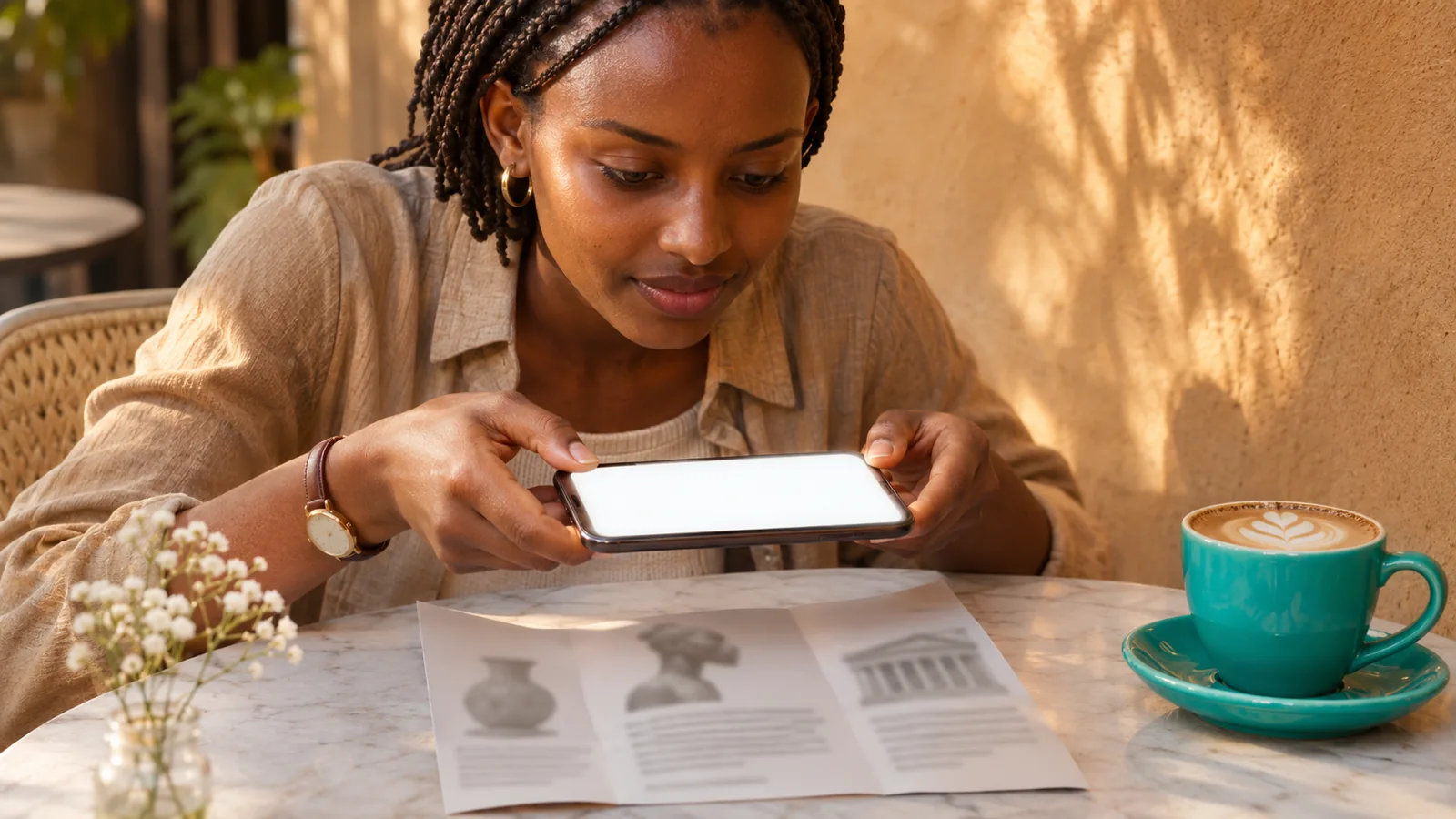
To read text from an image aloud, let your device's built-in text recognition find the words, then have them spoken. On iPhone, select Live Text in Photos and tap Speak. On Android, open the image in Google Lens, tap Select text, then Listen. On a computer, copy the text with Snipping Tool or Preview and play it.
An image is only pixels, so every method runs text recognition (OCR) first and then sends the words to a voice.
iPhone: turn on Speak Selection, then select Live Text in a photo and tap Speak. Apple Intelligence iPhones can also tap Read Aloud in visual intelligence.
Android: Google Lens has a Listen button for any text you select in a photo or screenshot.
Windows and Mac have no one-step option: copy the text with Snipping Tool's Text actions or Preview's Copy Text, then play it in a reader.
For whole pages of print, an app that reads photos of pages, like Speechly, saves the copy-and-paste step and keeps your place.
Here is how to read text from an image aloud: your phone or computer recognizes the words in the picture, then a voice speaks them. On iPhone, select the text in Photos with Live Text and tap Speak. On Android, open the image in Google Lens, tap Select text, then Listen. On Windows and Mac you copy the text out first, then play it.
Every method below is free and built in. For whole pages of print, such as a book chapter or a handout, the last section shows how to listen to photos of pages in Speechly instead.
Which method should you use?
Pick by device. All of these use OCR (optical character recognition), which turns the pixels of a photo into real text.
| Device | Built-in tool | Steps to hear it | Notes |
|---|---|---|---|
| iPhone, iPad | Live Text + Speak Selection | Select text in Photos, tap Speak | iPhone XS/XR or later, iOS 15+ |
| iPhone (Apple Intelligence) | Visual intelligence | Tap Read Aloud | iPhone 15 Pro and later |
| iPhone, real-world text | Magnifier Text Detection | Point the camera | Reads as it sees |
| Android | Google Lens | Select text > Listen | Works on photos and screenshots |
| Windows 11 | Snipping Tool Text actions | Copy, then play in Word or a reader | Recognition runs on your PC |
| Mac | Live Text in Preview | Copy Text, then Speak selection | macOS with Live Text |
How to read text from an image aloud on iPhone
Use Live Text and Speak Selection
This works on any photo, screenshot or saved image in the Photos app. Apple's Live Text guide says it needs an iPhone XS, iPhone XR or later.
- Go to Settings > Accessibility > Read & Speak (called Spoken Content on iOS 18 and earlier) and turn on Speak Selection.
- Check that Settings > General > Language & Region > Live Text is on.
- Open the image in Photos. Touch and hold a word until it's selected, then drag the grab points over the text you want. To grab everything, tap the Live Text button in the lower-right corner first, then tap Select All.
- Tap Speak in the menu. If you don't see it, tap the arrow at the end of the menu.
You can change the voice and speed in the same Read & Speak settings. Our guide to making your iPhone read text aloud covers every option.
Use visual intelligence (iPhone 15 Pro and later)
On iPhones with Apple Intelligence turned on, visual intelligence can read text aloud in one tap. Apple's iOS 26 guide lists two ways:
- Text in front of you: press and hold Camera Control (or use the Action button or Control Center on models without it), aim at the text, press again to analyze, then tap Read Aloud.
- Text on your screen: take a screenshot with the side button and volume up, then tap Read Aloud in the tools at the bottom.
Apple Intelligence isn't available in every language or region.
Point your camera with Magnifier
Magnifier's Text Detection reads printed text the rear camera sees, without taking a photo. It's useful for labels, signs and mail. Following Apple's Magnifier steps:
- Open Magnifier and tap the Detection Mode button.
- Touch and hold Detection Mode, then choose Text.
- Aim the rear camera at the text. If you hear nothing, turn off Silent mode.
Point & Speak in the same menu reads the text under your fingertip, which helps with appliance buttons and keypads. Apple warns not to rely on Detection Mode in high-risk or emergency situations.
How to read text from an image aloud on Android
Google Lens has a Listen button for any text it finds. The steps from Google's Lens help page:
- Open the Google app and tap the Google Lens icon in the search bar.
- Take a photo, or choose an image under Screenshots or your gallery.
- Tap the text, or drag the corners of the box over it, until Select text appears.
- Tap Select text, then Listen. Tap Stop to end.
Select to Speak can also read text through the camera. Google's help page says you can open the Google Camera app, point it at text, start Select to Speak with its shortcut (a two-finger swipe up, or the Accessibility button) and drag across the words. Turn on the shortcut first in Settings > Accessibility > Select to Speak.
How to read text from an image aloud on Windows
Windows 11 has no single "read this image" button, but two free steps get you there. Microsoft says the Snipping Tool's text recognition runs locally on your device.
- Open the image, press Windows logo key + Shift + S, and drag over the text.
- Open the snip in Snipping Tool and select Text actions.
- Select Copy all text, or select only the part you need and copy it.
- Paste it into Word and choose Review > Read Aloud (or press Ctrl+Alt+Space). Microsoft's guide says Read Aloud needs Microsoft 365, Office 2019 or Office 2021. Without them, paste into Word for the web and choose View > Immersive Reader, then Play.
How to read text from an image aloud on a Mac
Preview uses Live Text to copy words out of any picture, as Apple's Preview guide describes.
- Turn on Speak selection in System Settings > Accessibility > Read & Speak (Spoken Content on older macOS).
- Open the image in Preview. Drag across the text; if it won't select, choose Tools > Text Selection.
- Control-click the selection and choose Copy Text.
- Paste it into TextEdit or Notes, select it, and press Option-Esc to hear it.
How to listen to photos of printed pages with Speechly
The built-in tools are best for a label, a sign or a paragraph. For a full page, a worksheet, a letter or a stack of handouts, copying and pasting gets old fast.
Speechly is a text-to-speech reader for iPhone, iPad, Android, Mac and Windows. Take a photo of a book page, handout, worksheet or letter in the app and listen to it right away.
- Download Speechly on your iPhone or iPad or Android phone. You can start without an account.
- Take a photo of the printed page in the app.
- Pick one of 25+ natural AI voices in eight languages and press play.
- Follow the word-by-word highlighting, jump to any sentence to start there, and set the speed from 0.5× to 2×.
Already copied text from an image on a computer? Select it in any app and press ⌘E on a Mac or Alt+R on Windows, and a floating player reads it. Speechly also reads PDFs, Word documents, EPUB books and web pages, and saves your place across devices when you sign in. The free plan includes two text-to-speech files with premium voices; Premium is $14.99/month or $139/year.
Troubleshooting: why won't it read the text in my image?
Most failures come from the image, not the voice.
- No text gets selected. Live Text or Lens didn't find any. Zoom in, crop to the text, or retake the photo in brighter, even light.
- Words come out wrong. The image is blurry, tilted or too small. Hold the phone parallel to the page and fill the frame with the text.
- Lines are read out of order. Columns, tables and captions confuse the reading order. Crop to one column at a time.
- There's no Speak option on iPhone. Turn on Speak Selection in Read & Speak, then tap the arrow at the end of the text menu.
- No Listen button in Lens. Make sure you tapped Select text first; Listen only appears for selected text.
- The voice uses the wrong language. Pick a voice that matches the text, or turn on Detect Languages in Read & Speak on iPhone.
- It's a scanned PDF, not a photo. Add a text layer first with our steps for listening to a scanned PDF.
To understand why these errors happen, read what OCR is and how apps read text from images.
Frequently asked questions
Can my phone read text from a picture out loud?
Yes, for free. On iPhone, select the text in a photo with Live Text and tap Speak once Speak Selection is on. On Android, open the picture in Google Lens, tap Select text, then Listen.
Is there a free image-to-speech tool?
Yes. Live Text and Speak Selection on iPhone, Google Lens on Android, Snipping Tool on Windows 11 and Preview on a Mac are all free and built in. Web tools exist too, but they upload your image to a server.
Can I have text read aloud by pointing my camera at it?
Yes. On iPhone, Magnifier's Text Detection reads text the rear camera sees. On Android, open the camera in Google Lens, take a photo, select the text and tap Listen.
Why does the voice read the image text in the wrong order?
Text recognition guessed the reading order wrong, usually on columns, tables or captions. Crop the image to one column or one block of text and try again.
Can text to speech read handwriting in a photo?
Sometimes. Neat handwriting often works in Google Lens and Live Text, but joined-up writing produces many more errors. Check the text before you rely on it.
Does reading text from an image work in other languages?
Yes, within limits. Live Text, Google Lens and Magnifier each support a set list of languages, and the voice needs to match the language of the text.
Listen with Speechly
Natural AI voices on iPhone, iPad, Android, Mac and Windows, with word highlighting and your place saved on every device. Free to download.
Prices and features of other products were checked on November 18, 2026 and can change. Speechly is not affiliated with the other companies named here.
How to Listen to Screenshots
How to listen to screenshots for free: Read Aloud and Live Text on iPhone, Google Lens on Android, Snipping Tool on Windows and Preview on Mac.
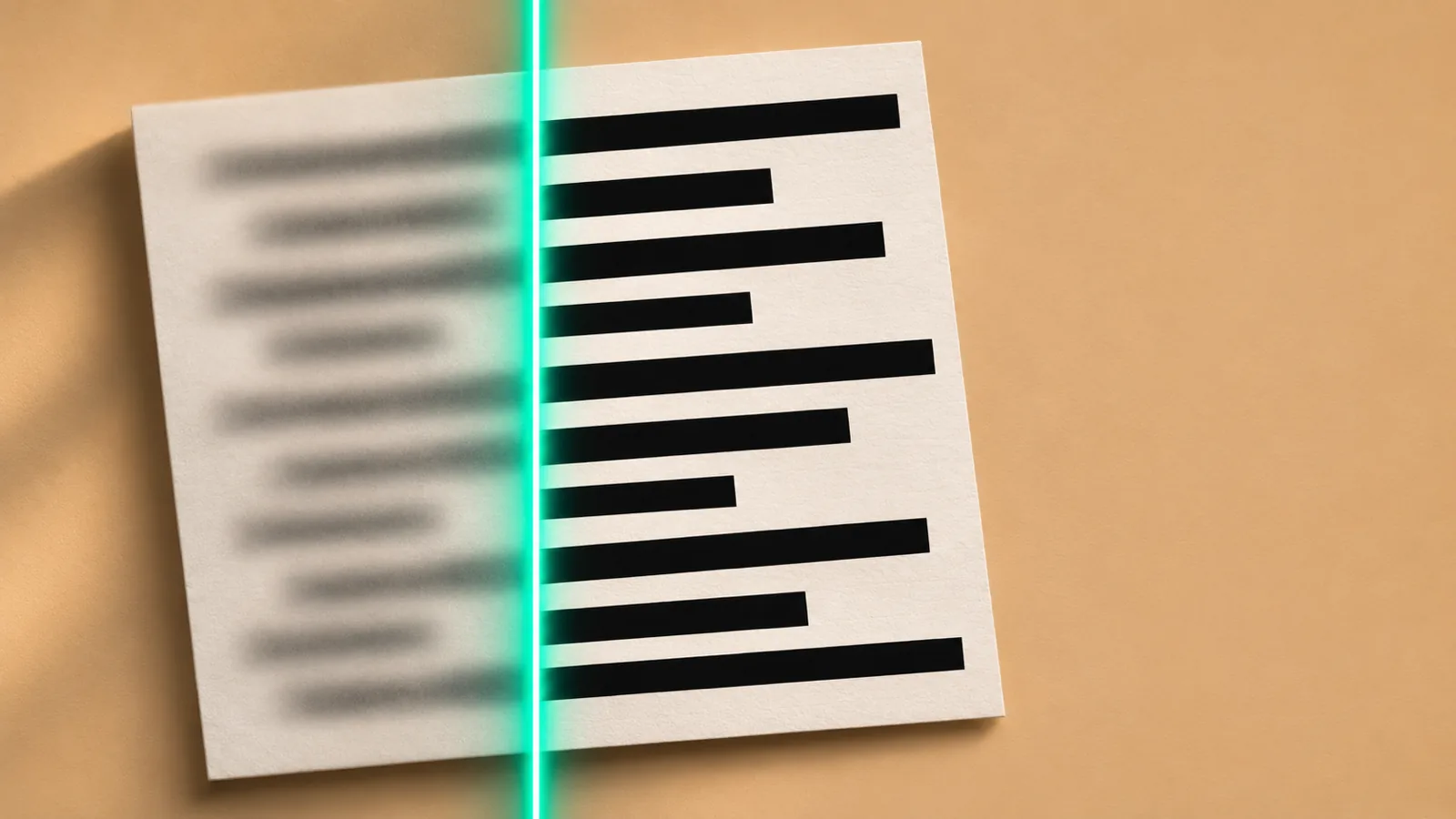
What Is OCR? How Apps Read Text from Images
What is OCR? How apps read text from images in 5 steps, why they misread words, and the free OCR already on your iPhone, Android, Mac or PC.
Best Apps That Read Text from Photos (2026)
The best apps that read text from photos aloud in 2026: free tools on iPhone and Android, accessibility apps, and AI readers for letters, menus and pages.