


Best Apps That Read Text from Photos (2026)
The best apps that read text from photos aloud in 2026: free tools on iPhone and Android, accessibility apps, and AI readers for letters, menus and pages.
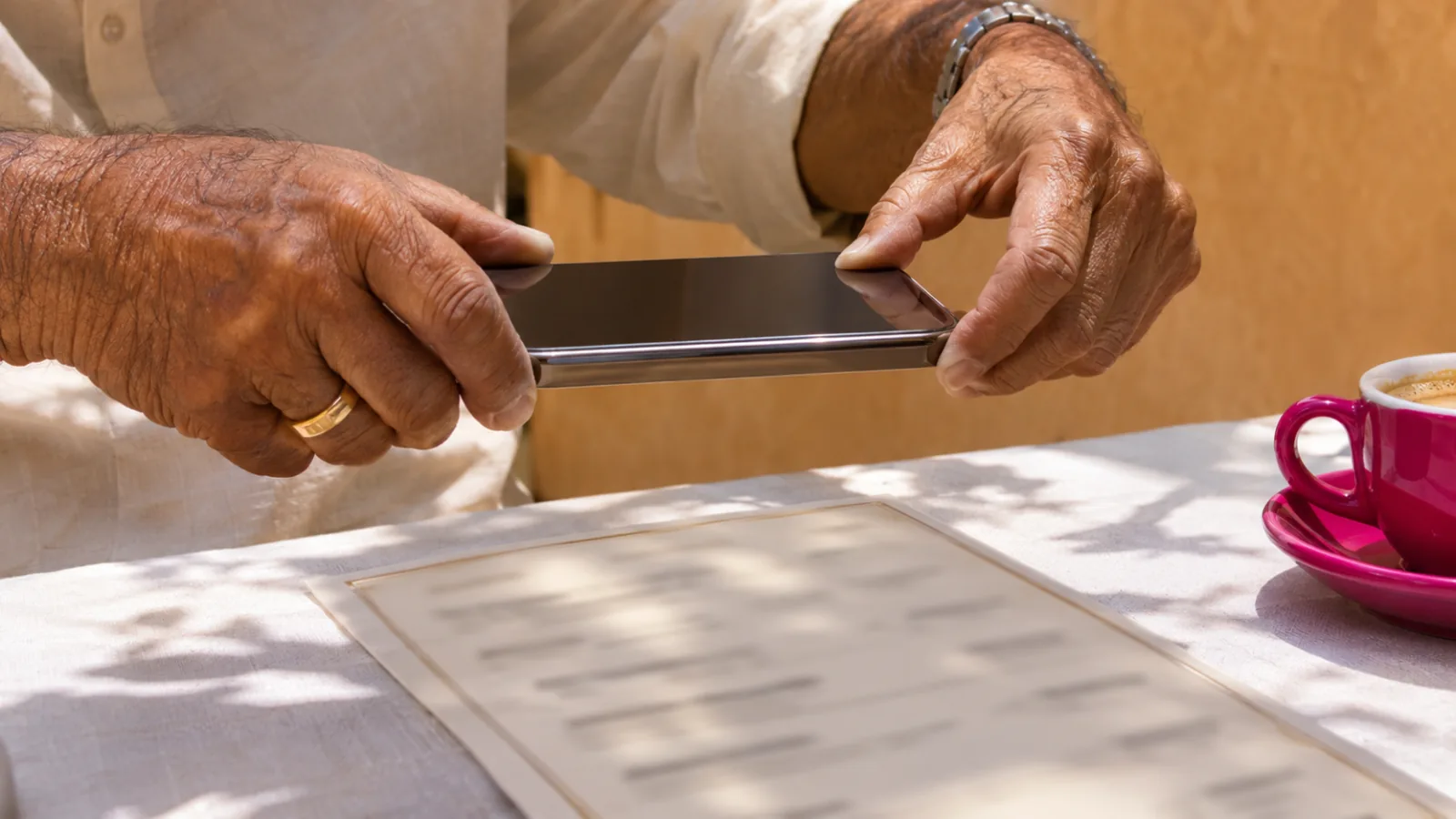
The best apps that read text from photos in 2026 are Google Lens on Android and Live Text with Speak Selection on iPhone, both free. Seeing AI, Envision and Lookout are free and built for blind and low-vision users. For full pages read in natural AI voices and saved to listen later, use Speechly.
Your phone already reads photos aloud for free: Google Lens has a Listen button on Android, and iPhone's Live Text works with Speak Selection.
Seeing AI (iPhone and Android), Envision (60+ languages) and Google's Lookout (Android) are free apps designed for people who are blind or have low vision.
Speechly and Speechify Premium turn a photo of a page into a document you can listen to with natural AI voices and come back to later.
Good light, a flat page and one column per photo fix most reading errors.
The best apps that read text from photos turn a snapshot of a letter, menu, label or book page into speech in seconds. We compared nine of them, from free tools already on your phone to accessibility apps and AI readers, and checked every feature and price on official pages on November 18, 2026.
Short version: try the free tool built into your phone first. Move to a dedicated app when you need it hands-free, in many languages, or for pages you want to listen to again later.
Quick picks
| Product | Best for | Platforms | Price |
|---|---|---|---|
| Speechly | Pages in natural AI voices, saved to your library | iPhone, iPad, Android, Mac, Windows | Free plan; $14.99/mo or $139/yr |
| Google Lens | Free on Android | Android (plus iPhone in the Google app) | Free |
| Apple Live Text and Magnifier | Free on iPhone | iPhone, iPad, Mac | Free |
| Seeing AI | Blind and low-vision users | iPhone, iPad, Android | Free |
| Envision | 60+ languages | iPhone, iPad, Android | Free |
| Lookout | Blind and low-vision users on Android | Android | Free |
| Speechify | Scanning into a Chrome-centric library | Phones, computers, web | Scan & Listen needs Premium |
| Be My Eyes | Questions about a document | iPhone, iPad, Android | Free |
| Snipping Tool and Preview | Images on a computer | Windows, Mac | Free |
How apps read text from photos
Every app here does two jobs. First, OCR (optical character recognition) finds the words in the image and turns them into real text. Then a text-to-speech voice reads that text aloud. The OCR decides whether the words are right; the voice decides whether listening is pleasant.
That's why the apps split into two groups:
- Point-and-hear tools (Lens, Live Text, Seeing AI, Envision, Lookout) are built for speed: read this sign, this label, this letter, now.
- Reader apps (Speechly, Speechify) turn the photo into a document with natural voices, highlighting and a saved place, which is better for a full page or a handout you'll come back to.
Our explainer on how OCR reads text from images covers what happens in between.
1. Speechly: best for listening to photographed pages in natural voices
Speechly is a text-to-speech reader for iPhone, iPad, Android, Mac and Windows. Take a photo of a book page, handout, worksheet or letter in Speechly and listen to it read aloud by one of 25+ natural AI voices, with each word highlighted as it's read.
Who it's for: students photographing textbook pages and handouts, people catching up on printed letters and forms, and anyone who wants a page read in a voice that's comfortable for more than a minute.
Standout features:
- Photo to document. The page becomes a document in your library, so you can replay it, jump to any sentence and pick up later on another device.
- Natural voices in English (American and British), Spanish, French, Italian, Brazilian Portuguese, Japanese, Mandarin Chinese and Hindi.
- Speed from 0.5× to 2×, and reading continues with the phone locked.
- Everything else in one place: PDFs, Word files, EPUBs, web pages and pasted text. On a Mac, select text in any app and press ⌘E; on Windows, press Alt+R.
Downsides: Speechly isn't built for blind navigation tasks like identifying products or currency; the accessibility apps below are. It needs an internet connection and has no offline listening, and the free plan includes only two text-to-speech files with premium voices.
Price: free to download, no card required. Premium is $14.99/month or $139/year for unlimited listening on every device, and both Premium plans start with a 3-day free trial.
2. Google Lens: best free option on Android
Google Lens, built into the Google app, finds the text in a photo and reads it aloud with its Listen button.
How to use it on Android:
- Open the Google app and tap Google Lens in the search bar.
- Take a photo, or pick one from your gallery or screenshots.
- Tap the text or drag the corners of the box over it, then tap Select text.
- Tap Listen. It changes to Stop while reading.
Who it's for: Android users who need a quick read of a sign, label or short letter.
Downsides: Google's help page documents Listen only for Android. There's no library or saved place, and long pages are better in a reader app.
Price: free.
3. Apple Live Text and Magnifier: best free option on iPhone
Every recent iPhone can read text in photos for free by combining two built-in features.
Read text in a saved photo:
- Go to Settings > Accessibility > Read & Speak and turn on Speak Selection.
- Open the photo in Photos, touch and hold a word, and drag the grab points over the text (or tap Select All).
- Tap Speak.
Read text through the camera: the Magnifier app's Text Detection recognizes text on signs, labels and screens in real time. Apple's Accessibility Reader is built into Magnifier and shows captured text in a clean view with playback controls. Point and Speak in Magnifier reads labels on things like appliance controls as you point at them with your finger.
Downsides: Live Text needs an iPhone XS, iPhone XR or later. Speak Selection reads in Apple's system voices, and there's no saved place for longer pages. On a Mac, Live Text works in Preview; see the computer section below.
Price: free. Our guide on how to read text from an image aloud walks through every device step by step.
4. Seeing AI: best free app for blind and low-vision users
Seeing AI is Microsoft's free app that narrates the world through your camera. Its Read tab speaks text as soon as it appears in front of the camera, and combines what used to be separate Short Text, Document and Handwriting channels.
Who it's for: people who are blind or have low vision and want one free app for text, products, currency, colors and scenes.
Standout features:
- Reads printed text, full documents and some handwriting.
- Reads photos from other apps: tap Share, then Recognize with Seeing AI.
- Describe gives a rich description of a photo; Products scans barcodes with audio beeps to guide you.
- Available in English and 18 other languages on iPhone; runs on iOS 15 or later and on Android.
Downsides: reading is utilitarian, with no library of documents to come back to. Asking questions about photos is English only.
Price: free.
5. Envision: best for reading text in many languages
The Envision app is a free OCR app for iPhone and Android that reads text in more than 60 languages, according to Envision.
Who it's for: blind and low-vision users who read in more than one language, and anyone who needs short and long text read quickly.
Standout features:
- Instant Text for reading text live through the camera.
- Scan Text for longer text, from food labels to book pages.
- Batch scan to capture several pages in one go.
- Ask Envision, added in version 3.3, lets you ask questions about text you've scanned.
Downsides: designed around accessibility first, so there's no document library or natural-voice reading experience for long listening sessions.
Price: free.
6. Lookout: best for blind and low-vision users on Android
Lookout is Google's free Android app for people who are blind or have low vision. It runs on Android 6.0 and up and supports 35 languages.
Standout features:
- Text mode reads any text you point the camera at, and tells you when it can't find any.
- Documents mode guides you as you move the phone over a full page; tap Take snapshot for a more accurate read.
- Images mode detects text and objects in a photo you capture, upload or share to it.
- Food labels, Currency and Find modes for everyday tasks.
Downsides: Android only, and no way to save a page to listen to again later.
Price: free from Google Play.
7. Speechify: best for scanning into a Chrome-centric library
Speechify has a Scan & Listen feature that reads photographed pages, and it keeps them in the same library as your web articles and documents across iPhone, Android, Mac, Windows, the web and its Chrome extension.
Who it's for: people who already use Speechify in Chrome and want printed pages in the same place.
Downsides: Scan & Listen is a Premium feature; the free plan has 10 basic voices and no scanning. Premium has a monthly word cap.
Price: Premium is $29/month or $139/year. See our Speechify alternatives for a full comparison.
8. Be My Eyes: best for asking questions about a document
Be My Eyes connects blind and low-vision users with sighted volunteers for free, and its Be My AI feature gives detailed descriptions of photos. Be My Eyes says it helps with menus, documents and tricky interfaces, so you can ask follow-up questions such as "What's the total on this bill?"
Who it's for: people who want to understand a document, not just hear it word for word.
Downsides: Be My AI describes and summarizes, so for an exact, word-for-word reading of a page, use a dedicated reading app.
Price: free.
9. Windows Snipping Tool and Mac Preview: best for images on a computer
Windows 11: press Windows logo key + Shift + S, capture the image area, then in the Snipping Tool select Text actions and Copy all text, per Microsoft's guide. Paste it into Word and use Review > Read Aloud, or select it in any app and press Alt+R with Speechly.
Mac: open the image in Preview, drag across the text to select it, then press Option-Esc once Speak selection is on in System Settings > Accessibility > Read & Speak. With Speechly installed, select the text and press ⌘E instead. If Preview won't select the text, choose Tools > Text Selection.
Downsides: more steps than a phone app, and no camera.
Price: free, built in.
Are these apps private?
It depends on where the recognition happens. Some apps read the text on your phone; others send the photo to a server.
- On the device: Voice Dream Scanner says its OCR works entirely on the device. Microsoft says the Windows Snipping Tool's text recognition runs on your PC.
- In the cloud: AI description features, such as Be My AI and Seeing AI's photo questions, may send the image to a server to answer.
- Check before you scan: for bank statements, medical letters or ID documents, read the app's privacy policy, or use an on-device tool.
Speechly processes your content securely and doesn't share it.
How we chose the best apps that read text from photos
- Recognition accuracy on printed pages, labels and photos taken at an angle.
- Speed to speech: how many taps from photo to hearing it.
- Voice quality for anything longer than a sentence.
- Accessibility: works with VoiceOver and TalkBack, gives camera guidance, reads without precise aiming.
- Languages, platforms and price, checked on official pages on November 18, 2026.
How to get the most accurate reading from a photo
Most misreadings are fixed before you take the picture:
- Use even light. Face the page toward a window; turn off the flash on glossy paper.
- Hold the phone parallel to the page and fill the frame with the text.
- Flatten book pages near the spine, where lines curve.
- One column at a time. Columns and tables get read across as one line.
- Check names, numbers and dates by eye when they matter.
For handwritten material, see our guide to listening to handwritten and printed notes.
How to choose the right app to read text from photos
- You need a sign, label or short letter read right now: Google Lens on Android, Live Text on iPhone.
- You're blind or have low vision: Seeing AI or Envision on either platform, Lookout on Android.
- You read in many languages: Envision.
- You want a page or handout read in a natural voice and saved for later: Speechly.
- You already use Speechify in Chrome: Speechify Premium's Scan & Listen.
- You want to ask questions about a document: Be My Eyes.
- You're scanning many pages or a whole book: see our picks for the best scan-to-speech OCR apps.
The bottom line
Start with the free tools on your phone for quick reads. When you want a photographed page read in a natural voice, saved and waiting on your phone and computer, download Speechly and try two files with premium voices for free.
Every pick at a glance
Listening to photographed pages in natural AI voices
Free plan (two files); Premium $14.99/month or $139/year
iPhone, iPad, Android, Mac, Windows
Free photo read-aloud on iPhone
Free, built in
iPhone, iPad, Mac
Blind and low-vision users on iPhone and Android
Free
iPhone, iPad, Android
Scanning pages into a Chrome-centric library
Free plan; Premium (needed for Scan & Listen) $29/month or $139/year
iPhone, iPad, Android, Mac, Windows, Web, Chrome, Edge
Asking questions about a photo of a document
Free
iPhone, iPad, Android
Frequently asked questions
Is there a free app that reads text from pictures out loud?
Yes. Google Lens on Android has a Listen button for text it finds in a photo, and on iPhone you can select Live Text in a photo and tap Speak once Speak Selection is on. Seeing AI, Envision and Lookout are also free.
Can my iPhone read text from a photo aloud?
Yes. Turn on Speak Selection in Settings > Accessibility > Read & Speak. Then open the photo, touch and hold a word, drag to select the text and tap Speak.
Can an app read handwriting from a photo?
Some can, with mixed results. Seeing AI's Read tab includes its former handwriting channel, but joined-up or messy writing produces far more errors than print, so check names and numbers against the page.
Which app reads text from photos without the internet?
Voice Dream Scanner, a $14.99 iPhone app, recognizes text entirely on the device and needs no internet. Most AI-voice apps, Speechly included, need a connection to play their voices.
Can these apps read a whole book from photos?
They can, a page at a time, but it's slow. For multi-page documents, choose an app with batch scanning; our list of the best scan-to-speech OCR apps compares them.
Why does the app read the text in the wrong order?
Usually the page has columns, captions or a table, and the app read across them as one line. Crop the photo to one column or section and try again.
Listen with Speechly
Natural AI voices on iPhone, iPad, Android, Mac and Windows, with word highlighting and your place saved on every device. Free to download.
Prices and features of other products were checked on November 18, 2026 and can change. Speechly is not affiliated with the other companies named here.
How to Read Text from an Image Aloud
How to read text from an image aloud for free on iPhone, Android, Windows and Mac: Live Text, Google Lens, Snipping Tool and Preview, step by step.
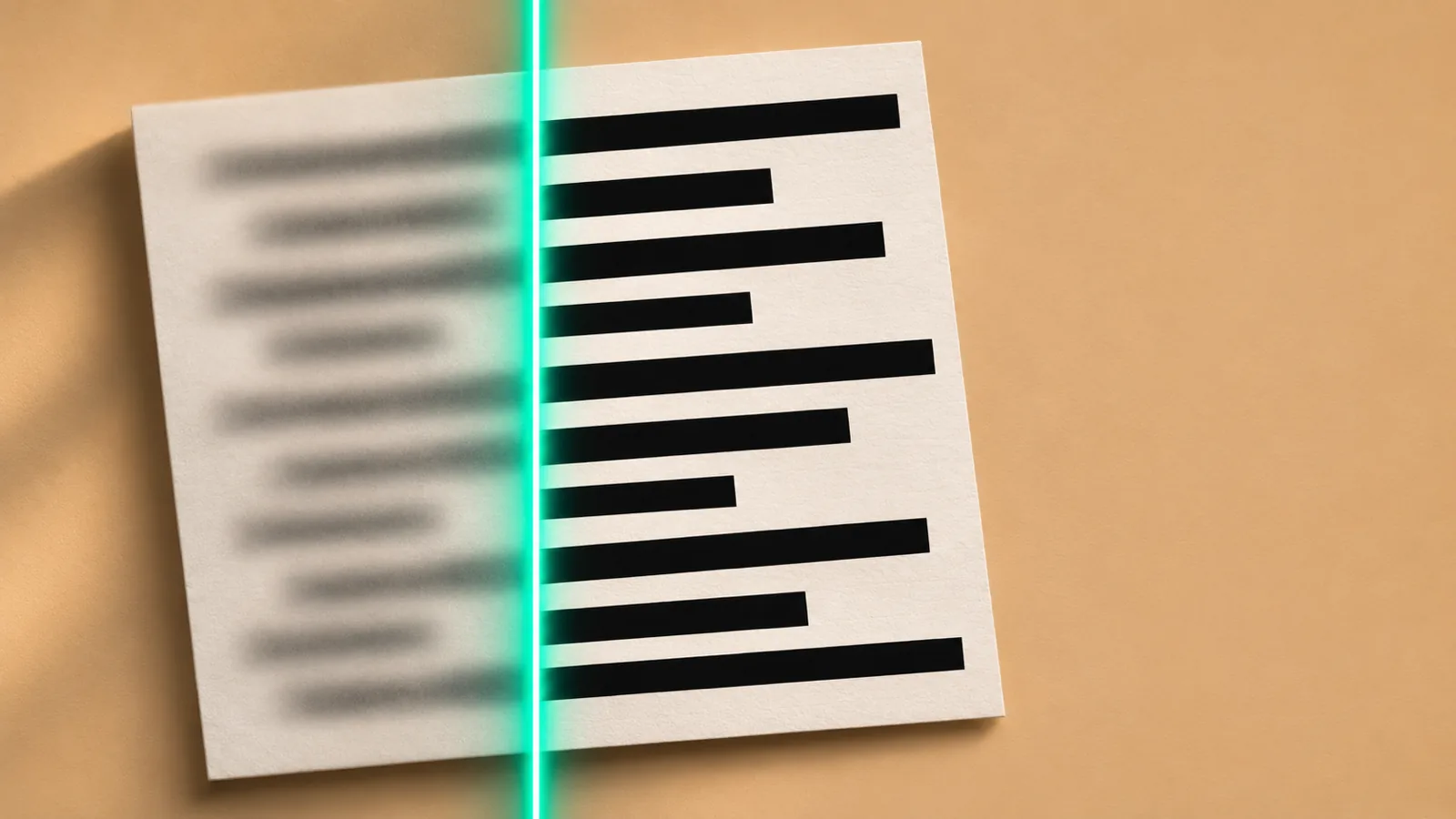
What Is OCR? How Apps Read Text from Images
What is OCR? How apps read text from images in 5 steps, why they misread words, and the free OCR already on your iPhone, Android, Mac or PC.
Best Scan-to-Speech (OCR) Apps (2026)
The best scan to speech OCR apps in 2026 for books, mail and handouts: batch scanning, on-device OCR, voices, languages and prices, checked this month.