


Best Apps to Read PDFs Aloud on iPhone (2026)
The best apps to read PDFs aloud on iPhone in 2026, free and paid: 8 picks compared on AI voices, scanned PDFs, skipped headers, offline use and price.
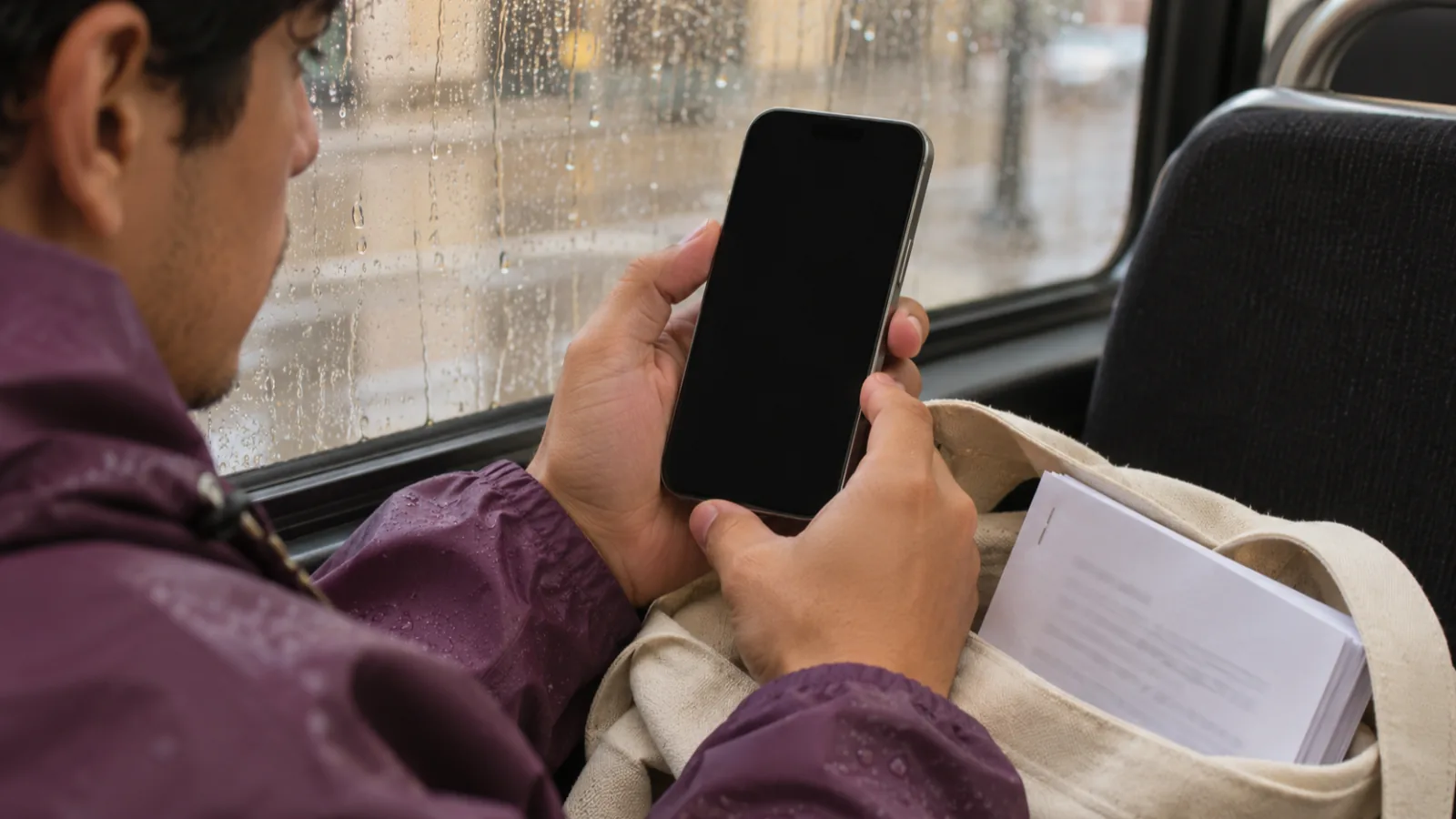
The best apps to read PDFs aloud on iPhone in 2026 are Speechly for long PDFs in natural voices that you also want on your computer and ElevenReader for free AI voices (10 hours a month). Voice Dream Reader is best for scanned PDFs and listening without internet. To pay nothing, use the iPhone's built-in Speak Screen.
The iPhone reads PDFs aloud for free with Speak Screen and Accessibility Reader, but it can't read scanned PDFs and doesn't save your place.
Repeating headers, footers and page numbers are the biggest annoyance in PDF audio; Speechly, Voice Dream Reader, Speech Central and ElevenReader Ultra can leave them out.
For scanned PDFs, pick an app that recognizes text in images: Voice Dream Reader, Speechify or Speech Central.
ElevenReader's free plan gives 10 hours of AI-voice audio a month, the most free AI listening of any app here.
Speech Central is the only pick with a one-time price: $9.99 for Pro, no subscription.
The best apps to read PDFs aloud on iPhone turn a 40-page report, a textbook chapter or a research paper into something you can listen to on a walk, without hearing the page number and running title on every page. We compared eight options, seven apps and the iPhone's own free tools, on what matters for PDFs specifically: voice quality, scanned pages, headers and footers, two-column layouts, offline use and price.
Every price, limit and iOS requirement below was checked on the maker's site, help pages or US App Store listing on November 18, 2026.
Quick picks
| App | Best for | Platforms | Price |
|---|---|---|---|
| Speechly | Long PDFs in natural voices, on iPhone and computer | iPhone, iPad, Android, Mac, Windows | Free plan; $14.99/mo or $139/yr |
| ElevenReader | Free AI voices | iPhone, iPad, Android, web, Chrome | Free (10 hrs/mo); $11/mo or $99/yr |
| Voice Dream Reader | Scanned PDFs, offline, VoiceOver | iPhone, iPad, Apple Watch, Vision Pro | $4.99/mo or $39.99–$79.99/yr |
| Speechify | Scanned pages, biggest voice library | iPhone, iPad, Android, Mac, Windows, web | Free plan; $29/mo or $139/yr |
| Adobe Acrobat Reader | Listening in the car with CarPlay | iPhone, iPad, Android, Windows, Mac | Free; Premium voices extra |
| Speech Central | Two-column PDFs, no subscription | iPhone, iPad, Apple Watch, Mac, Android, Windows | Free (daily limit); $9.99 once |
| NaturalReader | Turning a PDF into an MP3 | iPhone, iPad, Android, web, Chrome | Free plan; from $13.90/mo or $79/yr |
| Speak Screen / Accessibility Reader | Free, built into every iPhone | iPhone, iPad | Free |
Prices are in US dollars. In-app prices can differ by country, and sometimes from the website, so check the amount on screen before you subscribe.
Which PDF features does each iPhone app have?
This is the table to check before you download. Generic text-to-speech roundups skip it, but scanned pages and repeating headers are what make PDF listening pleasant or painful.
| App | Reads scanned PDFs | Skips headers and footers | Works offline | Minimum iOS |
|---|---|---|---|---|
| Speechly | Photos of printed pages | Yes | No | iOS 17 (A12 chip or newer) |
| ElevenReader | Not stated | Ultra plan only | Downloads (Ultra: 150 hrs/mo) | iOS 18 |
| Voice Dream Reader | Yes (Latin-alphabet languages) | Yes, automatically | Yes, all voices | iOS 15.1 |
| Speechify | Yes (OCR) | Not stated | Yes, once in your library | iOS 18 |
| Adobe Acrobat Reader | Not stated | Not stated | Not stated | iOS 18.3 |
| Speech Central | Yes, including two-column | Optional cleanup | Apple voices | iOS 17 |
| NaturalReader | Paid plans (OCR) | Not stated | MP3 downloads, paid | iOS 16.4 |
| Speak Screen / Accessibility Reader | No | No | Yes | Built in (Accessibility Reader: iOS 26) |
"Not stated" means the maker's official pages don't say either way as of November 2026. Test those features with your own file before paying.
1. Speechly: best for long PDFs in natural voices
Speechly is a text-to-speech reader for iPhone and iPad that also runs on Android, Mac and Windows. You import a PDF, pick a voice and press play, and it reads the whole document with each word highlighted.
Who it's for: students, professionals and anyone who listens to long PDFs often, especially if you also read on a Mac or Windows PC.
Standout features for PDFs:
- Skips repeating headers and footers on iPhone and iPad, so you don't hear the journal name or page title on every page.
- 25+ natural AI voices in eight languages: English (American and British), Spanish, French, Italian, Brazilian Portuguese, Japanese, Mandarin Chinese and Hindi. Preview any voice before you choose and switch anytime.
- Word-by-word highlighting, and you can jump to any sentence and start there, which helps when a layout is messy.
- Keeps reading with the phone locked, at 0.5× to 2× speed, and saves your place automatically.
- Picks up on your computer. One account and one subscription cover every device. On Mac, select text in any app and press ⌘E; on Windows, press Alt+R.
- Reads paper too: take a photo of a book page, handout or letter and listen to it. It also reads Word files, EPUB books, web pages and pasted text, and estimates how long each document will take.
Downsides: no offline listening, no audio export, and no web app or browser extension. Its 2× top speed is slower than Speechify's 5× or ElevenReader's 4×. The free plan is small: two text-to-speech files with premium voices. It needs iOS 17 or later and an A12 chip or newer (iPhone XR/XS and later).
Price: free to download, no card required, and you can start without an account. Speechly Premium is $14.99/month or $139/year for unlimited listening on every device. See how it handles PDFs on iPhone, Android, Mac and Windows.
2. ElevenReader: best free AI voices for PDFs
ElevenReader, from the AI voice company ElevenLabs, gives you the most free AI-voice listening of any app here: 10 hours of text-to-audio a month at $0.
Who it's for: people who want natural, expressive voices for PDFs without paying, or who want to try AI narration before committing.
Standout features:
- Imports PDFs, documents, EPUB files and article links, per its App Store listing.
- 1,000+ voices in 30+ languages, with speed from 0.25× to 4×.
- Progress syncs between the iPhone app and the web, and the sleep timer and bookmarks are free.
- On Ultra, "smart file imports" skip headers, footers and filler text, and you can download up to 150 hours of audio a month for offline listening.
Downsides: the header-and-footer cleanup that makes PDFs pleasant is Ultra-only, and free hours expire each month. Ultra's unlimited listening is capped at 24 hours of generated audio per day. There's no Mac or Windows app, and the iPhone app requires iOS 18 or later. ElevenReader doesn't say it reads scanned PDFs.
Price: free with 10 hours a month. Ultra is $11/month or $99/year (about $8.25/month), with a 3-day free trial. The US App Store also sells a Plus plan ($10/month or $96/year) and 10-hour packs for $5, which the pricing page doesn't list, so compare before you buy.
3. Voice Dream Reader: best for scanned PDFs, offline listening and VoiceOver
Voice Dream Reader is the most PDF-aware app on this list. Its App Store listing says it recognizes text in scanned PDFs, automatically skips text in PDF headers and footers, and plays every voice offline, in the background, with the screen locked.
Who it's for: blind and low-vision readers, people with dyslexia, frequent flyers and anyone with an older iPhone.
Standout features:
- Reads PDF, EPUB (DRM-free), Word, PowerPoint and other formats, with Bookshare built in.
- 36 built-in iOS voices in 27 languages are included, plus 200+ optional premium voices in 30 languages from Acapela, NeoSpeech and Ivona.
- Recognizes text in scans on the device, without internet, though only for languages that use the Latin alphabet.
- Highlights each spoken word, and is optimized for VoiceOver, Braille and Switch Control.
- Runs on iOS 15.1 or later, the oldest requirement of any app here.
Downsides: Apple devices only, and you need a subscription to use the app at all. Its premium voices come from older speech engines than the newest AI voices, and the App Store lists individual premium voices as $4.99 purchases on top of the subscription.
Price: a free trial for new users, then $4.99/month or yearly plans at $39.99, $59.99 or $79.99 on the US App Store. Check which plan you're offered before you subscribe.
4. Speechify: best for scanned pages and the biggest voice library
Speechify runs on iPhone, iPad, Android, Mac, Windows and the web, with Chrome and Edge extensions. For PDFs, its main strength is OCR: its PDF reader page says it detects text inside scanned PDFs and photographed pages, and you can import PDFs from Files, iCloud or your camera roll.
Who it's for: people who want the widest choice of voices and languages, fast listening, and extra AI tools on the same subscription.
Standout features (Premium, per Speechify's pricing page):
- 400+ voices in 60+ languages, and speeds up to 5×.
- Scan & Listen for printed pages, plus Google Drive, Dropbox and OneDrive integrations.
- Offline listening in the iPhone app once a document is in your library, per its PDF reader page.
- Word-for-word highlighting synced with the voice, per its App Store listing.
- AI summaries and chat, AI podcasts and voice typing.
Downsides: the free plan's 10 voices are ones Speechify itself calls "robotic sounding," capped at 1.5×. Premium has a word allowance: Speechify's usage-limits page gives 1,000,000 Premium-voice words a month in 2026 but guarantees only 150,000 a month after 2026. The iPhone app requires iOS 18 or later. If price is the sticking point, compare these Speechify alternatives.
Price: free plan; Premium is $29/month or $139/year on Speechify's website. The App Store shows different in-app amounts (Premium at $139.99, for example), so check the price on screen.
5. Adobe Acrobat Reader: best for listening in the car
Acrobat Reader is the PDF app many people already have, and on iPhone it now reads PDFs aloud. Its App Store listing says you can listen with free voices, or with higher-quality voices on Acrobat Premium.
Who it's for: anyone whose PDFs already live in Acrobat, and commuters who want PDFs on the car's screen.
Standout features:
- Apple CarPlay playback, added in version 26.09 in October 2026, with playback controls on the car's dashboard.
- Jump between chapters, sections and headings while you listen, added in version 26.10 at the end of October 2026.
Downsides: the free voices are the offline system kind. In 2026, Premium subscribers on Adobe's community forum reported Read Aloud falling back to robotic offline voices; an Adobe community manager said this happens when the connection to the online voice service is unstable. Adobe doesn't say it skips headers or reads scanned PDFs aloud. It requires iOS 18.3 or later.
Price: free. Acrobat Premium is an in-app subscription with a 7-day free trial; the US App Store lists several Premium options from $12.99 to $14.99 a month or $48.99 to $69.99 a year.
6. Speech Central: best for two-column PDFs and no subscription
Speech Central is the pick if you read academic papers or hate subscriptions. Its App Store listing says it reads PDFs "including scanned PDFs with two-column layout," and one $9.99 upgrade unlocks unlimited use.
Who it's for: researchers, students and listeners who want a one-time price.
Standout features:
- Optional cleanup removes distractions such as headers and footnotes before you listen.
- Apple's voices work offline, and you can add third-party offline neural voices such as Piper.
- CarPlay support and an independent Apple Watch app that plays without your iPhone nearby.
- Exports text to audio files, and syncs your reading position across iPhone, iPad and Mac.
Downsides: out of the box it uses Apple's voices. For cloud AI voices you connect your own API key from OpenAI-compatible services, Microsoft Azure, Google Cloud or xAI, and pay that provider. It has many settings and takes time to learn. It needs iOS 17 or later.
Price: free with a daily article limit; Pro is a one-time $9.99. The listing says it's free for blind VoiceOver users and for schools deploying it through Apple School Manager.
7. NaturalReader: best for turning a PDF into an MP3
NaturalReader is best known for its web app, but its iPhone app reads PDFs and cloud files from Google Drive, Dropbox and OneDrive, and its paid plans save audio as MP3.
Who it's for: students and office workers who listen at a desk and on the phone, and anyone who wants a PDF as an audio file.
Standout features:
- 200+ AI voices in 90+ languages, with word and sentence highlighting, per its App Store listing.
- An OCR camera scanner for printed pages.
- Every paid plan includes OCR for scanned files and MP3 conversion of up to 1 million characters a month, per its plans page.
Downsides: on the free plan you can't make MP3s, and OCR for scanned files is listed only on paid plans. Free listening is unlimited only with basic voices; the better Lite voices stop at 20,000 characters a day and Plus voices at 4,000, per NaturalReader's limits page. The plan names take some reading to understand. It needs iOS 16.4 or later.
Price: free plan; Lite $13.90/month or $79/year, Plus $20.90/month or $119/year, Pro $25.90/month or $159/year. The US App Store also lists a Premium plan at $9.99/month or $59.99/year, so check the plan and price on screen.
8. Speak Screen and Accessibility Reader: best free option on every iPhone
Your iPhone can read a PDF aloud with no app at all. The settings are in Settings > Accessibility > Read & Speak (called Spoken Content in older versions of iOS), per Apple's iPhone User Guide.
Speak Screen reads everything on the screen from the top:
- Turn on Speak Screen in Read & Speak.
- Open the PDF in Files or Books. To keep it in Books, open the PDF, tap Share, then tap Books.
- Swipe down with two fingers from the top of the screen, or say "Speak screen" to Siri.
The controller lets you pause, change the speaking rate, skip forward or back, and use Speak on Touch to start from the text you tap.
Speak Selection is better for one paragraph: turn it on in the same Read & Speak menu, select text in the PDF, then tap Speak in the menu that appears.
Accessibility Reader (iOS 26 and later) shows the text as a clean, full-screen page and reads it aloud without the app's buttons. Apple's guide doesn't mention PDFs specifically, so try it with your file. Turn it on in Read & Speak > Accessibility Reader, then open it with the Accessibility Shortcut (triple-click the side button), from Control Center, or on iOS 27 from the Share button. It has play, skip, a speed button and a slider to jump. On iOS 27, iPhone 15 Pro and later models with Apple Intelligence also get Summarize and Translate, per Apple's guide.
Downsides: Apple's voices sound less natural than AI voices, there's no library or saved place, and scanned PDFs are silent because there's no real text to read. Speak Screen also reads page numbers and running headers. Our step-by-step guide shows how to make your iPhone read a PDF aloud, including fixes when it stops at a page turn.
Price: free.
Why do some PDFs sound wrong on iPhone?
Most bad PDF audio comes from the file, not the app. Knowing the three common problems tells you which features to look for.
- Scanned pages. A scan is a photo of text, so a reader needs OCR (optical character recognition) to find the words. Test your file: if you can't select a single word, it's scanned. Our guide covers how to listen to a scanned PDF.
- Headers, footers and page numbers. Most readers speak the running title on every page. Speechly, Voice Dream Reader, Speech Central and ElevenReader Ultra can leave them out.
- Two columns and footnotes. Text is read in the order it's stored in the file, which can jump between columns. Speech Central says it handles two-column scans; with other apps, tapping a sentence to start there helps.
How we chose the best apps to read PDFs aloud on iPhone
We judged each app on what decides whether you'll keep listening to PDFs past the first week:
- It opens PDFs itself from Files, iCloud or other apps, not just pasted text.
- Voice quality: natural AI voices, or at least the best voices iOS offers, with a preview before you choose.
- PDF handling: OCR for scans, skipping headers and footers, and dealing with columns.
- Long-listening features: saved place, word highlighting, speed range and playback with the screen locked.
- iPhone fit: minimum iOS version, offline playback, CarPlay and VoiceOver support.
- Honest pricing: what the free plan really includes and what a year costs, checked on official pages and the US App Store on November 18, 2026.
We left out small App Store apps whose voices, limits or prices we couldn't verify on official pages. PDF Expert lists text to speech on iPhone, but Readdle's help pages don't say whether it needs a paid plan, so it isn't ranked here.
How to choose the right app to read PDFs aloud on your iPhone
Start with what your PDFs look like and how often you listen.
- A page or two now and then: use Speak Screen or Accessibility Reader. They're free and already on your iPhone.
- Long PDFs every day, and you also use a Mac or PC: choose Speechly, so your library and place follow you, and the running headers stay quiet.
- You want AI voices for free: start with ElevenReader's 10 hours a month.
- Your PDFs are scans: Voice Dream Reader, Speechify or Speech Central.
- Research papers with two columns: try Speech Central first.
- No internet on a plane or commute: Voice Dream Reader works fully offline.
- You listen in the car: Acrobat Reader and Speech Central both support CarPlay.
- You want an MP3 file: NaturalReader's paid plans or Speech Central's audio export.
- You hate subscriptions: Speech Central Pro is $9.99 once.
- Your iPhone is stuck on iOS 15 or 16: Voice Dream Reader (iOS 15.1) and NaturalReader (iOS 16.4) still install.
The fastest way to decide: open the same PDF in your top two choices and listen to the first page. You'll hear the difference in voice and reading order in a minute. For apps beyond PDFs, see our roundup of the best PDF readers that read aloud on every device.
The bottom line
For a quick listen, your iPhone's Speak Screen is free and already there. For long PDFs in natural voices, with headers skipped, words highlighted and your place saved on every device, get Speechly for iPhone and listen to two files with premium voices for free.
Every pick at a glance
Long PDFs in natural voices on iPhone and computer
Free plan (two files with premium voices); Premium $14.99/month or $139/year
iPhone, iPad, Android, Mac, Windows
Free AI voices for PDFs
Free (10 hours/month); Ultra $11/month or $99/year
iPhone, iPad, Android, Web, Chrome
Scanned PDFs, offline listening and VoiceOver
Free trial, then $4.99/month or $39.99–$79.99/year
iPhone, iPad, Apple Watch, Apple Vision Pro
Scanned pages and the biggest voice library
Free plan; Premium $29/month or $139/year
iPhone, iPad, Android, Mac, Windows, Web, Chrome, Edge
Listening in the car with CarPlay
Free; higher-quality voices with Acrobat Premium
iPhone, iPad, Android, Windows, Mac
Two-column PDFs and no subscription
Free with a daily article limit; Pro $9.99 one-time
iPhone, iPad, Apple Watch, Mac, Android, Windows
Turning a PDF into an MP3
Free plan; Lite $13.90/month or $79/year; Plus $20.90/month or $119/year; Pro $25.90/month or $159/year
iPhone, iPad, Android, Web, Chrome
Frequently asked questions
Can my iPhone read a PDF aloud without an app?
Yes. Turn on Speak Screen in Settings > Accessibility > Read & Speak, open the PDF in Files or Books, and swipe down from the top of the screen with two fingers. It's free, but it reads page numbers and headers too, and it can't read scanned pages.
What is the best free app to read PDFs aloud on iPhone?
ElevenReader, whose free plan includes 10 hours of AI-voice audio a month. For unlimited free listening in Apple's own voices, use Speak Screen or Accessibility Reader, which are already on your iPhone.
Can Siri read a PDF to me?
Yes, once Speak Screen is turned on. Open the PDF and say "Speak screen" to Siri, and your iPhone reads the visible page from the top.
Which iPhone app can read a scanned PDF aloud?
Voice Dream Reader, Speechify and Speech Central all say they recognize text in scanned PDFs. Apple's built-in tools read nothing on a scan, because the page is a picture of text rather than real text.
Can an iPhone app keep reading a PDF with the screen locked?
Yes. Speechly keeps reading with the screen off, and Voice Dream Reader's App Store listing says its voices play in the background with the screen locked. Built-in Speak Screen is meant for the screen in front of you.
Which app reads PDFs aloud on iPhone without internet?
Voice Dream Reader, whose App Store listing says all its voices work offline. Speech Central plays Apple's voices offline, Speechify says its app plays documents offline once they're in your library, and ElevenReader Ultra lets you download audio. Speechly isn't one of them.
Can Apple Books read a PDF aloud?
Books has no read-aloud button for PDFs. Save the PDF to Books, open it, and use Speak Screen (a two-finger swipe down from the top) or Accessibility Reader to hear it.
Listen on your iPhone and iPad
PDFs, documents, web pages and photos of text, read aloud in natural AI voices with word highlighting, even with the screen off.
Prices and features of other products were checked on November 18, 2026 and can change. Speechly is not affiliated with the other companies named here.

How to Make Your iPhone Read a PDF Aloud
How to make your iPhone read a PDF aloud for free on iOS 26 and 27: Speak Screen, Siri and Accessibility Reader steps, plus a fix for scanned PDFs.
Best PDF Readers That Read Aloud (2026)
The best PDF readers that read aloud in 2026, free and paid, for Windows, Mac, iPhone and Android: real free-plan limits, scanned PDFs and exact prices.
How to Listen to a Scanned PDF
Scanned PDF silent in Read Aloud? Here's how to listen to a scanned PDF: free OCR in Chrome, Google Drive or Adobe, then play it on any device.