


How to Make a Chromebook Read PDFs Aloud
How to make a Chromebook read PDFs aloud for free: Select-to-speak, ChromeVox, text extraction for scans, and the Read Aloud extension, step by step.

To make a Chromebook read PDFs aloud, turn on Select-to-speak in Settings > Accessibility, open the PDF in Chrome PDF Viewer, highlight the text and press Search + S. For scanned PDFs, turn on ChromeVox and use Extract text from PDF. For a whole PDF in one go, add the free Read Aloud extension.
Open PDFs in Chrome PDF Viewer: in Files, right-click the PDF and choose Open with > Chrome PDF Viewer.
Select-to-speak reads any part of a text PDF: highlight it and press Search + S, or hold Search and drag over it.
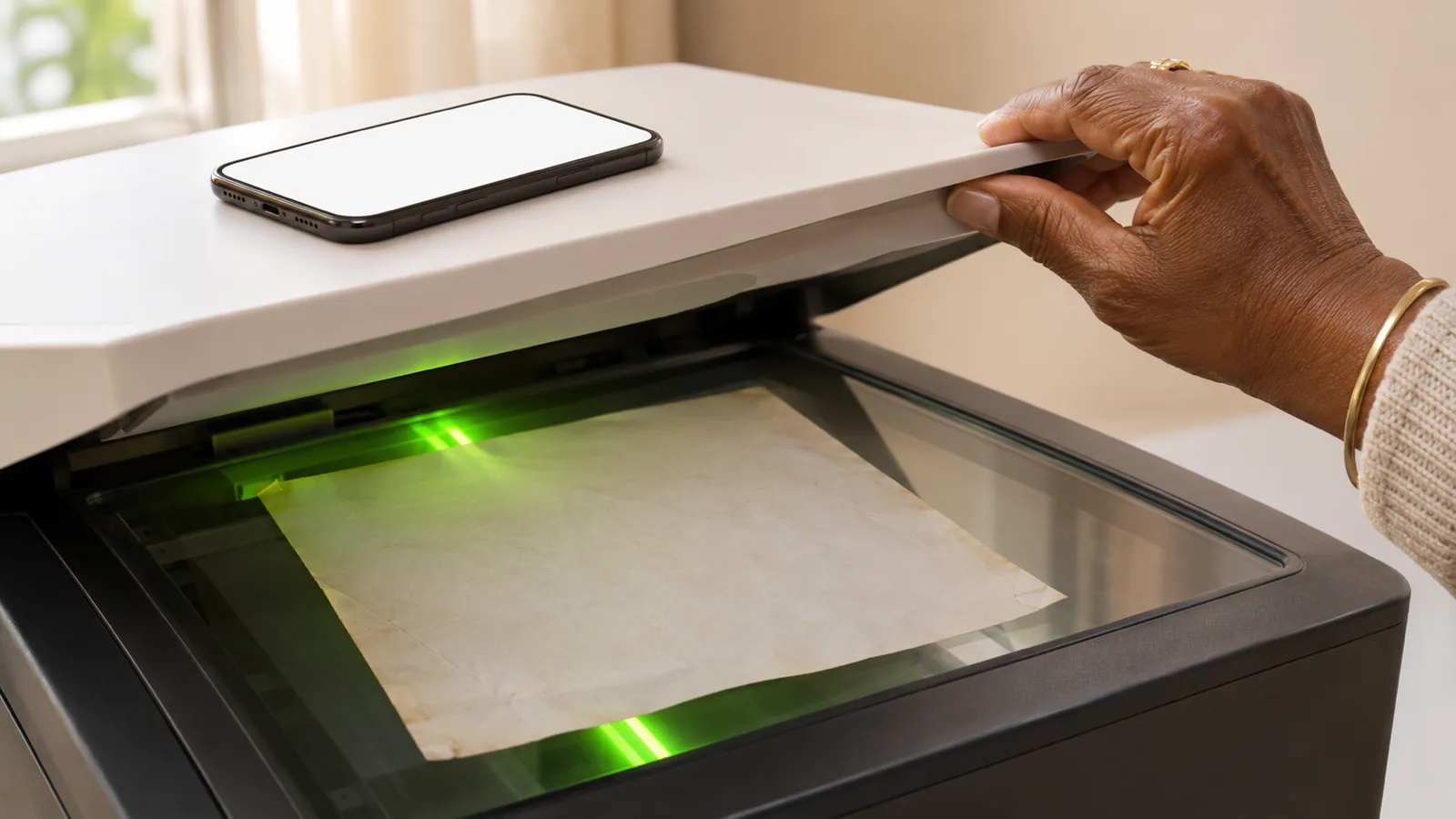
Scanned PDFs are pictures of text; ChromeOS can extract the text for ChromeVox, or Google Docs can convert PDFs up to 2 MB.
The free Read Aloud extension reads whole PDFs in Chrome, which is easier than selecting page by page.
To keep listening on your phone with the screen off, or on a Mac or Windows PC, a reader app such as Speechly reads the whole PDF and keeps your place.
Here's how to make a Chromebook read PDFs aloud for free: turn on Select-to-speak, open the PDF in Chrome PDF Viewer, highlight the text and press Search + S. Your Chromebook reads it aloud and highlights each word. That works for any PDF with real text, which covers most downloads and class handouts.
Scanned PDFs are different: each page is a photo, so there's no text to read until ChromeOS extracts it. Below are the steps for both kinds of PDF, plus a free extension that reads a whole file in one go. Every step was checked against Google's Chromebook Help in November 2026.
Which method should you use?
Start by checking whether your PDF has real text: try to highlight a sentence. If it highlights, it's a text PDF. If you can only draw a box around the whole page, it's scanned.
| Method | Text PDFs | Scanned PDFs | Reads the whole file? | Cost |
|---|---|---|---|---|
| Select-to-speak | Yes | No | No, the part you select | Free, built in |
| ChromeVox + Extract text from PDF | Yes | Yes | Yes, from where you are | Free, built in |
| Google Docs conversion | Yes | Yes, up to 2 MB | With Select-to-speak, section by section | Free |
| Read Aloud extension | Yes | No | Yes | Free; some cloud voices paid |
| Speechly (phone, Mac or PC) | Yes | Printed pages, via a photo | Yes, and keeps your place | Free plan; paid Premium |
How to make a Chromebook read PDFs aloud with Select-to-speak
Select-to-speak is the fastest way to hear a page, a paragraph or a few lines.
1. Turn on Select-to-speak
- Select the time at the bottom right, or press Alt + Shift + S.
- Select Settings > Accessibility.
- Under Text-to-Speech, turn on Select-to-speak.
2. Open the PDF in Chrome PDF Viewer
PDFs open in the Gallery app by default. To open one in Chrome instead:
- Open the Files app and find the PDF.
- Right-click it and select Open with > Chrome PDF Viewer (Google's PDF help).
PDFs you open from a website or Google Drive in Chrome are already in Chrome's viewer.
3. Have it read the text
- Highlight the text you want to hear.
- Press Search + S. On newer keyboards, use the Launcher key instead of Search.
- Or press and hold Search and drag the pointer over the text.
- Press Ctrl to stop.
While it reads, the navigation controls let you pause, change the speed and skip lines (Select-to-speak help). Our full guide to using Select-to-speak on a Chromebook covers highlight colors and natural voices.
The catch: Select-to-speak reads only what you select. For a 40-page PDF, you scroll, select and start again page by page.
How to make a Chromebook read a scanned PDF
ChromeOS can recognize the text in a scanned PDF and read it with ChromeVox, the built-in screen reader. It works only in Chrome PDF Viewer, and it's on by default when ChromeVox is on.
- Press Ctrl + Alt + Z to turn on ChromeVox.
- In Files, right-click the PDF and select Open with > Chrome PDF Viewer.
- Press Search + Down arrow. If the first page has no readable text, ChromeVox tells you to press Search + M.
- Press Search + M to open the context menu and select Extract text from PDF.
- A message at the top left tells you whether text was extracted.
- Press Search + Down arrow or Search + Right arrow to move through the text, or Search + R to read from where you are.
- Press Ctrl to stop speech, and Ctrl + Alt + Z to turn ChromeVox off.
ChromeVox reads a disclaimer at the start and end of extracted text. If the option is missing, check that Extract text from PDF is on in Settings > Accessibility under Text-to-Speech (Google's PDF help; ChromeVox help).
ChromeVox changes how your whole Chromebook works while it's on, so turn it off when you're done. If that's too much, use the next method.
Convert a scanned PDF with Google Docs
Google Drive can turn a scanned PDF into editable text, which Select-to-speak can then read.
- Upload the PDF to Google Drive.
- Right-click it and select Open with > Google Docs.
- Highlight the text in the new Doc and press Search + S.
Google says the file must be 2 MB or smaller, and clear, upright pages with common fonts work best. Tables, columns and footnotes often don't convert cleanly (Google Drive help). For more ways to handle scans, see how to listen to a scanned PDF.
How to have a Chromebook read a whole PDF with the Read Aloud extension
For hands-free listening to a full text PDF, a free extension saves you from selecting page by page.
- In Chrome, open the Read Aloud extension in the Chrome Web Store and select Add to Chrome.
- Open your PDF in Chrome.
- Select the Read Aloud icon in the toolbar, or press Alt + P.
Its listing says it reads PDFs, Google Docs and web pages, using your Chromebook's voices; some cloud AI voices need an in-app purchase or your own API key. If it won't read a PDF saved on your Chromebook, go to chrome://extensions, select Details under Read Aloud, and turn on Allow access to file URLs. It can't read scanned PDFs without converting them first.
Chrome's Reading mode is great for articles, but Google's help pages describe it for web pages and don't list PDFs, so it's not a reliable option here.
How to keep listening to PDFs on your phone or computer
The built-in tools don't remember where you stopped. If you want to start a long PDF and keep going on a walk or the bus, a reader app on your phone is easier.
Speechly is a text-to-speech reader app for iPhone, iPad, Android, Mac and Windows. Speechly doesn't run on Chromebooks: there's no Chromebook app, web app or browser extension. On your other devices it:
- Reads PDFs, Word documents, EPUB eBooks and web links with 25+ natural AI voices, highlighting each word.
- Reads printed pages from a photo, which helps with handouts and worksheets.
- Can skip repeating headers and footers on iPhone and iPad, so they aren't read on every page.
- Saves your place across devices and keeps reading with the screen locked, at 0.5× to 2× speed.
The free plan includes two files with premium voices; Premium is $14.99/month or $139/year. For every Chromebook option side by side, see the best text-to-speech apps for Chromebook.
Troubleshooting: Chromebook won't read a PDF
Most failures come from a scanned file or the wrong viewer.
- Nothing highlights or nothing is read. The PDF is probably scanned. Use Extract text from PDF or the Google Docs conversion.
- Extract text from PDF isn't offered. Open the file with Chrome PDF Viewer, not Gallery, and make sure ChromeVox is on.
- "No text extracted." The scan may be too blurry or skewed. Rescan it upright in good light.
- It reads page numbers, headers and footnotes. Select-to-speak reads exactly what you select, so leave them out of your selection.
- Words come out in the wrong order. Two-column PDFs often confuse readers. Select one column at a time.
- The voice sounds robotic. Add natural voices in Settings > Accessibility > Text-to-speech voice settings.
Frequently asked questions
Can a Chromebook read a PDF out loud for free?
Yes. Select-to-speak and ChromeVox are built into every Chromebook, and the Read Aloud extension is free to install. All three can read PDFs that contain real text.
Why won't my Chromebook read my PDF?
The PDF is probably scanned, so its pages are images with no text to read. Use Extract text from PDF with ChromeVox, or open the file with Google Docs from Google Drive to convert it to text.
Does Chrome's Reading mode read PDFs?
Google's Reading mode help covers web pages and doesn't list PDFs, so don't count on it. Use Select-to-speak or an extension for PDFs instead.
What app opens PDFs on a Chromebook?
PDFs open in the Gallery app by default. To use text extraction for scanned PDFs, open them with Chrome PDF Viewer instead: right-click the file in Files and choose Open with.
How do I make a Chromebook read a PDF faster?
Use the speed control in Select-to-speak's navigation controls, or set the rate under Speech Properties in Settings > Accessibility > Text-to-speech voice settings.
Can I listen to a PDF on my Chromebook and finish on my phone?
Not with the built-in tools, which don't save your place. A reader app that syncs across devices does; Speechly runs on iPhone, iPad, Android, Mac and Windows but not on Chromebooks.
Listen with Speechly
Natural AI voices on iPhone, iPad, Android, Mac and Windows, with word highlighting and your place saved on every device. Free to download.
Prices and features of other products were checked on November 18, 2026 and can change. Speechly is not affiliated with the other companies named here.

How to Use Select-to-Speak on a Chromebook
How to use Select-to-speak on a Chromebook: turn it on, read text with Search + S, change the voice and speed, add natural voices and fix common problems.
How to Listen to a Scanned PDF
Scanned PDF silent in Read Aloud? Here's how to listen to a scanned PDF: free OCR in Chrome, Google Drive or Adobe, then play it on any device.
Best Text-to-Speech Apps for Chromebook (2026)
The best text to speech apps for Chromebook in 2026: free built-in tools, extensions for Docs and PDFs, and AI voices, with prices and exact steps.