


How to Listen to Documents You Sent to Kindle
How to listen to documents you sent to Kindle when Assistive Reader won't read them: free phone screen reading, the original file, or a reader app.
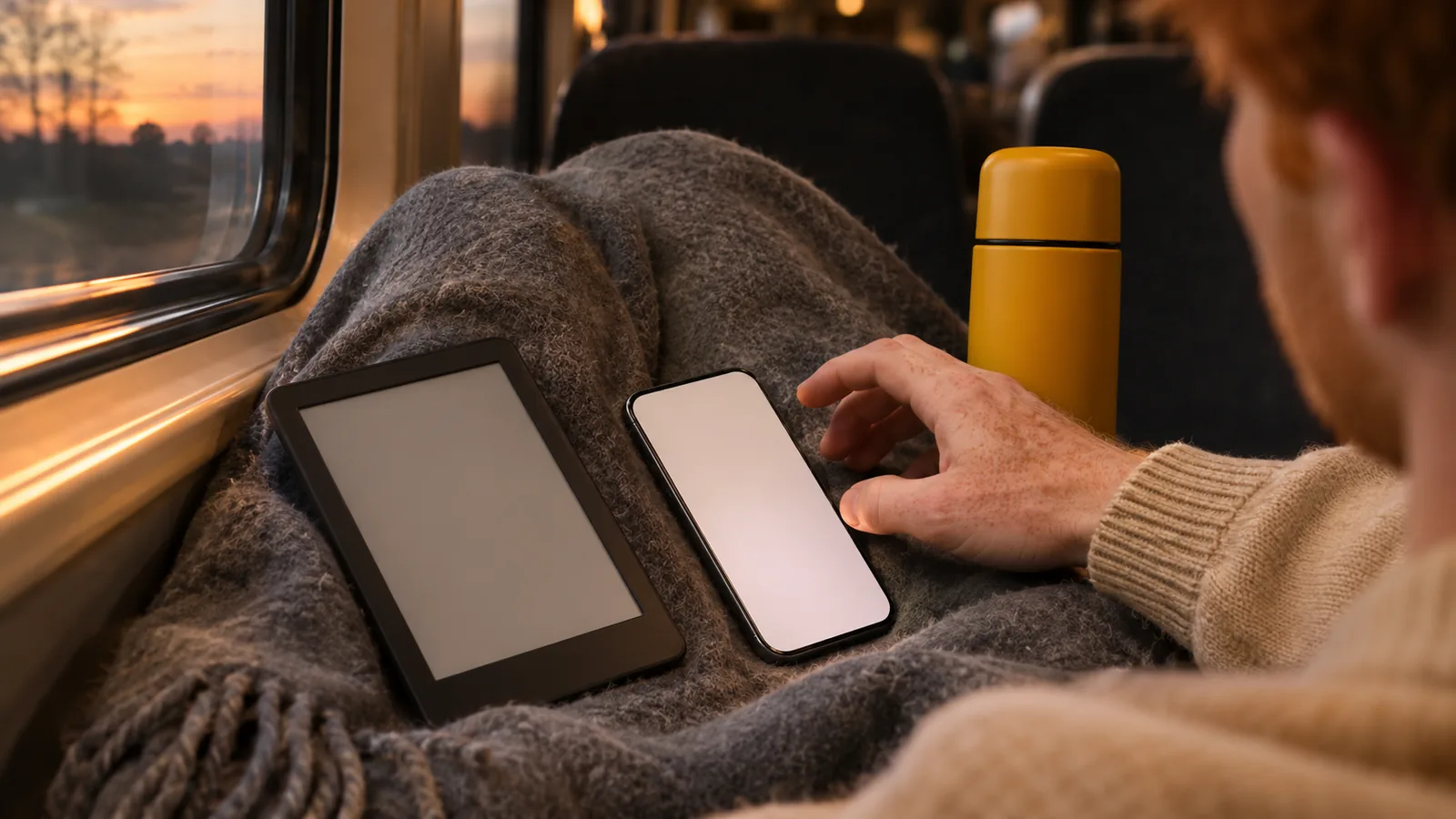
Kindle's Assistive Reader usually won't read documents you sent to Kindle, because Amazon only lists store books as eligible. To listen to documents you sent to Kindle, open them in the Kindle app and use Speak Screen on iPhone or Select to Speak on Android, or play the original file in a text-to-speech app.
Assistive Reader is built for Kindle Store books with Enhanced Typesetting. Send to Kindle documents aren't on Amazon's eligible list, so the option is often missing or grayed out.
The free fix is your phone's own screen reading: Speak Screen on iPhone and iPad, Select to Speak on Android, in the Kindle app.
The cleanest fix is the original file. The PDF, EPUB or Word document you sent still exists in your email, downloads or cloud storage.
Kindle e-readers can't use Assistive Reader on personal documents; the VoiceView screen reader is the only built-in option there.
Word's own Send to Kindle button was retired in early 2026, but Amazon still accepts .doc and .docx files through its Send to Kindle site.
Here's how to listen to documents you sent to Kindle: open the document in the Kindle app and use your phone's screen reading, or play the original PDF, EPUB or Word file in a read-aloud app. Kindle's own Assistive Reader is built for Kindle Store books and usually won't appear in personal documents. Steps for each method, checked in November 2026, are below.
Can Kindle read documents you sent to it?
Not with Assistive Reader, in most cases. Amazon's eligible list covers books bought from the Kindle Store, books borrowed through Kindle+ (formerly Kindle Unlimited), Prime Reading or another official partner, and Family Library books. Personal documents aren't on it. Our explainer Does Kindle have text to speech? covers the full rules.
| Method | Works on Send to Kindle documents? | Cost |
|---|---|---|
| Assistive Reader (Kindle app or e-reader) | Usually not; the option is missing or grayed out | Free |
| Speak Screen in the Kindle app (iPhone, iPad) | Yes, on text-based documents | Free |
| Select to Speak in the Kindle app (Android) | Yes, one screen at a time | Free |
| VoiceView on a Kindle e-reader | Depends on the file; try it | Free, needs Bluetooth audio |
| The original file in a read-aloud app | Yes | Free tools or a reader app |
If you do see Assistive Reader in a document, use it: open the document, tap the top center of the screen, tap Aa, then More, and switch on Assistive Reader.
What happens to a file when you send it to Kindle?
Amazon's Send to Kindle help lists PDF, EPUB, TXT, RTF, HTML and common image files, sent by email, from the Kindle app, from the Send to Kindle web page or desktop apps, or with the Chrome extension for web articles. Documents land in your Kindle library on every device on your account when Add to your library is turned on.
Two things matter for listening:
- Formats like EPUB and text reflow like a book. Screen readers handle them well.
- PDFs usually keep their page layout. On a phone that means small pages and frequent page turns, which makes screen reading choppy.
Word files are still accepted too. Microsoft retired the Send to Kindle button inside Word starting February 9, 2026, and its help page points people to Amazon's Send to Kindle site for .doc and .docx files.
How to listen to documents you sent to Kindle on iPhone or iPad
Speak Screen reads whatever is on the screen, including a document open in the Kindle app.
- Go to Settings > Accessibility > Read & Speak (Spoken Content on iOS 18 and earlier) and turn on Speak Screen.
- Open the Kindle app, go to your Library and filter it to show your documents.
- Open the document and go to the page where you want to start.
- Swipe down from the very top of the screen with two fingers, or say "Speak screen" to Siri.
- Use the speech controller to pause, skip, or change the Speaking Rate.
If reading stops at the end of a page, turn the page and start Speak Screen again. To make the voice sound less robotic, download an Enhanced or Premium voice under Read & Speak > Voices. More detail in how to make your iPhone read text aloud.
How to listen on Android or a Fire tablet
- Go to Settings > Accessibility > Select to Speak and turn on the Select to Speak shortcut (Google's guide).
- Open the document in the Kindle app.
- Start Select to Speak with the accessibility button or a two-finger swipe up, then tap Play to hear the page.
- Turn the page and repeat.
On a Fire tablet, Fire OS has its own text-to-speech settings and the VoiceView screen reader; see how to use text to speech on a Kindle Fire tablet.
How to listen on a Kindle e-reader
Kindle e-readers have no speaker, so pair Bluetooth headphones or a speaker first. Assistive Reader won't help with most personal documents, which leaves VoiceView, Kindle's screen reader for blind and low-vision readers. With your headphones in pairing mode, press the power button three times within two seconds on 11th-generation and newer Kindles (Amazon). Amazon describes it for Kindle books and other Kindle content, and support for a given personal document isn't guaranteed. VoiceView also speaks menus and changes how gestures work, so it's heavier than a play button. Our guide to making Kindle read aloud on the app, Fire and e-reader covers pairing and both features.
The better route: play the original file
The document you sent to Kindle is a copy. The original is still where you sent it from, and it's easier to listen to there.
- Email attachments: open the email you sent to your Kindle address and save the attachment.
- Files from your computer: look in Downloads, Documents or your cloud storage.
- Web articles sent with the Chrome extension: open the original page and use a browser read-aloud tool.
Then play it with a free tool: Read Aloud in Word, Read Out Loud in Acrobat Reader, or Read aloud in Microsoft Edge (Ctrl+Shift+U), which handles PDFs and web pages. For EPUBs, see how to listen to an EPUB book.
How to listen to documents you sent to Kindle with Speechly
Speechly is a text-to-speech reader app for iPhone, iPad, Android, Mac and Windows. It plays the original files that Kindle won't read aloud, in 25+ natural AI voices. It does not read DRM-protected Kindle books, but your own documents aren't locked.
- Open the original PDF, Word document, DRM-free EPUB or TXT file in Speechly's PDF and document reader, or paste the link of an article you sent.
- Choose a voice and press play. Each word is highlighted as it's read.
- Set the speed from 0.5× to 2×, and tap any sentence to jump there.
Speechly keeps reading with your phone locked and saves your place, so you can start on your iPhone and pick up on Android, Mac or Windows with the same account. On iPhone and iPad it can skip repeating PDF headers and footers. The free plan includes two files with premium voices; Premium is $14.99/month or $139/year.
Troubleshooting
- Assistive Reader is grayed out or missing. That's expected for personal documents. Use screen reading or the original file.
- Speak Screen reads the Kindle app's menus. Tap the page once to hide the menus before you swipe down.
- Nothing is read on a PDF page. The PDF is probably a scan. Run text recognition on the original first; see how to listen to a scanned PDF.
- Reading jumps between columns or footnotes. That's the PDF layout. Send an EPUB or Word version instead, or use a reader that follows the text.
- The document isn't in your library. Check that your sending email address is on your approved list and that Add to your library is turned on in your Send to Kindle settings.
Frequently asked questions
Does Kindle text to speech work on personal documents?
Usually not. Amazon lists Kindle Store books, Kindle+ and Prime Reading loans, and Family Library books as eligible for Assistive Reader. Personal documents aren't on that list, so use your device's screen reading or play the original file in another app.
Can a Kindle read a PDF out loud?
Not with Assistive Reader. Open the PDF in the Kindle app and use Speak Screen on iPhone or Select to Speak on Android, or open the original PDF in a reader app that plays the whole file.
Where do my Send to Kindle documents go?
Into your Kindle library on every device and app linked to your Amazon account, when adding to your library is turned on. They sit with your books, and you can filter the library to show only documents.
Can I still send Word documents to Kindle?
Yes, through Amazon's Send to Kindle site, email, or the Send to Kindle apps. Microsoft removed the Send to Kindle option from inside Word starting February 9, 2026, but Microsoft's help page still points Word users to Amazon's site.
Can Alexa read documents I sent to Kindle?
Alexa reads eligible Kindle books, and the same eligibility rules apply, so personal documents generally aren't supported. Play them on your phone instead.
Can I listen to a Send to Kindle document in Speechly?
Yes, if you use the original file. Speechly opens PDFs, Word documents, DRM-free EPUBs and text files, and reads web pages from a link. It does not read DRM-protected Kindle books.
Listen with Speechly
Natural AI voices on iPhone, iPad, Android, Mac and Windows, with word highlighting and your place saved on every device. Free to download.
Prices and features of other products were checked on November 18, 2026 and can change. Speechly is not affiliated with the other companies named here.
Does Kindle Have Text to Speech? What Works Today
Does Kindle have text to speech? What works today: free Assistive Reader in Kindle apps and newer Kindles, which books qualify, and fixes if it's missing.

How to Make Kindle Read Aloud (App, Fire and E-Reader)
How to make Kindle read aloud: app, Fire and e-reader steps for free Assistive Reader, which books work, and fixes when the option is missing.

How to Listen to an EPUB Book
How to listen to an EPUB book free on iPhone, Android, Mac and Windows: exact read-aloud steps, natural AI voices and fixes for EPUBs that won't play.