


How to Listen to Legal Documents and Contracts
How to listen to legal documents and contracts in Word, Acrobat, Edge or on your phone, plus the clauses to listen for and what text to speech misreads.
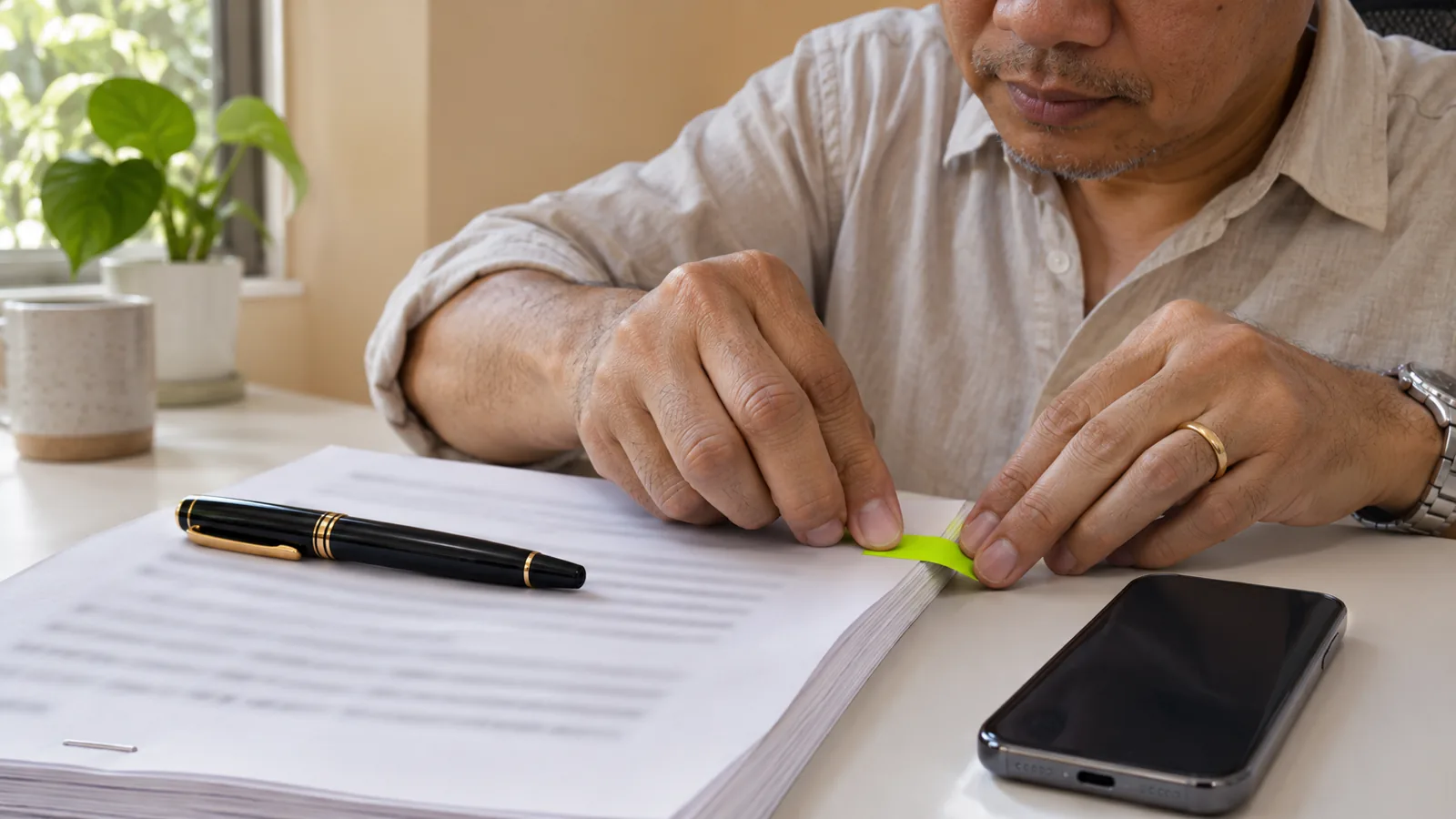
To listen to legal documents and contracts, open the file in Word, Acrobat Reader or Microsoft Edge and use Read Aloud or Read Out Loud while you follow along on screen. Listen once at normal speed, then replay the key clauses. Listening helps you notice terms, but it doesn't replace reading closely or getting legal advice.
Free tools already read contracts aloud: Read Aloud in Word (Ctrl+Alt+Space), Read Out Loud in Acrobat Reader (Shift+Ctrl+Y), and Read aloud in Edge (Ctrl+Shift+U).
Follow the text on screen while you listen; numbers, section symbols and defined terms are easy to mishear.
Do a full pass at 1×, then replay the clauses that cost you money or limit your options: renewal, fees, termination, liability and disputes.
Scanned contracts need text recognition first, and NDAs or work rules may limit which apps you can put a document into.
Text to speech is a reading aid, not legal advice. For contracts that matter, talk to a lawyer or legal aid service.
Here's how to listen to legal documents and contracts: open the file in Word, Acrobat Reader or Microsoft Edge, start Read Aloud (or Read Out Loud in Acrobat), and follow the text on screen as it plays. Listen once at normal speed, then replay the clauses that affect your money or your options before you sign.
Hearing a lease, job offer or service agreement read to you makes it harder to skim past the parts that matter. It isn't a substitute for reading closely or for legal advice, and this guide isn't legal advice either. For a natural voice on every device, there's also a Speechly section at the end.
Step 1: Get a copy with real text
Read-aloud tools need text they can select, not a picture of a page.
- Email attachments: save the PDF or Word file first.
- E-signature requests: in DocuSign, use the download icon in the signing view to save the PDF before you sign, as DocuSign's help explains. Other e-signature services usually offer a similar download.
- Scanned contracts: if you can't select a single word, the PDF is a scan. Add a text layer first with the free methods in how to listen to a scanned PDF.
- Paper only: photograph each page in an app that reads photos of printed text.
How to listen to legal documents and contracts on a computer
Word (Windows and Mac)
- Open the contract and click where you want reading to start.
- Choose Review > Read Aloud, or press Ctrl+Alt+Space on Windows (Ctrl+Option+Space on Mac).
- Use the controls to pause, jump a paragraph back or forward, and open the gear icon for voice and speed.
Microsoft says Read Aloud is in Microsoft 365, Office 2019 and Office 2021. In Word for the web, use View > Immersive Reader, then Play.
Acrobat Reader (Windows and Mac)
The free Acrobat Reader reads PDFs that have a text layer, per Adobe's read-aloud guide:
- Choose View > Read Out Loud > Activate Read Out Loud (or press Shift+Ctrl+Y; Shift+⌘+Y on Mac).
- Choose Read This Page Only (Shift+Ctrl+V) or Read To End of Document (Shift+Ctrl+B).
- Pause with Shift+Ctrl+C and stop with Shift+Ctrl+E.
Our guide to making Adobe Acrobat read a PDF out loud has fixes for when it stays silent.
Microsoft Edge (Windows and Mac)
Open the PDF in Edge, click on the page, and press Ctrl+Shift+U (Command+Shift+U on Mac), or select Read aloud in the PDF toolbar. Microsoft added PDF support to Edge's Read aloud in 2020, as its announcement describes. It highlights each word and lets you pick a voice and speed.
Any app on a Mac
Turn on Speak selection in System Settings > Accessibility > Read & Speak (Spoken Content on older macOS), select a clause in any app, and press Option-Esc.
How to listen to a contract on your phone
- iPhone: turn on Speak Screen in Settings > Accessibility > Read & Speak, open the contract in Files or Mail, and swipe down from the top of the screen with two fingers.
- Android: turn on the Select to Speak shortcut in Settings > Accessibility > Select to Speak, start it, and tap Play to hear everything on screen (Google's guide).
- Word app: Microsoft lists Read Aloud in Word for iPhone, iPad and Android. On iPhone, tap the pen icon and find Read Aloud under the Review tab.
Speak Screen and Select to Speak read one screen at a time and include page numbers and headers, so a long contract is easier in an app that reads the whole document.
How to listen so you catch what matters
Contracts hide the important parts in plain sight. A two-pass method helps.
First pass: the whole document at 1×, eyes on the text. Don't speed up. Pause whenever you hear an amount, a date, a deadline or the word "not", and flag it.
Second pass: replay the clauses that can cost you. Listen to each of these again, slowly:
| Clause | Listen for |
|---|---|
| Parties and dates | Your name spelled right, start and end dates |
| Term and renewal | Automatic renewal, notice periods to cancel |
| Payment and fees | Amounts, due dates, late fees, price increases |
| Termination | How either side can end it, and what it costs you |
| Liability and indemnity | What you're responsible for if something goes wrong |
| Disputes | Arbitration, class-action waivers, which state's law applies |
| Confidentiality and non-compete | What you can't share or do, and for how long |
Then check by eye. Look up every defined term (usually capitalized, like "Premises" or "Services") and every cross-reference ("as set out in Section 9.2"). Read the numbers yourself.
What text to speech gets wrong in legal documents
Expect a few of these, and keep the document in front of you.
- Symbols. "§" and "¶" may be read as "section" and "paragraph", spelled out oddly, or skipped.
- Clause numbers. "4.2(b)(iii)" can come out as a string of letters and numbers.
- Money. "$1,500.00" is usually read correctly, but amounts written in both words and figures double up.
- Headers, footers and line numbers. Page numbers, document IDs and "Initials: ____" lines may be read on every page.
- Footnotes and tables. These are read where they sit on the page, which can split a sentence.
- Latin and names. Terms like force majeure or inter alia are often mispronounced.
Should you put a contract into a text-to-speech app?
Check two things first. The contract: an NDA or confidentiality clause may limit who or what can access it. The app: its privacy policy should say how uploaded documents are handled. Our checklist on whether text to speech is private covers what to look for. Read-aloud built into Word, Acrobat or your phone adds no new company, which is the simplest choice for the most sensitive files. If you're reviewing contracts for clients, see text to speech for lawyers.
How to listen to legal documents and contracts with Speechly
Speechly is a text-to-speech reader for iPhone, iPad, Android, Mac and Windows that reads PDFs, Word documents, pasted text and photos of printed pages with 25+ natural AI voices.
- Open the contract in Speechly's PDF reader on your phone or computer, paste the text, or photograph the printed pages.
- Choose a voice and press play. Each word is highlighted as it's read, so you can see exactly which clause you're hearing.
- Tap any sentence to jump back and replay it. Set the speed from 0.5× to 2×; 1× or slower suits contracts.
On iPhone and iPad, Speechly can skip repeating headers and footers, so a document ID or page footer isn't read on every page. On a Mac, select a clause in any app and press ⌘E; on Windows, press Alt+R. Content is processed securely and is not shared; check that against any confidentiality terms that apply to you. The free plan includes two text-to-speech files with premium voices; Premium is $14.99/month or $139/year.
When to get legal advice
Listening helps you understand what a document says, not whether it's fair or right for you. Before you sign anything with large sums, long commitments, a non-compete or rights you'd give up, ask a lawyer to review it. If cost is a concern, your local legal aid organization or bar association's lawyer referral service is a good place to start.
Frequently asked questions
Can I have a contract read aloud for free?
Yes. Word's Read Aloud, Acrobat Reader's Read Out Loud and Microsoft Edge's Read aloud all read contracts at no extra cost. On a phone, Speak Screen on iPhone and Select to Speak on Android read whatever document is open.
How do I listen to a DocuSign document before signing?
Download the PDF from the download icon in the signing view, then open it in Acrobat Reader, Edge or a reader app and listen before you return to sign. DocuSign's help explains how to download and print a document you received.
Is listening to a contract as good as reading it?
Not on its own. Listening is good for spotting what a contract says and keeping your attention on long sections, but you should check numbers, dates, defined terms and cross-references by eye before you sign.
Why does text to speech read section numbers strangely?
Voices handle symbols like § and ¶, clause numbers like 4.2(b)(iii), and amounts with decimals in different ways. Some spell them out, some skip them. Keep the document open so you can see what was meant.
Is it safe to upload a contract to a text-to-speech app?
Check the app's privacy policy and the contract itself first. Confidentiality clauses and employer rules can limit where a document goes, and read-aloud tools inside Word, Acrobat or your phone add no new company.
Can text to speech read a scanned or photographed lease?
Only after text recognition turns the image into text. Run OCR on a scanned PDF, or photograph the printed pages in an app that reads photos of text.
Listen with Speechly
Natural AI voices on iPhone, iPad, Android, Mac and Windows, with word highlighting and your place saved on every device. Free to download.
Prices and features of other products were checked on November 18, 2026 and can change. Speechly is not affiliated with the other companies named here.
Text to Speech for Lawyers: Proofread Briefs and Review Filings by Ear
Text to speech for lawyers: proofread briefs by ear, get through filings on the commute and keep client files safe. Free steps for Word, Acrobat and Mac.
How to Listen to a Scanned PDF
Scanned PDF silent in Read Aloud? Here's how to listen to a scanned PDF: free OCR in Chrome, Google Drive or Adobe, then play it on any device.

How to Listen to Word Documents
How to listen to Word documents on Windows, Mac, iPhone and Android: Read Aloud steps and shortcuts, free ways without Word, and natural AI voices.