


How to Make Windows Read a PDF Aloud
How to make Windows read a PDF aloud for free: step-by-step for Edge, Acrobat Reader, Narrator and Word, plus fixes for scanned PDFs that won't read.

To make Windows read a PDF aloud, open the PDF in Microsoft Edge and press Ctrl+Shift+U, or select Read aloud on the PDF toolbar. Edge reads the file in a natural voice and lets you change the voice and speed. Acrobat Reader's Read Out Loud and Windows Narrator also work for free.
Microsoft Edge is the fastest free way: open the PDF in Edge and press Ctrl+Shift+U to start or stop Read aloud.
Acrobat Reader's Read Out Loud must be switched on first with Shift+Ctrl+Y; then Shift+Ctrl+V reads the page and Shift+Ctrl+B reads to the end.
Narrator reads PDFs in any app but also announces buttons and menus, so it suits screen-reader users more than casual listening.
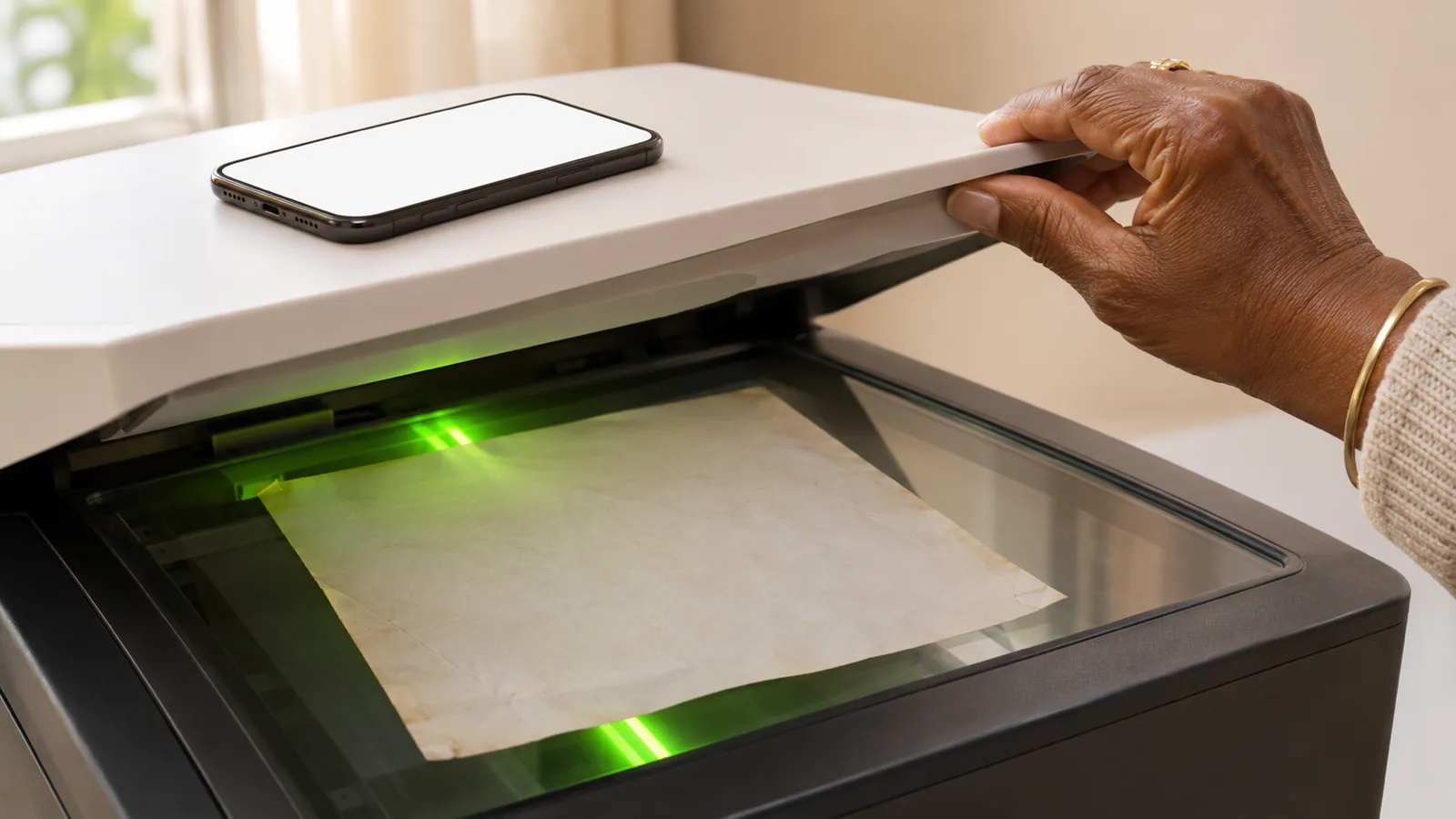
Scanned PDFs are pictures of pages, so nothing will read them until the text has been recognized with OCR.
Speechly for Windows reads any text you select in a PDF when you press Alt+R, with 25+ natural AI voices and your place synced to your phone.
Here's how to make Windows read a PDF aloud for free: open the PDF in Microsoft Edge and press Ctrl+Shift+U (or select Read aloud on the PDF toolbar). Edge reads the whole file in a natural-sounding voice, and you can pause, skip and change the voice and speed.
Edge comes with Windows 10 and 11, so there's nothing to install. Below are the steps for Edge, Acrobat Reader, Narrator and Word, checked in November 2026, plus fixes for PDFs that won't read. If you want natural AI voices that follow you to your phone, Speechly for Windows is covered near the end.
Which free way should you use?
Use Edge for most PDFs, Acrobat Reader if it's already your PDF app, and Narrator if you use a screen reader.
| Method | Best for | Start reading | Voices |
|---|---|---|---|
| Microsoft Edge | Most PDFs, natural voices | Ctrl+Shift+U | Dozens of Microsoft online voices; a basic set offline |
| Acrobat Reader | People who already use Acrobat | Shift+Ctrl+Y, then Shift+Ctrl+V | Voices installed in Windows |
| Narrator | Screen-reader users | Windows + Ctrl + Enter, then Narrator + R | Windows voices, including natural Narrator voices |
| Word | Editing the text as you listen | Ctrl+Alt+Space | Word's Read Aloud voices |
| Speechly | Natural AI voices, any app, every device | Select text, Alt+R | 25+ natural AI voices |
How to make Windows read a PDF aloud in Microsoft Edge
Edge is the default PDF viewer on many Windows PCs, and its Read aloud works on any PDF with real text.
- Right-click the PDF in File Explorer and choose Open with > Microsoft Edge.
- Select Read aloud on the PDF toolbar at the top, or press Ctrl+Shift+U.
- Use the Read aloud toolbar to Play, Pause and skip to the previous or next paragraph.
- Select Voice options to choose a voice and drag the speed slider.
- To start somewhere specific, select the text, right-click it and choose Read aloud selection.
With an internet connection, Microsoft says Read aloud offers dozens of natural-sounding voices; offline you get a smaller basic set. If your voice list suddenly shrinks, check your connection.
Make Edge your default PDF app so every PDF opens there: go to Settings > Apps > Default apps, select Microsoft Edge, find .pdf and choose Microsoft Edge. More tips are in how to make Microsoft Edge read PDFs aloud.
How to make Acrobat Reader read a PDF out loud
The free Acrobat Reader has a Read Out Loud tool. It's off until you turn it on.
- Open the PDF in Acrobat Reader and go to the page where you want to start.
- Open Menu at the top left (in older versions, the View menu is on the menu bar) and choose View > Read Out Loud > Activate Read Out Loud.
- Go back to View > Read Out Loud and choose Read This Page Only or Read To End of Document.
Reading starts on the current page even with Read To End of Document, so go to page 1 first if you want the whole file. The keyboard shortcuts are faster:
| Action | Shortcut |
|---|---|
| Turn Read Out Loud on or off | Shift+Ctrl+Y |
| Read the current page | Shift+Ctrl+V |
| Read to the end of the document | Shift+Ctrl+B |
| Pause or resume | Shift+Ctrl+C |
| Stop | Shift+Ctrl+E |
To change the voice or speed, open Menu > Preferences (Edit > Preferences in older versions), select Reading, clear Use Default Voice, and pick a voice and words-per-minute rate. Acrobat uses the voices installed in Windows, so adding better ones helps: see how to add more text-to-speech voices in Windows 11.
How to have Narrator read a PDF
Narrator, the screen reader built into Windows, reads PDFs in Edge, Acrobat and most other viewers. It's thorough but chatty.
- Open the PDF and click where you want to start.
- Press Windows logo key + Ctrl + Enter to turn Narrator on.
- Press Narrator + R to read from the cursor (the Narrator key is Caps Lock or Insert). To hear only a passage, select it and press Narrator + Shift + Down arrow.
- Press Ctrl to stop, and Windows logo key + Ctrl + Enter to turn Narrator off.
Narrator also reads toolbars and page numbers. Press Narrator + V to lower the verbosity. Full commands are in our guide to using Windows Narrator to read text aloud.
How to make Word read a PDF aloud
If you have Word for Windows (Office 2019, Office 2021 or Microsoft 365), it can convert a PDF and read it.
- In Word, go to File > Open and choose the PDF. Select OK when Word says it will convert it into an editable document.
- Go to Review > Read Aloud, or press Ctrl+Alt+Space.
- Press Ctrl+Space to pause, and Alt+Left arrow or Alt+Right arrow to slow down or speed up, per Microsoft's Read Aloud guide.
Conversion works best on PDFs made from text documents. Complex layouts, tables and columns can come out jumbled.
How to listen to PDFs on Windows with Speechly
Edge and Acrobat work well at your desk. They fall short when you want the same natural voice in every app, or want to keep listening on your phone. Speechly is a text-to-speech reader for Windows, Mac, iPhone, iPad and Android.
- Install Speechly for Windows.
- Open your PDF in any viewer. Click in the text and press Ctrl+A to select it all, or select just the part you want.
- Press Alt+R. A floating player reads it aloud with word-by-word highlighting, and recent readings are saved.
- Choose from 25+ natural AI voices across eight languages and set the speed from 0.5× to 2×.
To keep going away from your desk, open the same PDF in Speechly on your iPhone, iPad or Android phone; sign in with the same account and your library and preferences sync. On iPhone and iPad, Speechly can skip headers and footers that repeat on every page. The free plan includes two text-to-speech files with premium voices; Premium is $14.99/month or $139/year.
Troubleshooting: Windows won't read my PDF
- Nothing happens, or it says the page is empty. The PDF is probably a scan. If you can't select a single word, there's no text to read. Run it through OCR first, or use the options in how to listen to a scanned PDF.
- There's no Read aloud button in Edge. Update Edge. On a work or school PC, your administrator may have turned Read aloud off.
- Edge only has a few voices. The natural voices need an internet connection. Reconnect, then reopen Voice options.
- Acrobat's Read Out Loud is grayed out. Activate it first with Shift+Ctrl+Y. In Acrobat, turn off Reflow view if it reports an empty page.
- It reads columns, headers or footnotes in the wrong order. The PDF's text order is messy. Select one column at a time and use Read aloud selection, or see why some PDFs read strangely.
- The voice sounds robotic. Use Edge's online voices, or add Windows natural voices for Narrator.
- It's a protected PDF. Files that block text copying may also block read-aloud. Ask the sender for an unprotected copy.
Tips for listening to long PDFs on a PC
- Start where you left off. In Edge, select the first sentence of the section and choose Read aloud selection instead of starting from page 1.
- Speed up gradually. Most people can follow a little faster than normal after a few minutes. Nudge the speed up one step at a time.
- Use headphones in shared spaces, and keep the PDF tab open while you work in another window.
- Split huge files. For textbooks, read one chapter at a time so you can find your place again.
Frequently asked questions
Does Windows 11 have a built-in PDF reader that reads aloud?
Yes. Microsoft Edge comes with Windows 11, opens PDFs, and has a Read aloud button on its PDF toolbar. Press Ctrl+Shift+U to start it.
How do I make Edge read only part of a PDF?
Select the text you want, right-click it and choose Read aloud selection. Reading starts there and continues from that point.
Do these steps work on Windows 10?
Yes. Edge Read aloud, Acrobat Reader's Read Out Loud, Narrator and Word Read Aloud all work the same way on Windows 10, with the same keyboard shortcuts.
Can I change the voice when Windows reads a PDF?
Yes. In Edge, select Voice options on the Read aloud toolbar. In Acrobat Reader, go to Preferences > Reading, clear Use Default Voice and choose one of your installed Windows voices.
Is there a free PDF reader with natural voices for Windows?
Edge is free and uses natural-sounding Microsoft online voices when you're connected to the internet. Acrobat Reader and Narrator use the voices installed in Windows.
Can Windows read a scanned PDF aloud?
Not directly. A scanned PDF is a picture of each page, so Edge, Acrobat and Narrator find no text to read. Run it through OCR first, then open the new file in Edge.
Listen to anything on Windows
Select text in any app and press Alt+R. Speechly’s floating player reads it aloud in natural AI voices.
Prices and features of other products were checked on November 18, 2026 and can change. Speechly is not affiliated with the other companies named here.

How to Make Microsoft Edge Read PDFs Aloud
How to make Microsoft Edge read PDFs aloud for free: open the PDF, click Read aloud or press Ctrl+Shift+U, pick a natural voice, and fix common problems.
How to Listen to a Scanned PDF
Scanned PDF silent in Read Aloud? Here's how to listen to a scanned PDF: free OCR in Chrome, Google Drive or Adobe, then play it on any device.

How to Read a PDF Aloud for Free
How to read a PDF aloud for free on Windows, Mac, iPhone, Android or Chromebook: exact steps, shortcuts, and the fix for PDFs that won't read.