


How to Use Text to Speech to Learn a Language
How to use text to speech to learn a language: a free 6-step routine for listening, shadowing and new words, plus voice setup on every phone and computer.
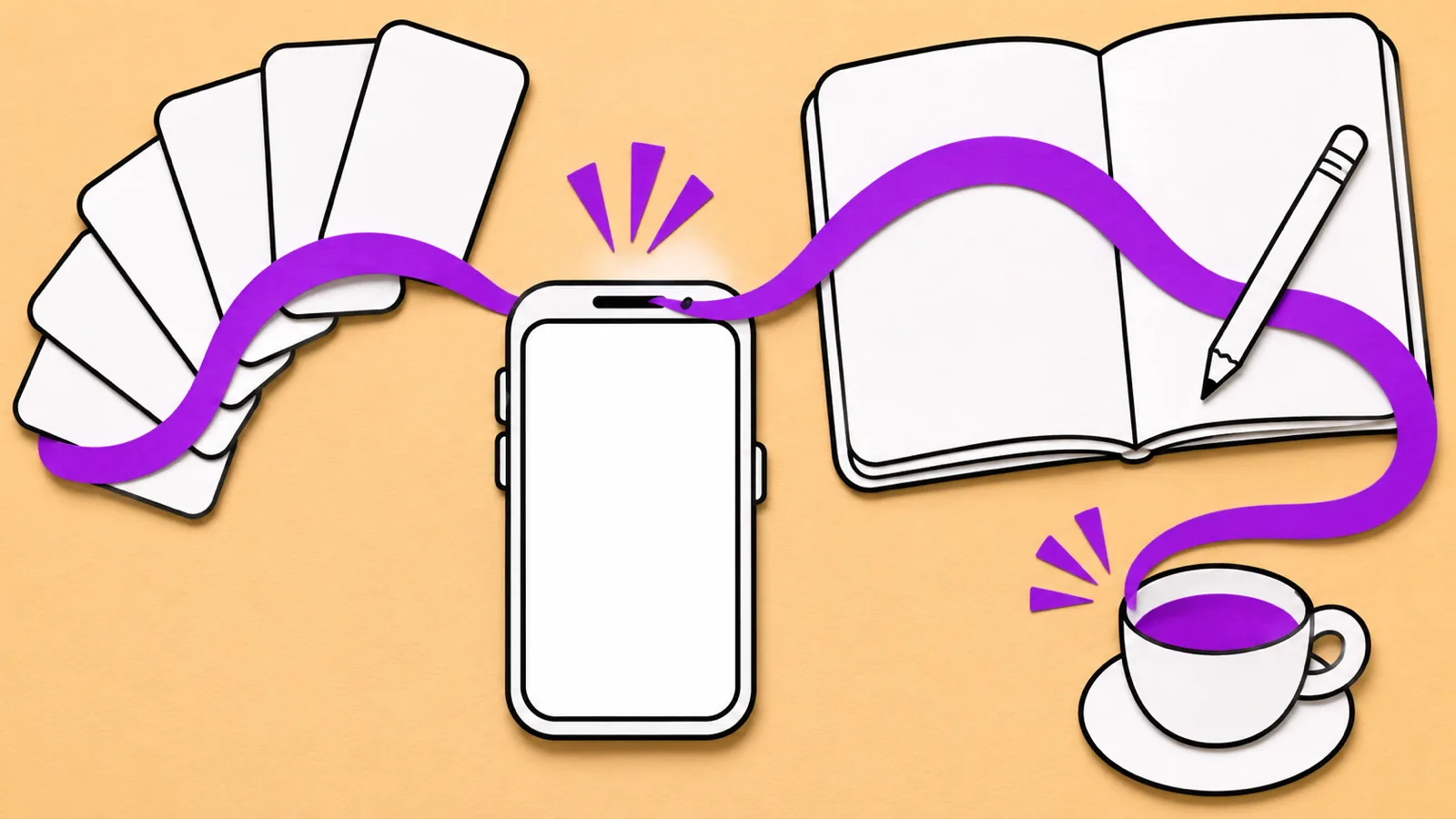
To use text to speech to learn a language, choose a native voice for your target language, read along with the highlighted words at a slow speed, and repeat each sentence out loud. Save new words with their audio, then re-listen to the same text without reading it a day later, a little faster each time.
Always use a voice made for your target language. An English voice reading Spanish text teaches you the wrong sounds.
Read along and come back to the same text. In a 2008 vocabulary study, learners recalled none of the words they had only heard three months later, and words met more often stuck best.
Work sentence by sentence: listen, pause, repeat it out loud (shadowing), then move on. Slow to 0.5× to 0.75× for hard lines.
Every phone and computer can read many languages for free once you download the right voice. Google Translate adds Slow and Slower speeds for single words and phrases.
Text to speech is a model to copy, not a teacher. Pair it with real speakers and, if you can, feedback from a person.
Here is how to use text to speech to learn a language: put a text you're studying into a read-aloud tool, choose a native voice for that language, follow the highlighted words at a slow speed, and repeat each sentence out loud before moving on. Text to speech turns any article, textbook dialog or story into listening practice, and it never gets tired of saying the same sentence again.
You don't need to buy anything to start. Every phone and computer has free voices for many languages, and the setup for each device is below. If you want natural AI voices in eight languages with word highlighting on every device, there's a section on Speechly too.
What text to speech helps you practice
Text to speech is best at the skills that grow from hearing a language many times:
- Pronunciation: a clear model of every word in a text, replayed as often as you like.
- Listening: your own study material, slowed down until you can follow it, then sped up.
- Vocabulary: new words heard inside a sentence, so you remember how they sound, not just what they mean.
- Word boundaries: following highlighted words shows where one word ends and the next begins, the hardest part of understanding fast speech.
It won't correct your speaking, explain grammar or replace conversation. Treat it as a model to copy, alongside a course and native speakers.
How to use text to speech to learn a language in 6 steps
The method: read along first, then repeat sentence by sentence, then listen again without the text.
- Pick a text just below your level. You should understand most of it without a dictionary. Graded readers, learner news, textbook dialogs and short stories all work.
- Choose a voice made for that language. A French voice for French, a Japanese voice for Japanese. If foreign words come out with an English accent, your device is using the wrong voice (fixes are below). Where accents differ a lot, pick the one you want to sound like, such as Brazilian Portuguese or Mexican Spanish.
- Listen while you read along at 0.75×. Follow the highlighted words with your eyes. Hearing a word while you see its spelling links sound and form.
- Go sentence by sentence and repeat out loud. Play one sentence, pause, and say it back with the same rhythm and melody. Then speak along with the voice, a fraction of a second behind it. This is the shadowing technique, and text to speech suits it because you can replay any line instantly. Drop to 0.5× for sentences you stumble on.
- Save new words with their sound. Copy unknown words and their sentence into your flashcards. In Anki, adding
{{tts es_ES:Front}}to a card template has your device's voice read the Front field aloud (change the language code to match yours; see Anki's text-to-speech field docs). - Re-listen without the text, a little faster. A day or two later, play the same text with your eyes closed at 0.9× or 1×. If you catch most of it, move on; if not, go back to step 3. Over a few weeks, aim for natural speed.
Steps 3 and 6 matter more than they look. In a study of incidental vocabulary learning from reading, reading while listening and listening to stories (Brown, Waring and Donkaewbua, Reading in a Foreign Language, 2008), learners picked up some new words in all three modes, but most weren't learned, and words met more often stuck best. Three months later, learners recalled on average about one of 28 words met in either reading mode, and none met only by listening. Keep the text in front of you, and come back to it. There's more in reading while listening in a new language.
What to listen to at each level
Match the material and speed to where you are.
| Your level | What to listen to | Speed | Main activity |
|---|---|---|---|
| Beginner | Textbook dialogs, phrase lists, your own simple sentences | 0.5×–0.75× | Read along, repeat every sentence |
| Intermediate | Graded readers, learner news, short blog posts | 0.75×–1× | Read along, then shadow the hard parts |
| Advanced | Novels, news articles, essays, work documents | 1× and up | Listen first, read only the parts you miss |
Your own writing counts too. Listen to something you wrote in your target language; missing words and wrong genders jump out when you hear them.
How to make your phone or computer read in another language
Download a voice for your target language, then select it. All of these are free.
iPhone and iPad
- Go to Settings > Accessibility > Read & Speak (called Spoken Content on older versions of iOS).
- Tap Voices, choose your target language, and pick a voice. Download a higher-quality voice if one is offered.
- Turn on Detect Languages so text in your target language is read with that language's voice automatically.
- Turn on Speak Selection. Use Speaking Rate to slow it down, and Highlighting to see each word as it's spoken.
- Select text in any app and tap Speak.
Apple's guide to speaking selected text and the screen lists every option, and our guide shows how to change the reading voice on iPhone.
Android
- Open Settings > Accessibility > Text-to-speech output.
- Choose your preferred engine, then set the language and speech rate.
- In the engine's settings, select Install voice data and pick your target language.
- To hear text, go to Settings > Accessibility > Select to Speak and turn on Select to Speak shortcut. Then use the shortcut (the Accessibility button, or a two-finger swipe up) and tap the text you want read.
Menu names vary a little between phone makers. Google's help pages for text-to-speech output and Select to Speak cover the standard steps.
Mac
- Choose Apple menu > System Settings > Accessibility > Read & Speak.
- Click the Info button next to System voice, click your target language in the sidebar, and download a voice. You can also set how fast it speaks here. Click Done.
- Set System speech language to your target language, then choose the new voice from the System voice pop-up menu.
- Turn on Speak selection, then select text in any app and press Option-Esc.
Apple explains each step in change the voice your Mac uses to speak text.
Windows: Microsoft Edge and Word
- Edge: Open a page in your target language and press Ctrl+Shift+U to start Read aloud. Select Voice options to pick a voice and accent for that language and move the speed slider. Microsoft's Read aloud settings guide lists the options.
- Word: Press Ctrl+Alt+Space (or Review > Read Aloud). Read Aloud uses the document's proofing language, so set that to your target language first. In Word for the web, View > Immersive Reader adds a Picture Dictionary and Translate, as described in Microsoft's Immersive Reader guide.
Google Translate for words and short phrases
Type a word or phrase and tap Listen. To slow it down, open Settings and choose Slow or Slower under Speed in the Android app, or click Settings at the top right of the Google Translate website. To change the accent, tap Region on Android or Speech region on iPhone. It's quick for checking one word, but it isn't built for long texts.
How to learn a language with Speechly
Speechly is a text-to-speech reader app for iPhone, iPad, Android, Mac and Windows. It has 25+ natural AI voices across eight languages: English (American and British accents), Spanish, French, Italian, Brazilian Portuguese, Japanese, Mandarin Chinese and Hindi.
- Add what you're studying. Import a PDF, Word document, EPUB or text file, paste text or a link to an article, or take a photo of a textbook page or worksheet.
- Pick a voice for your target language. Preview the voices first and switch anytime.
- Read along at a slow speed. Every word is highlighted as it's read, and the speed goes from 0.5× to 2×.
- Replay sentence by sentence. Jump to any sentence and start there, which is exactly what shadowing needs.
- Keep going anywhere. Speechly saves your place, syncs your library when you sign in with the same account, and keeps reading with your phone locked, so you can re-listen on a walk or commute.
On a Mac, select text in any app and press ⌘E to hear it in a small floating player. On Windows, press Alt+R. The free plan includes two text-to-speech files with premium voices; Premium is $14.99/month or $139/year for unlimited listening. For language-specific routines, see our listening practice guides by language, starting with Spanish listening practice with text to speech.
Troubleshooting
Most problems come from the wrong voice or the wrong text.
- Foreign words come out with an English accent. The device is using an English voice. Download and select a voice for your target language, and on iPhone turn on Detect Languages.
- Word reads your text in the wrong language. Change the proofing language of that text to your target language.
- The voice sounds robotic. Download a higher-quality voice in your device's speech settings, or use an app with natural AI voices.
- It's too fast to follow. Drop to 0.5× or 0.75× and repeat one sentence at a time. Speed comes later.
- A word sounds wrong. Synthetic voices can misread names, abbreviations, rare words and words with more than one reading, such as many Japanese kanji. Check against a dictionary with native recordings. More in how accurate text-to-speech pronunciation is.
- Nothing happens on a PDF. It's probably a scan. Use a tool that recognizes text in images, or photograph the page in an app that reads photos of printed text.
Tips for learning a language by listening
- Keep it short and daily. One short text, worked through properly, beats an hour of half-listening in the background.
- Try dictation. Play one sentence, write down what you hear, then check it against the text. It shows exactly which sounds you're still missing.
- Record yourself. Shadow a sentence, record it, and compare it with the voice. You'll hear differences you miss while speaking.
- Mix in real speakers. Synthetic voices are clear and consistent; real conversation is faster and messier. Add podcasts and shows as you improve.
- Get feedback. Text to speech shows you what to aim for; a teacher or conversation partner tells you whether you hit it. Our guide to improving your pronunciation with text to speech goes deeper.
The short version: read along, repeat out loud, and come back to the same text until you can follow it with your eyes closed.
Frequently asked questions
Can you learn a language with text to speech?
Not on its own, but it's one of the best free tools for listening and pronunciation practice. Use it to hear anything you're studying read aloud, and combine it with grammar study, speaking practice and real native audio.
Is text to speech pronunciation accurate enough to learn from?
Modern neural voices pronounce most everyday words correctly and make a reliable model for practice. They can still slip on names, rare words, abbreviations and words with more than one possible reading, so check anything that sounds odd against a dictionary with native recordings.
How do I make text to speech read in another language?
Download a voice for that language in your device's speech settings and select it. On iPhone, also turn on Detect Languages in Settings > Accessibility > Read & Speak so mixed-language text is read with the right voice.
What speed should I use for language listening practice?
Start at 0.5× to 0.75× for new material so you can hear every sound, then work up to 1× on later listens. Natural speed is the goal, because that's how people actually talk.
Does listening to text to speech improve your accent?
It helps if you copy it out loud. Shadowing a clear voice sentence by sentence, then recording yourself and comparing, trains your rhythm and sounds far more than passive listening does.
What is the best text to speech app for learning a language?
The free voices on your phone or computer are enough to start. For long texts and textbook pages, a reader app with natural voices, word highlighting and a saved place on every device, such as Speechly, makes replaying sentences easier.
Listen with Speechly
Natural AI voices on iPhone, iPad, Android, Mac and Windows, with word highlighting and your place saved on every device. Free to download.
Prices and features of other products were checked on November 17, 2026 and can change. Speechly is not affiliated with the other companies named here.

The Shadowing Technique with Text to Speech: A Step-by-Step Guide
The shadowing technique with text to speech: a research-based 15-minute routine, the right speed and texts for your level, and free voices on any device.

Reading While Listening in a New Language
Reading while listening in a new language: what the research shows for comprehension, vocabulary and reading speed, why it works, and how to do it well.
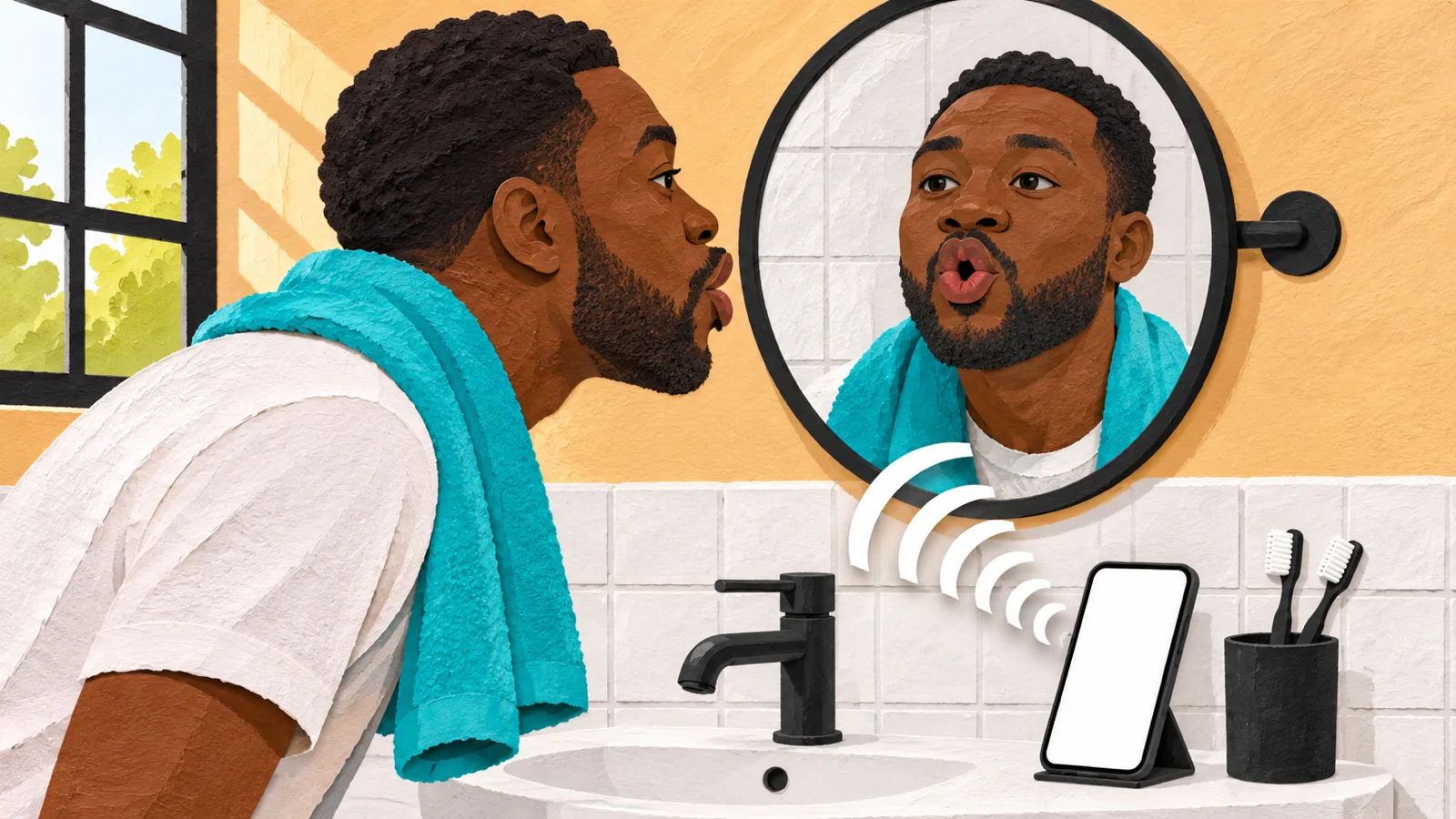
How to Improve Your Pronunciation with Text to Speech
How to improve your pronunciation with text to speech: a free 10-minute routine (listen, repeat, shadow, record) and setup on iPhone, Android, Mac and PC.