


Screen Readers vs Text to Speech: What's the Difference?
Screen readers vs text to speech: how each works, who each is for, the free tools on iPhone, Android, Mac and Windows, and how to pick the right one.
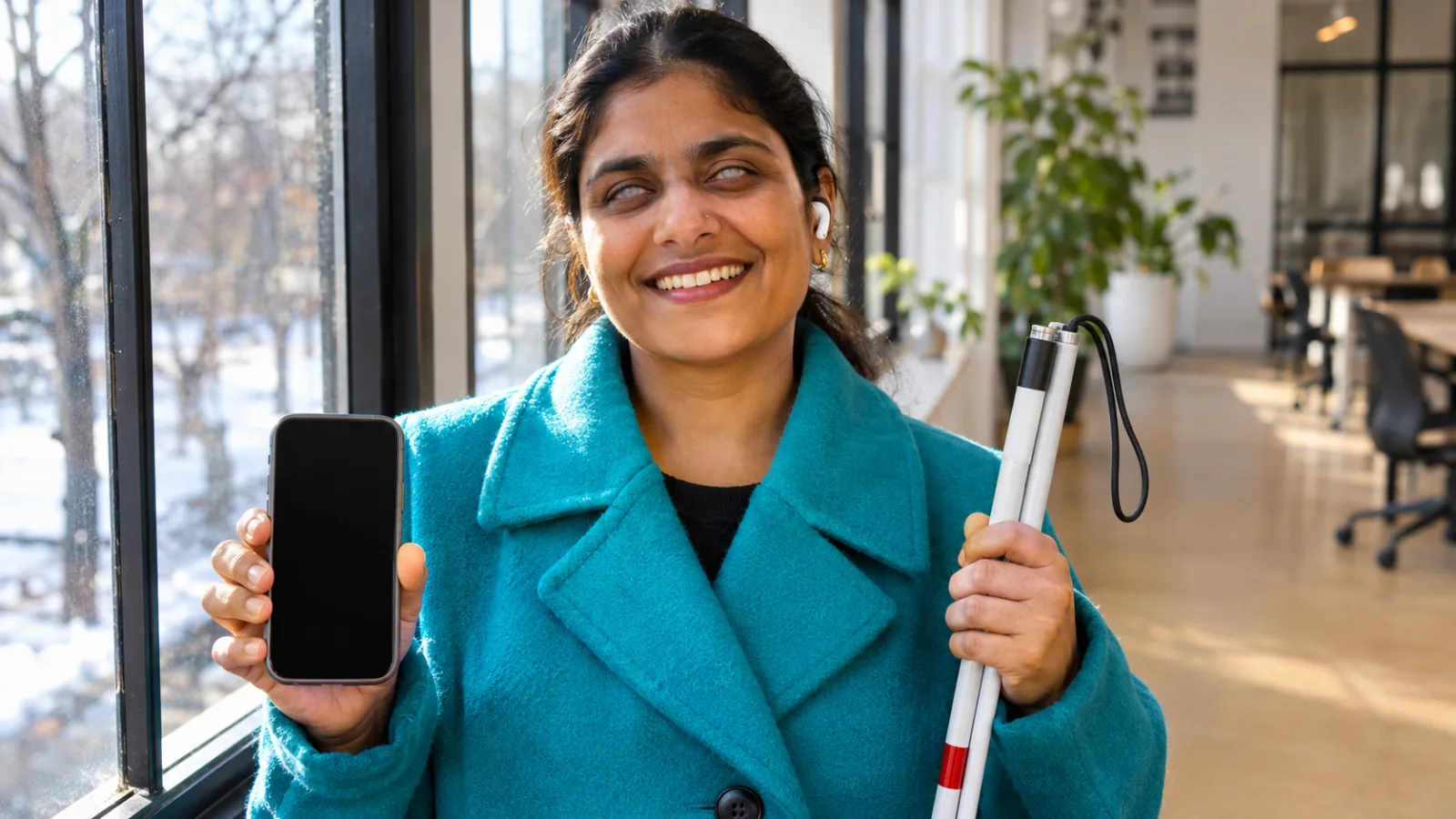
In screen readers vs text to speech, the difference is scope. A screen reader speaks everything on the screen, including buttons and menus, and lets you operate the device without seeing it, mainly for blind people. Text to speech reads chosen text aloud, such as an article or PDF, for people who can see the screen.
A screen reader replaces sight for using a device: it announces every element and changes how you navigate. Text to speech only reads content you choose.
Screen readers are built for blind and severely visually impaired users; text to speech suits people with dyslexia, ADHD, low vision, eye strain or anyone who wants to listen.
Every major platform has both free: VoiceOver and Speak Screen on Apple devices, TalkBack and Select to Speak on Android, Narrator and Read Aloud on Windows.
Turning on a screen reader changes how gestures and keys work, so learn how to turn it off before you try it.
Screen readers depend on well-built content: alt text, headings and labeled buttons. Text to speech mostly needs readable text.
Screen readers vs text to speech comes down to one difference: a screen reader lets you use the whole device without seeing it, while text to speech reads selected text aloud for someone who can see the screen. A screen reader announces every button, link and menu and changes how you navigate. Text to speech leaves everything else alone and just reads the content you choose.
Both use synthetic voices, so they're easy to confuse. Picking the wrong one is frustrating: a person with dyslexia who turns on a screen reader suddenly finds their phone won't respond to normal taps. This explainer covers how each works, who each is for, the free versions on every device, and how to choose.
Screen readers vs text to speech at a glance
| Screen reader | Text to speech | |
|---|---|---|
| What it reads | Everything: text, buttons, links, menus, notifications | The text you choose: a page, a selection, a document |
| Main users | Blind and severely visually impaired people | People with dyslexia, ADHD, low vision or eye strain, and anyone who wants to listen |
| How you control the device | New gestures or keyboard commands replace normal use | As normal; you start and stop reading |
| Learning curve | Days to weeks of practice | Minutes |
| Braille output | Supports refreshable braille displays | No |
| Built-in examples | VoiceOver, TalkBack, Narrator, ChromeVox | Speak Screen, Select to Speak, Read Aloud |
| Word highlighting | Sometimes, but not the focus | Common, so you can read along |
What is a screen reader?
A screen reader is software that turns everything on a screen into speech or braille, so a person who can't see the screen can still use the device. It reads text, but it also tells you what each element is ("Send, button", "Search, text field") and where you are on the page.
How a screen reader works
Screen readers rely on the structure behind the screen, not on a picture of it. Apps and websites expose labels, roles and headings to the operating system, and the screen reader turns that information into speech. That's why accessibility depends on good coding: an image without alt text or a button without a label can come out as "button" or nothing at all.
Turning one on changes how you control the device. On an iPhone with VoiceOver, one tap selects and speaks an item, a double-tap activates it, and swiping left or right moves from item to item. Apple's guide notes that when VoiceOver is on, you must use VoiceOver gestures to operate the iPhone. Experienced users navigate quickly by headings, links or landmarks, often with the speech rate turned up.
Common screen readers
- VoiceOver: built into iPhone, iPad and Mac. On a Mac, press Command-F5 to turn it on or off.
- TalkBack: built into Android, under Settings > Accessibility > TalkBack.
- Narrator: built into Windows. Press Ctrl + Windows logo key + Enter to turn it on, according to Microsoft's Narrator guide.
- NVDA: a free, open-source screen reader for Windows from the charity NV Access.
- JAWS: a paid Windows screen reader from Freedom Scientific, widely used at work.
- ChromeVox: built into Chromebooks. Press Ctrl + Alt + Z to turn it on or off.
In WebAIM's 2024 screen reader user survey of 1,539 respondents, JAWS (40.5%) and NVDA (37.7%) were the most common primary desktop screen readers, followed by VoiceOver (9.7%). On mobile, 70.6% used VoiceOver and 34.7% used TalkBack. Most respondents used a screen reader because of blindness or low vision, but 5.2% reported a cognitive or learning disability.
What is text to speech?
Text to speech (TTS) converts written text into spoken audio. As an assistive tool, it reads aloud the text you point it at, such as a web page, an email, a PDF or a photo of a printed page, while you use the device normally. Many TTS tools highlight each word as it's spoken so you can follow along. For how the voices are made, see what text to speech is and how it works.
Built-in text to speech
- iPhone and iPad: go to Settings > Accessibility > Read & Speak. Turn on Speak Selection to hear selected text, or Speak Screen and swipe down with two fingers from the top of the screen to hear the whole page, per Apple's guide.
- Mac: go to System Settings > Accessibility > Read & Speak, turn on Speak selection, then select text and press Option-Esc.
- Android: go to Settings > Accessibility > Select to Speak and turn on the shortcut. Tap items to hear them, or tap Play to hear the whole screen. It can also read text in the camera view, according to Google's guide.
- Windows: in Microsoft Edge, press Ctrl+Shift+U to have a page or PDF read aloud. Word has its own Read Aloud too.
- Chromebook: turn on Select-to-speak in Settings > Accessibility, highlight text and press Search + S.
Who should use which?
Choose by whether you can use the screen, not by your diagnosis.
| If you… | Use | Why |
|---|---|---|
| Can't see the screen | Screen reader | You need every element described and a way to navigate without sight |
| Have low vision and use zoom | Text to speech, plus magnification; a screen reader if vision is declining | Listening saves strain; a screen reader takes over when zoom isn't enough |
| Have dyslexia | Text to speech with highlighting | You can see the page; hearing and seeing the words together helps |
| Have ADHD | Text to speech with highlighting | A steady voice and moving highlight help hold your place |
| Get eye strain, migraines or fatigue | Text to speech | Rest your eyes without changing how you use the device |
| Want to listen on a walk or commute | Text to speech | Long documents read like an audiobook |
Some people use both. Many people with low vision move between zoom, text to speech and a screen reader depending on the task and how tired their eyes are. Our guide to text to speech for low vision covers that mix.
Before you try a screen reader
Learn how to turn it off first. With VoiceOver on, normal taps stop working the way you expect. On iPhone you can ask Siri to "Turn off VoiceOver", or set Settings > Accessibility > Accessibility Shortcut to VoiceOver and triple-click the side button. Apple, Google and Microsoft each include a practice mode or tutorial.
Why the difference matters for content creators
If you make websites, documents or course materials, the two tools need different things:
- Screen readers need structure: real headings, alt text on images, labeled buttons and form fields, and a logical reading order. A scanned PDF with no text layer is a blank page to a screen reader.
- Text to speech mainly needs real, selectable text in a sensible order. Repeating headers, footers and page numbers get read aloud too unless the tool skips them.
Content that works well for screen readers almost always works well for text to speech. Our guide to making reading materials accessible lists the basics.
Where Speechly fits
Speechly is a text-to-speech reader, not a screen reader. It doesn't take over your device or describe buttons and menus; it reads your documents aloud. It runs on iPhone, iPad, Android, Mac and Windows and reads PDFs, Word documents, EPUB books, web pages and photos of printed pages with 25+ natural AI voices and word-by-word highlighting. It's built for people who can see the screen and want to listen, including readers with dyslexia.
- Open a document, paste a link or take a photo of a page, then press play.
- Follow the highlighted words, tap any sentence to jump there, and set the speed from 0.5× to 2×.
- On iPhone and iPad, Speechly can skip repeating headers and footers in PDFs.
- On a Mac, select text in any app and press ⌘E; on Windows, press Alt+R.
Speechly is free to download, and the free plan includes two text-to-speech files with premium voices. Premium is $14.99/month or $139/year for unlimited listening on every device.
The bottom line
A screen reader replaces sight for using the whole device; text to speech reads the content you choose while you use the device as usual. If you can't see the screen, learn a screen reader. If you can see it but reading is slow, tiring or hard to focus on, use text to speech with word highlighting. To hear your own PDFs and documents read aloud, download Speechly free and try it on something long.
Frequently asked questions
Is text to speech the same as a screen reader?
No. A screen reader uses text-to-speech voices, but it does much more: it describes every button, link and menu and lets you control the device by keyboard or gestures without seeing it. Text to speech just reads the text you pick aloud.
Should someone with dyslexia use a screen reader?
Usually not. Screen readers are designed for people who can't see the screen and take time to learn. Most people with dyslexia do better with text to speech that highlights each word, so they can read along.
What is the most popular screen reader?
In WebAIM's 2024 survey of 1,539 screen reader users, JAWS was the most common primary desktop screen reader at 40.5%, followed closely by the free NVDA at 37.7%. On mobile, 70.6% of respondents used VoiceOver on iPhone or iPad.
How do I turn off VoiceOver or TalkBack?
Ask Siri to turn off VoiceOver, or triple-click the side button if you've set the Accessibility Shortcut. For TalkBack, press and hold both volume keys for a few seconds if the shortcut is on, or go to Settings > Accessibility > TalkBack and double-tap the switch.
Do blind people use text to speech?
Yes, through their screen reader, which speaks with a text-to-speech voice. Many also use reading apps for long documents, because listening to a book is easier with a dedicated player than by moving through it line by line.
Listen with Speechly
Natural AI voices on iPhone, iPad, Android, Mac and Windows, with word highlighting and your place saved on every device. Free to download.
Prices and features of other products were checked on November 18, 2026 and can change. Speechly is not affiliated with the other companies named here.
What Is Assistive Technology? Examples for Reading
What is assistive technology? Examples for reading, from line guides to text to speech, who uses them, and how to get them free at school, work or home.

Text to Speech for Low Vision: A Practical Guide
Text to speech for low vision: the free read-aloud tools on iPhone, Android, Windows and Mac, how to hear printed pages, and when to add magnification.
What Is Text to Speech? How It Works
What is text to speech? How it works in 4 simple steps, why AI voices now sound human, and how to turn on the free TTS already on your phone or computer.