


Text to Speech vs Speech to Text: What's the Difference?
Text to speech vs speech to text: TTS reads text aloud, STT types what you say. How each works, where to find both free on your devices, and which to use.
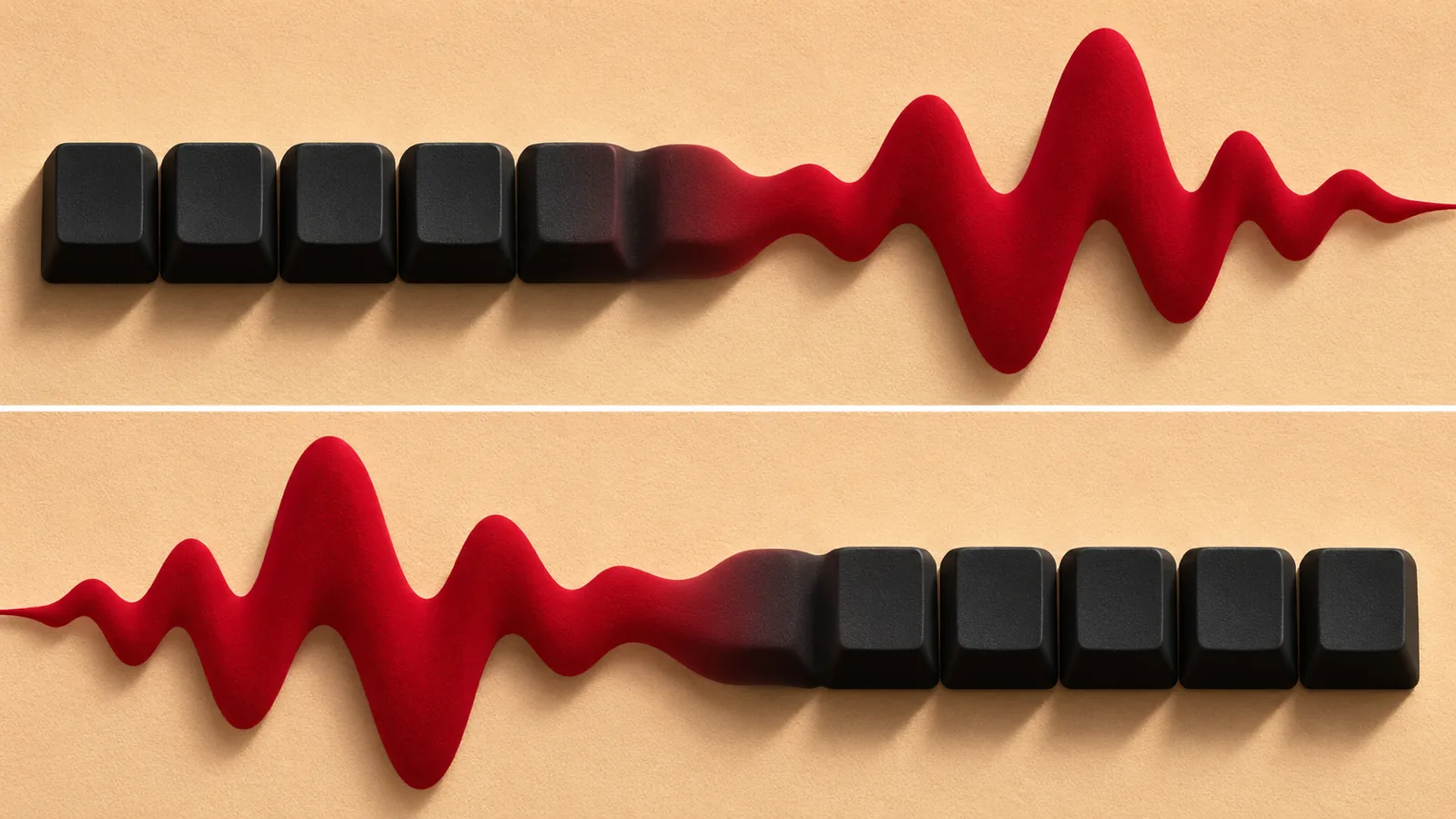
Text to speech (TTS) reads written text aloud so you can listen, while speech to text (STT), also called dictation, turns your spoken words into written text so you can talk instead of type. In text to speech vs speech to text, the first word names the input: TTS helps you read, STT helps you write.
Text to speech turns text into a voice you listen to; speech to text turns your voice into text you can edit. They solve opposite problems.
Both are free and built into iPhone, Mac, Windows and Android: Speak Selection and Narrator read aloud, while Dictation and voice typing type for you.
Text to speech has to generate natural audio; speech to text has to recognize words through accents, background noise and homophones, so each fails in different ways.
Voice assistants such as Siri use both: speech to text to understand you, then text to speech to answer out loud.
If you want to get through more reading, you need text to speech. If you want to write faster or without a keyboard, you need speech to text.
Text to speech vs speech to text, in one line: text to speech reads written words aloud to you, and speech to text writes down the words you say. Same idea, opposite directions: one helps you read, the other helps you write.
Both are free and already built into your phone and computer. Below: a side-by-side table, how each works, exactly where to turn each one on for iPhone, Mac, Windows, Android, Word and Google Docs, and how to tell which one you need.
Text to speech vs speech to text at a glance
| Text to speech (TTS) | Speech to text (STT) | |
|---|---|---|
| Direction | Text in, audio out | Audio in, text out |
| What you do | Listen | Talk |
| Other names | Read aloud, speech synthesis | Dictation, voice typing, speech recognition, ASR |
| Main job | Make written content audible | Make spoken words editable and searchable |
| Typical uses | Listening to articles, PDFs and books; screen readers; GPS directions; proofreading | Dictating messages and documents; captions; meeting transcripts; voice commands |
| Works offline? | Usually, once a device voice is downloaded | Depends: iPhone Dictation can; Windows voice typing can't |
| Hardest problem | Sounding natural and pronouncing names and numbers correctly | Recognizing words through accents, noise and homophones |
| Built-in examples | Speak Selection, Narrator, Select to Speak, Read Aloud in Word | Dictation, Windows voice typing, Gboard voice typing, Dictate in Word |
The quickest way to remember it: the first word is what you start with. Text to speech starts with text. Speech to text starts with speech.
What is text to speech?
Text to speech (TTS) is software that converts written text into spoken audio in a synthetic voice. You give it a web page, an email, a PDF or a book, and it reads it aloud.
It powers read-aloud buttons, screen readers for people who are blind or have low vision, voice assistants' replies, car navigation and reading apps. People use it to get through more reading on a commute, rest their eyes, follow along with highlighted words, and proofread by listening.
For more depth, see what text to speech is and how it works.
What is speech to text?
Speech to text (STT) is software that listens to spoken audio and writes it down as text. In technical writing it is called automatic speech recognition, or ASR.
You use it when you dictate a text message, ask a voice assistant a question, turn on live captions, or get a transcript of a meeting or voice memo. People use it to write faster than they type, write hands-free and make audio searchable. For people with motor disabilities, dyslexia or repetitive strain injuries, it can make writing much more comfortable.
How do text to speech and speech to text work?
Both use machine learning trained on large amounts of recorded speech, but they solve mirror-image problems. Text to speech has one correct input and has to create a convincing sound. Speech to text has a messy, unpredictable input and has to find the one correct sentence in it.
How text to speech works
- Normalize the text. Numbers, abbreviations and symbols become words: "Dr." becomes "Doctor", "$12" becomes "twelve dollars".
- Work out pronunciation. Each word is converted into phonemes, the individual sounds of the language. "Read" is pronounced differently in "I read yesterday" and "I read every day".
- Plan the prosody. The system decides pitch, stress, rhythm and pauses, so a question rises at the end and a statement falls.
- Generate the audio. A neural network produces the waveform. Google DeepMind's WaveNet was the turning point: in Google's 2016 listening tests it cut the gap between computer voices and human speech by more than half.
How speech to text works
- Capture the audio. A microphone records your voice, along with whatever else is in the room.
- Turn sound into features. The audio is split into tiny slices and converted into a representation of which frequencies are present in each moment.
- Recognize the words. An acoustic model predicts likely sounds, and a language model decides which words and sentences those sounds most likely spell. This is how it picks "write a letter" over "right a letter".
- Format the result. Punctuation, capitalization and numbers are added, either from your spoken commands or automatically.
Modern systems often merge these steps into one large model. OpenAI's open-source Whisper model, for example, was trained on 680,000 hours of multilingual audio from the internet, and its authors report that it approaches human accuracy and robustness.
Where do I find text to speech and speech to text on my phone or computer?
Every major platform has both, for free. Here is where to turn them on, checked against Apple, Microsoft and Google help pages on November 18, 2026:
| Device | Text to speech (listen) | Speech to text (talk) |
|---|---|---|
| iPhone and iPad | Settings > Accessibility > Read & Speak, turn on Speak Selection. Select text and tap Speak. Turn on Speak Screen and swipe down from the top with two fingers to hear the whole screen. (Apple) | Settings > General > Keyboard, turn on Enable Dictation. Tap the Dictate button on the keyboard and speak. (Apple) |
| Mac | System Settings > Accessibility > Read & Speak, turn on Speak selection. Select text and press Option-Esc. (Apple) | System Settings > Keyboard > Dictation, turn it on. Press the Microphone key, use the Dictation shortcut, or choose Edit > Start Dictation. (Apple) |
| Windows 10 and 11 | Narrator, a full screen reader: press Ctrl + Windows logo key + Enter. (Microsoft) | Voice typing: click in a text box and press Windows logo key + H. Needs an internet connection. (Microsoft) |
| Android | Settings > Accessibility > Select to Speak, turn on Select to Speak shortcut. Tap the Accessibility button or swipe up with two fingers (three if TalkBack is on), then tap Play. (Google) | In Gboard, tap a text field, then tap the Microphone at the top of the keyboard. (Google) |
| Microsoft Word | Review > Read Aloud, or Ctrl + Alt + Space on Windows. (Microsoft) | Home > Dictate, or Option + F1 on Mac. Requires a Microsoft 365 subscription and an internet connection. (Microsoft) |
| Google Docs | See our steps to make Google Docs read aloud. | Tools > Voice typing in Chrome, Edge or Safari. (Google) |
A few details worth knowing:
- iPhone Dictation can work offline. Apple says Dictation is processed on the iPhone in many languages with no internet connection required. On both iPhone and Mac, it stops automatically after 30 seconds of silence.
- Automatic punctuation is optional. On iPhone it's Settings > General > Keyboard > Auto-Punctuation; in Windows voice typing it's Automatic punctuation under the gear icon.
- Older Apple menus differ. On iOS 18 and macOS Sequoia or earlier, Read & Speak is called Spoken Content.
For every way to have your phone read to you, see how to make your iPhone read text aloud.
Which do I need: text to speech or speech to text?
Start with the direction your problem goes.
Choose text to speech if you want to:
- Get through articles, reports, PDFs or books while walking, commuting or cooking
- Rest your eyes after a day of screens
- Follow along with highlighted words to stay focused
- Hear your own writing to catch missing words and clumsy sentences
Choose speech to text if you want to:
- Write messages, emails or drafts faster than you type
- Write without a keyboard, or with less strain on your hands
- Capture ideas while walking or driving
- Turn meetings, lectures or voice memos into searchable notes
Many people use both: dictate a first draft with speech to text, then listen back to it with text to speech to edit it.
How are text to speech and speech to text used at work?
Companies often add them to their own products through cloud speech services. Voice bots and assistants chain both together: STT to understand, TTS to reply.
| Field | Text to speech | Speech to text |
|---|---|---|
| Education | Reading support, narrated lessons | Lecture captions and transcripts |
| Health care | Reading patient information aloud | Clinicians dictating notes |
| Customer service | Automated phone menus, voice bots | Call transcripts, understanding callers |
| Media | Audiobook and article narration, voiceovers | Automatic subtitles, searchable archives |
| Cars and smart speakers | Turn-by-turn directions, spoken replies | Voice commands, voice search |
Common mix-ups: dictation, screen readers and more
Dictation is not read aloud. Turning on Dictation won't make your phone read anything to you, and turning on Speak Selection won't type anything. They are separate settings, often in different menus.
A screen reader is more than text to speech. VoiceOver, TalkBack and Narrator use text to speech, but they also announce buttons and menus so someone can use the whole device without seeing it. Our guide to screen readers vs text to speech explains when you need which.
Voice assistants use both. Siri, Alexa and Google Assistant run speech to text to understand your request and text to speech to answer out loud.
Captions are speech to text. Live captions and video subtitles generated automatically are speech recognition, not text to speech.
Speech to speech is a third thing. Voice changers and AI dubbing take a recording and re-voice it in a different voice or language. Neither text to speech nor speech to text alone does that.
Accuracy: what does each one get wrong?
They fail in different ways, so the fixes are different too.
Text to speech struggles with:
- Unusual names, brand names and technical terms missing from its pronunciation dictionary
- Ambiguous abbreviations and numbers, such as "St." (Saint or Street) or "1/2"
- Messy layouts: tables, footnotes, two-column pages and PDF headers repeated on every page
- Older voices that sound flat and robotic over long passages
Speech to text struggles with:
- Background noise, crosstalk and poor microphones
- Strong accents, fast speech and mumbling
- Homophones such as "their", "there" and "they're", when the context isn't clear
- Names, jargon and slang it hasn't heard before
The fix for text to speech is a better voice and a cleaner source document. The fix for speech to text is a quiet room, a decent microphone and a quick proofread, ideally by listening to what you dictated.
Want your documents read aloud? Try Speechly
If you came here because you want your devices to read to you, the built-in tools above are fine for a paragraph or a web page. For long documents and books, a dedicated reader is more comfortable.
Speechly is a text-to-speech reader for iPhone, iPad, Android, Mac and Windows. It works in the listening direction: it turns PDFs, Word documents, EPUB books, web pages and photos of printed pages into audio.
- 25+ natural AI voices in eight languages, which you can preview on the Speechly voices page
- Word-by-word highlighting and speed from 0.5× to 2×
- On a computer, select text in any app and press ⌘E on Mac or Alt+R on Windows to hear it in a small floating player
- One account saves your place and syncs your library, so you can start to listen to a long PDF on your laptop and finish it on your phone
Speechly is free to download, and the free plan includes two files with premium voices, no card required. Premium costs $14.99/month or $139/year for unlimited listening on every device.
Frequently asked questions
Is dictation the same as speech to text?
Yes. Dictation is the everyday name for speech to text: you speak and your words appear as text. Apple calls it Dictation, Microsoft calls it voice typing in Windows and Dictate in Word, and Google calls it voice typing.
Is Siri text to speech or speech to text?
Siri uses both. Speech recognition turns your request into text the assistant can understand, and text to speech speaks the answer back to you. Alexa and Google Assistant work the same way.
What do TTS and STT stand for?
TTS stands for text to speech and STT stands for speech to text. In technical writing, speech to text is also called automatic speech recognition (ASR), and text to speech is also called speech synthesis.
Does speech to text work without the internet?
It depends on the tool. Apple says iPhone Dictation is processed on the device in many languages with no internet connection required, while Windows voice typing and Dictate in Word both need an internet connection.
Which is better for students: text to speech or speech to text?
They help with different parts of schoolwork. Text to speech helps with reading assignments and proofreading, while speech to text helps with getting ideas down for essays and notes. Both are common assistive technology for students with dyslexia.
Can text to speech turn audio into text?
No. Text to speech only goes from text to audio. To turn a recording or your voice into text, you need speech to text, such as Dictation on Apple devices, voice typing on Windows and Android, or a transcription service.
Is speech recognition the same as voice recognition?
Not quite. Speech recognition works out what was said and turns it into text. Voice recognition, or speaker recognition, works out who is speaking, for example to tell family members apart on a smart speaker.
Listen with Speechly
Natural AI voices on iPhone, iPad, Android, Mac and Windows, with word highlighting and your place saved on every device. Free to download.
Prices and features of other products were checked on November 18, 2026 and can change. Speechly is not affiliated with the other companies named here.
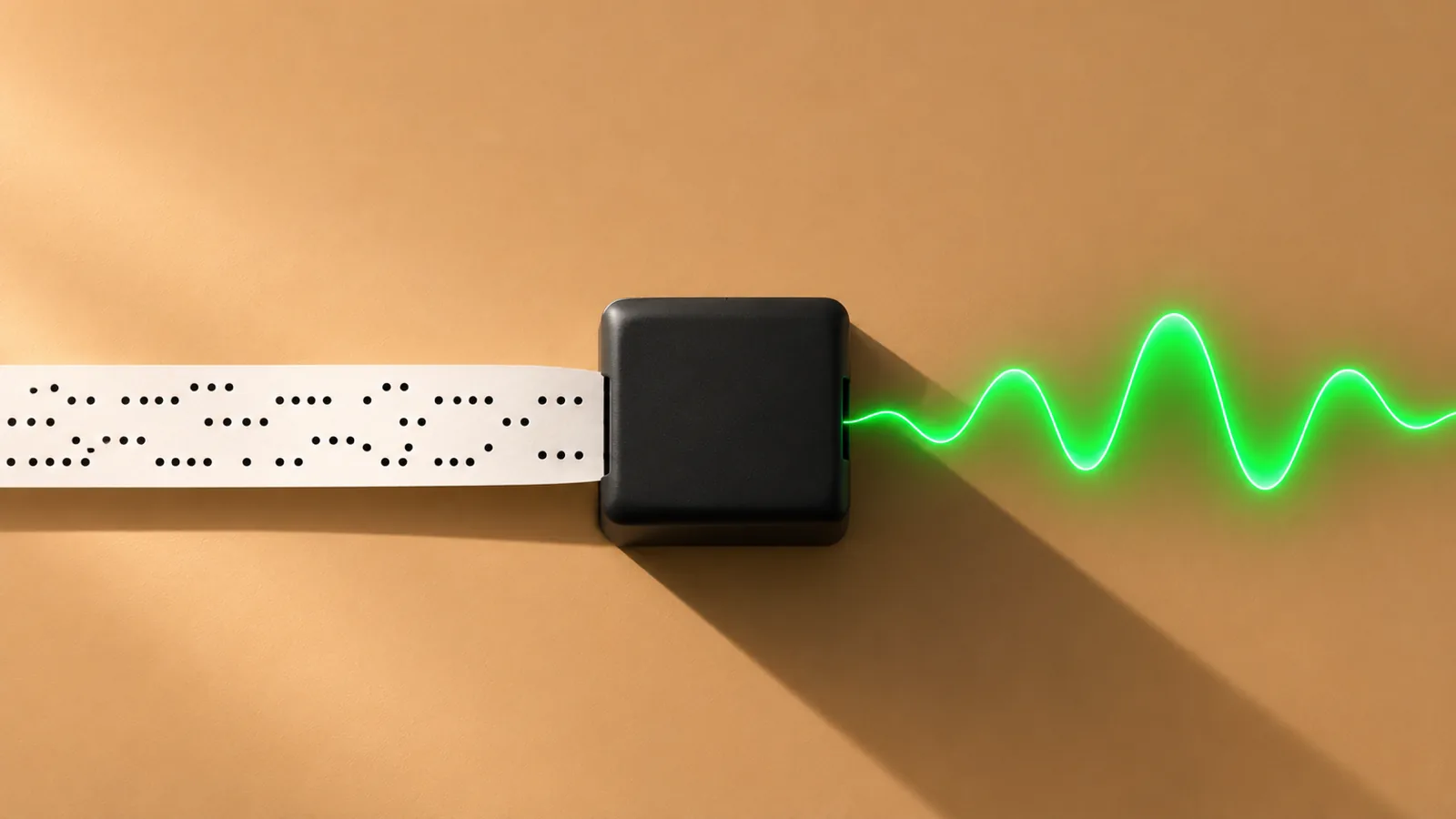
What Is Text to Speech? How It Works
What is text to speech? How it works in 4 simple steps, why AI voices now sound human, and how to turn on the free TTS already on your phone or computer.
Screen Readers vs Text to Speech: What's the Difference?
Screen readers vs text to speech: how each works, who each is for, the free tools on iPhone, Android, Mac and Windows, and how to pick the right one.

How to Proofread by Listening
How to proofread by listening with the read-aloud tools already in Word, Google Docs, Mac, Windows and your phone, plus what your ears will miss.