


What Does "Read Aloud" Mean on Your Device?
What does read aloud mean on your device? It's built-in text to speech. See what it's called on iPhone, Android, Mac and Windows, and how to stop it.
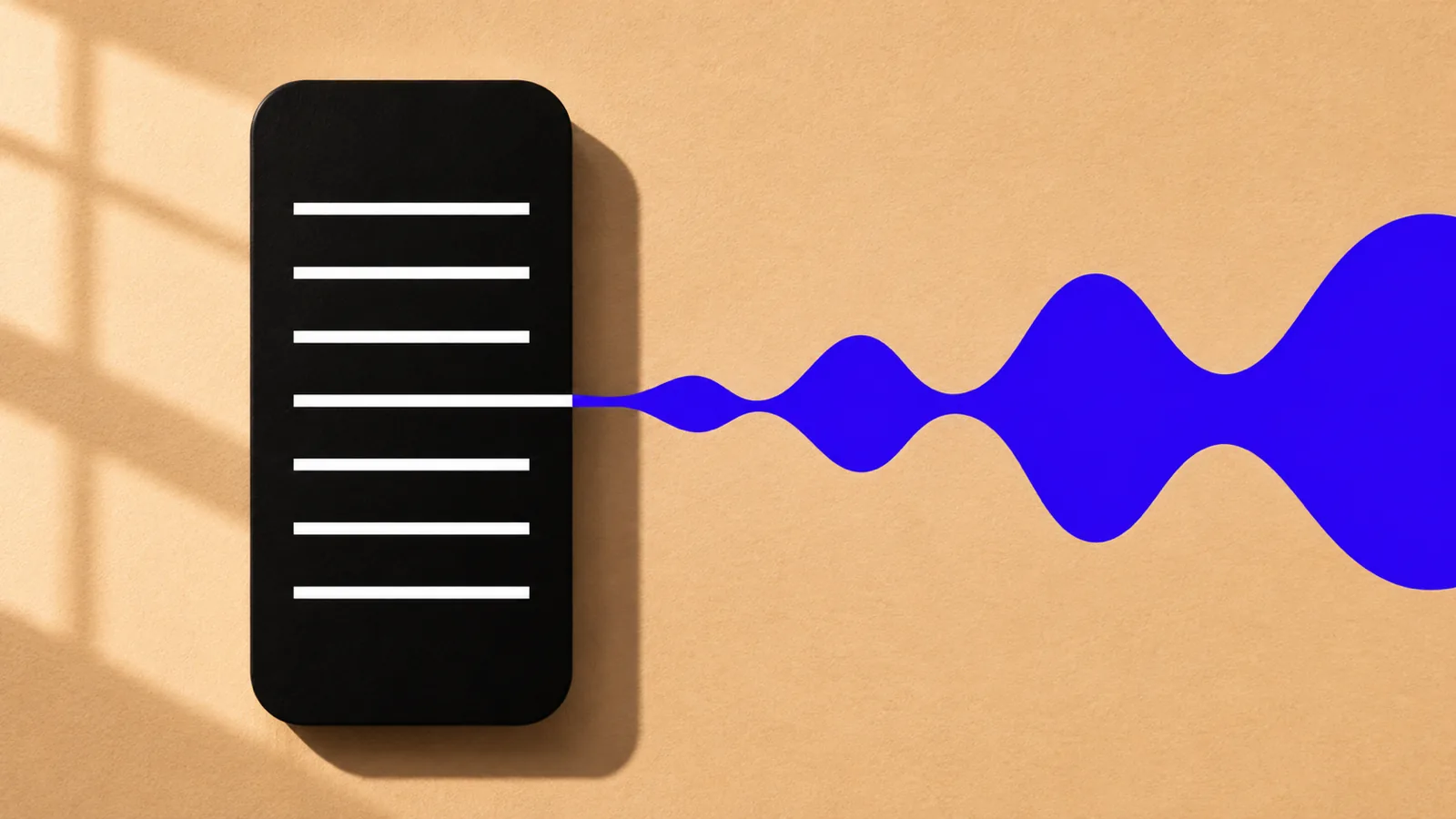
Read aloud on your device means text to speech: your phone, tablet or computer speaks the text on the screen in a synthetic voice, so you can listen instead of reading. It's a free, built-in feature that only plays when you start it, and it doesn't listen to you or record anything.
Read aloud is text to speech: the device turns written words into a spoken voice. It doesn't use the microphone, type for you or change the text.
Each platform names it differently: Speak Selection and Speak Screen on iPhone, Select to Speak on Android, Read aloud in Edge, Read Aloud in Word, Speak selection on Mac.
A "Read aloud" option in a pop-up menu reads only the text you selected, and only when you tap it.
If your phone announces every button and taps stop working normally, that's a screen reader (VoiceOver or TalkBack), not read aloud.
Built-in read aloud suits a page or an email. For long PDFs and books, a dedicated reading app saves your place and offers better voices.
What does read aloud mean on your device? It means text to speech. Your phone, tablet or computer takes the words on the screen and speaks them in a synthetic voice, so you can listen instead of reading. It's built in, free, and does nothing until you start it.
You've probably seen it as a Read aloud option in a pop-up menu, a button in Microsoft Edge or Word, or a setting called Speak Selection or Select to Speak. This guide covers what it does, what each device calls it, how to start and stop it, and what to use for long reading.
What does read aloud mean on your device?
Read aloud is a text-to-speech (TTS) feature. It reads text that's already on your screen, such as a web page, an email, a document or a selection, through your speaker or headphones.
That's all it does. Read aloud:
- Doesn't listen to you. It produces sound and doesn't use the microphone. Typing by voice is speech to text, a separate feature.
- Doesn't run on its own. It plays only when you tap the button, use a shortcut or gesture, or turn on a setting that triggers it.
- Doesn't change the text. It won't summarize, translate or edit unless an app adds that as a separate option.
People use it to rest their eyes, catch mistakes in their own writing, keep reading while walking or cooking, and make reading easier with dyslexia or low vision.
Where you'll see read aloud on each device
The feature has a different name on every platform. Here's where to find it, checked against Apple, Google and Microsoft support pages on November 18, 2026.
| Device or app | Name | How to start it |
|---|---|---|
| iPhone, iPad: selected text | Speak Selection | Turn on in Settings > Accessibility > Read & Speak. Select text, tap Speak |
| iPhone, iPad: whole screen | Speak Screen | Turn on in Read & Speak > Speak Screen. Swipe down with two fingers from the top |
| iPhone, iPad (iOS 26+) | Accessibility Reader | Turn on in Read & Speak. Open it from Control Center, the Share menu or a triple-click of the side button, then tap Play |
| Safari on iPhone | Listen to Page | Tap the Page Menu button, then Listen to Page |
| Android: selected text | Read aloud | Select text, tap More, then Read aloud |
| Android: anything on screen | Select to Speak | Turn on Select to Speak shortcut in Settings > Accessibility > Select to Speak. Swipe up with two fingers or tap the Accessibility button |
| Chrome on Android | Listen to this page | Tap More (⋮), then Listen to this page |
| Chrome on a computer | Reading mode | Right-click the page, choose Open in reading mode, select Play |
| Microsoft Edge | Read aloud | Ctrl+Shift+U (Windows) or Command+Shift+U (Mac). On phones, it's in the Edge menu |
| Microsoft Word | Read Aloud | Review > Read Aloud, or Ctrl+Alt+Space (Windows) / Ctrl+Option+Space (Mac) |
| Mac, any app | Speak selection | Turn on in System Settings > Accessibility > Read & Speak. Select text, press Option-Esc |
| Windows, whole system | Narrator (screen reader) | Ctrl+Windows logo key+Enter |
Sources: Apple's guides to Speak Selection and Speak Screen, Accessibility Reader, Listen to Page and Mac Speak selection; Google's Select to Speak, Chrome on Android and Chrome reading mode help; Microsoft's Edge shortcuts, Word Read Aloud and Narrator guides.
On iOS 18, macOS Sequoia and earlier, the Read & Speak menu is called Spoken Content.
"Read aloud" in a pop-up menu on Android
If you selected text on an Android phone and saw Read aloud under More, that's the quickest version: tap it and the phone reads the selection. Google says you don't need Select to Speak turned on for this, but it only works on text the phone can read, such as web page text.
"Read aloud" in Microsoft Edge and Word
In Edge, Read aloud reads the current web page or a PDF, highlighting the text as it goes. To hear just part of a page, select text, right-click (or press and hold) and choose Read aloud selection. Edge works offline too, but Microsoft says only a few voices are available then.
In Word, Read Aloud starts from your cursor. Speed and voice are under the gear icon in the controls. It's also in the Word apps for iPhone, iPad and Android, and in Word for the web through Immersive Reader.
"Read aloud" in apps like ChatGPT
Many apps add their own read-aloud button. ChatGPT, for example, has a Read aloud option on its replies. It does the same job: it speaks that one response.
How read aloud works
Three things happen in a fraction of a second:
- The app grabs the text. It takes your selection, the visible screen or the main article on a page. Reading modes such as Safari's Listen to Page and Chrome's reading mode aim for the article and skip most menus and ads.
- A speech engine turns text into sound. It expands numbers and abbreviations, works out how each word is pronounced, and plans pauses and emphasis. Our explainer on how text to speech works goes step by step.
- A voice speaks it. That's either a voice installed on your device or one streamed from the app's servers. On Android, Settings > Accessibility > Text-to-speech output shows your engine and sets the default speech rate and pitch.
The voice is why read aloud sounds so different from one device to another. Chrome's reading mode, for example, downloads Google natural voices for your language and falls back to your system voice if that fails.
Read aloud vs screen reader: what's the difference?
Read aloud reads content. A screen reader reads the whole interface.
| Read aloud | Screen reader | |
|---|---|---|
| Examples | Speak Selection, Select to Speak, Edge Read aloud | VoiceOver, TalkBack, Narrator |
| What it reads | Text you choose | Text, buttons, menus and notifications |
| Changes how you use the device? | No | Yes: taps and gestures work differently |
| Built for | Anyone who wants to listen | People who are blind or have low vision |
If your phone announces every button and a single tap no longer opens apps, a screen reader is on, not read aloud. Our guide to screen readers vs text to speech explains when each one fits.
Why is my device reading out loud, and how do I stop it?
Usually a shortcut fired by accident or a screen reader was switched on. Here's how to stop each one:
- iPhone, Speak Screen (started by a two-finger swipe down): turn off Settings > Accessibility > Read & Speak > Speak Screen.
- iPhone, VoiceOver (every button is announced): go to Settings > Accessibility > VoiceOver and turn it off. While it's on, tap once to select, then double-tap to activate.
- Android, Select to Speak (started by a two-finger swipe up): turn off Select to Speak shortcut in Settings > Accessibility > Select to Speak.
- Android, TalkBack: press and hold both volume keys for a few seconds if the shortcut is set up, or turn off Use TalkBack in Settings > Accessibility > TalkBack.
- Windows, Narrator: press Ctrl+Windows logo key+Enter, which starts or stops it.
- Mac: press Option-Esc again to stop Speak selection.
- Edge: press Ctrl+Shift+U (or Command+Shift+U on Mac) again.
For every other case, see how to turn off text to speech on any device.
Does read aloud keep playing or work on any text?
Locked screen: it depends on the feature. Google says Chrome's Listen to this page keeps playing with the screen locked, and Select to Speak has a Read in background setting that keeps reading while you scroll or switch apps.
Photos and scans: read aloud needs real text. Photos and scanned pages are images, so they need text recognition (OCR) first. On Android, Select to Speak can read text through the Google Camera app in supported languages. Google's separate Reading mode app reads most articles but not PDFs, emails, chats or social feeds.
Where built-in read aloud falls short
Built-in read aloud is great for a paragraph, an email or one article. Long reading is where it gets frustrating:
- Most don't remember your place. Close the page and you start over.
- Whole-screen reading picks up clutter. Speak Screen reads whatever is on screen, so a PDF's headers, page numbers and footnotes get read too.
- Voices vary a lot. Some are natural; many sound flat over a long chapter.
- Nothing follows you between devices. Start on your laptop and your phone knows nothing about it.
If those limits get in the way, a dedicated reading app is the next step.
Read aloud for long documents: Speechly
Speechly is a text-to-speech reader for iPhone, iPad, Android, Mac and Windows. It reads PDFs, Word documents, EPUB books, web pages, pasted text and photos of printed pages.
- 25+ natural AI voices in eight languages. Preview them on the voices page.
- Word-by-word highlighting, speed from 0.5× to 2×, and it keeps reading with your phone locked.
- On a computer, select text in any app and press ⌘E on Mac or Alt+R on Windows to hear it in a small floating player.
- Your place is saved and syncs across devices, so you can listen to a long PDF on your laptop and finish it on your phone.
- Cleaner PDFs on iPhone and iPad: it can skip repeating headers and footers.
Speechly is free to download, and the free plan includes two files with premium voices, no card required. Premium is $14.99/month or $139/year for unlimited listening on every device.
Frequently asked questions
Is read aloud the same as text to speech?
Yes. Read aloud is the everyday name for text to speech. The feature takes written text and turns it into spoken audio, using a voice installed on your device or one provided by the app.
Is read aloud safe to use?
Yes. It's a standard accessibility feature from Apple, Google and Microsoft, and it only speaks text; it doesn't use your microphone. Some voices, such as Edge's online voices, need an internet connection to generate speech.
Does read aloud record my voice or listen to me?
No. Read aloud only produces sound. The feature that listens to you and types what you say is dictation, also called speech to text, and it's a separate setting.
Is read aloud free?
Yes. The read-aloud features built into iPhone, iPad, Android, Windows, Mac, Microsoft Edge, Chrome and Safari are free. Read Aloud in the Word desktop app needs Office 2019, Office 2021 or Microsoft 365.
Can read aloud read PDFs?
Often, yes. Microsoft Edge reads PDFs with Ctrl+Shift+U on Windows or Command+Shift+U on Mac, and iPhone's Speak Screen reads whatever is on screen. Scanned PDFs are images, so they need text recognition first, and Android's Reading mode app doesn't support PDF files.
What does the Read aloud button in ChatGPT do?
It speaks a ChatGPT reply in a synthetic voice. It's the same idea as any other read-aloud button: it reads that one response and doesn't listen to you.
Listen with Speechly
Natural AI voices on iPhone, iPad, Android, Mac and Windows, with word highlighting and your place saved on every device. Free to download.
Prices and features of other products were checked on November 18, 2026 and can change. Speechly is not affiliated with the other companies named here.
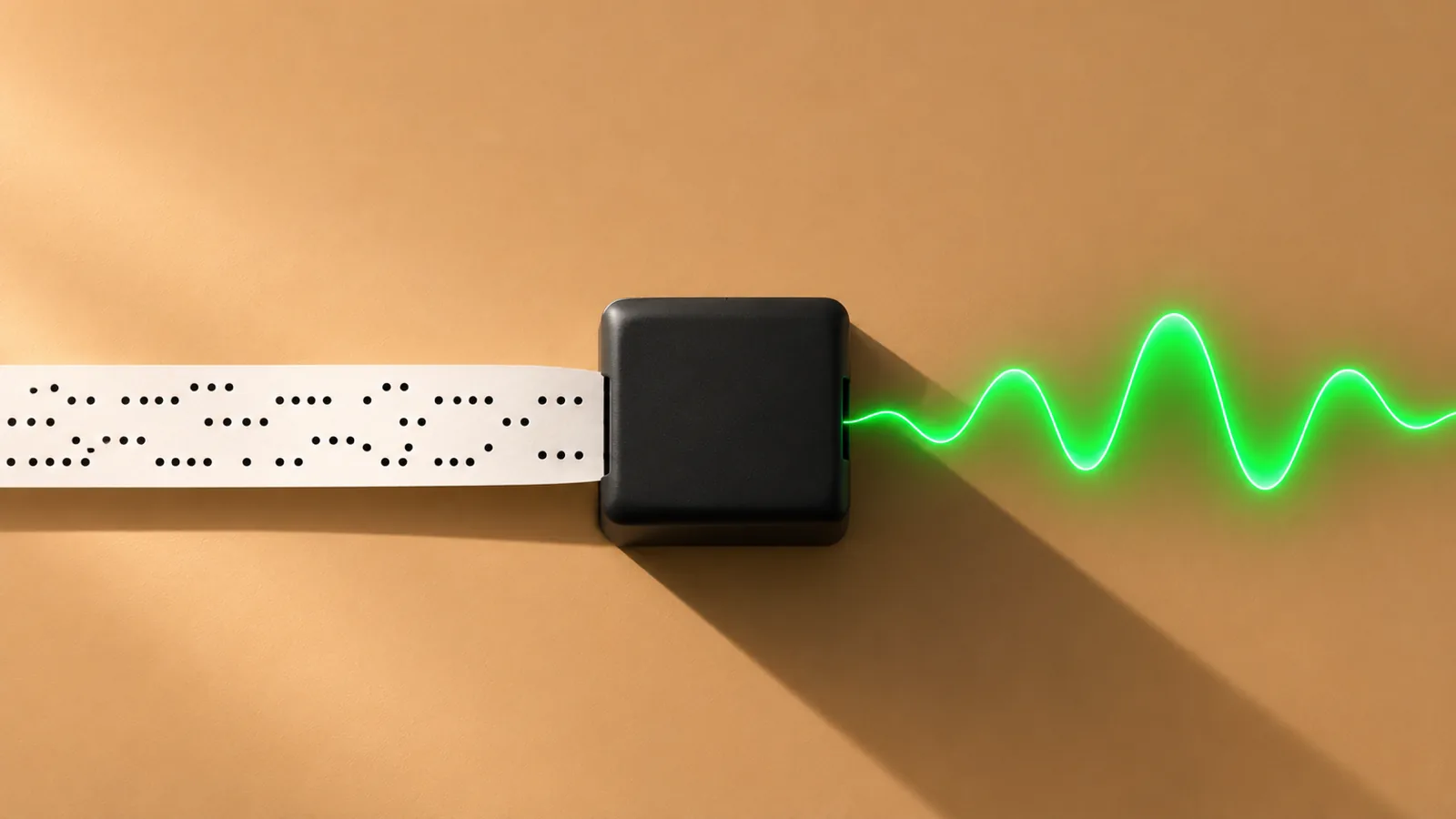
What Is Text to Speech? How It Works
What is text to speech? How it works in 4 simple steps, why AI voices now sound human, and how to turn on the free TTS already on your phone or computer.
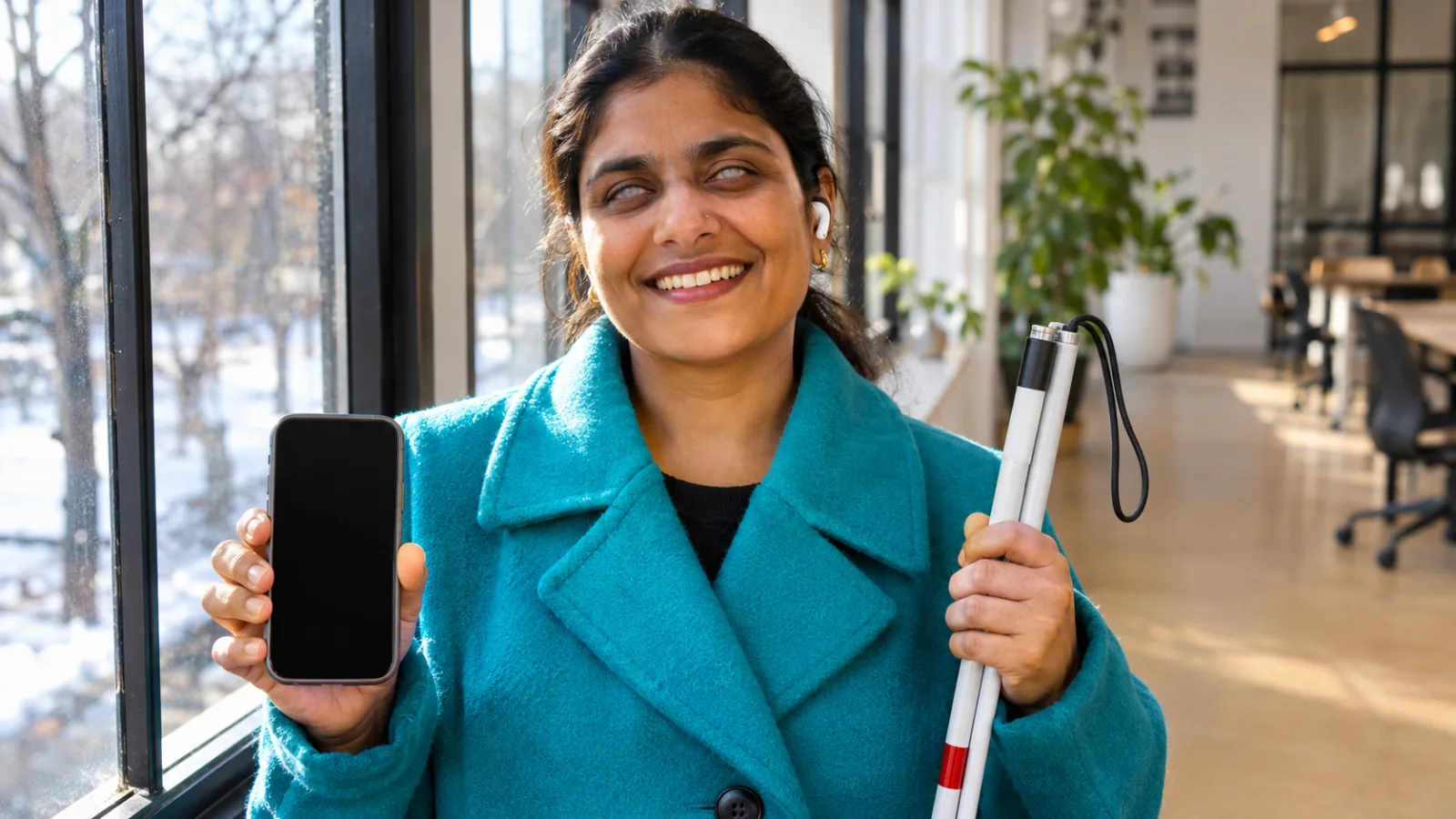
Screen Readers vs Text to Speech: What's the Difference?
Screen readers vs text to speech: how each works, who each is for, the free tools on iPhone, Android, Mac and Windows, and how to pick the right one.
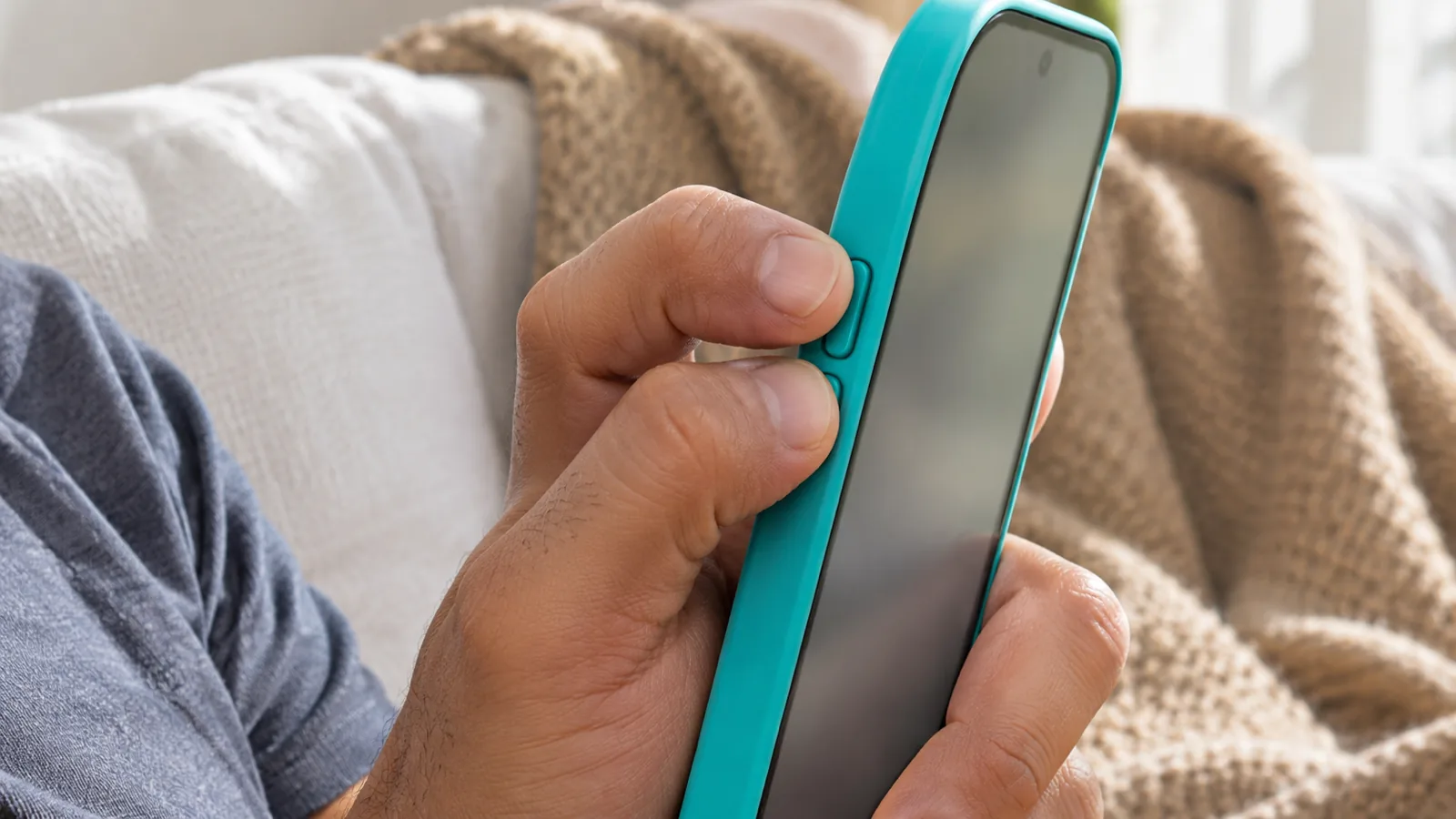
How to Turn Off Text to Speech on Any Device
How to turn off text to speech on any device: the exact shortcut or setting on iPhone, Android, Windows, Mac, Chromebook, Kindle, smart TVs and Discord.