


Best Assistive Technology for Reading (2026)
The best assistive technology for reading in 2026: apps, scanning pens, camera readers, literacy software and free libraries, compared with prices.
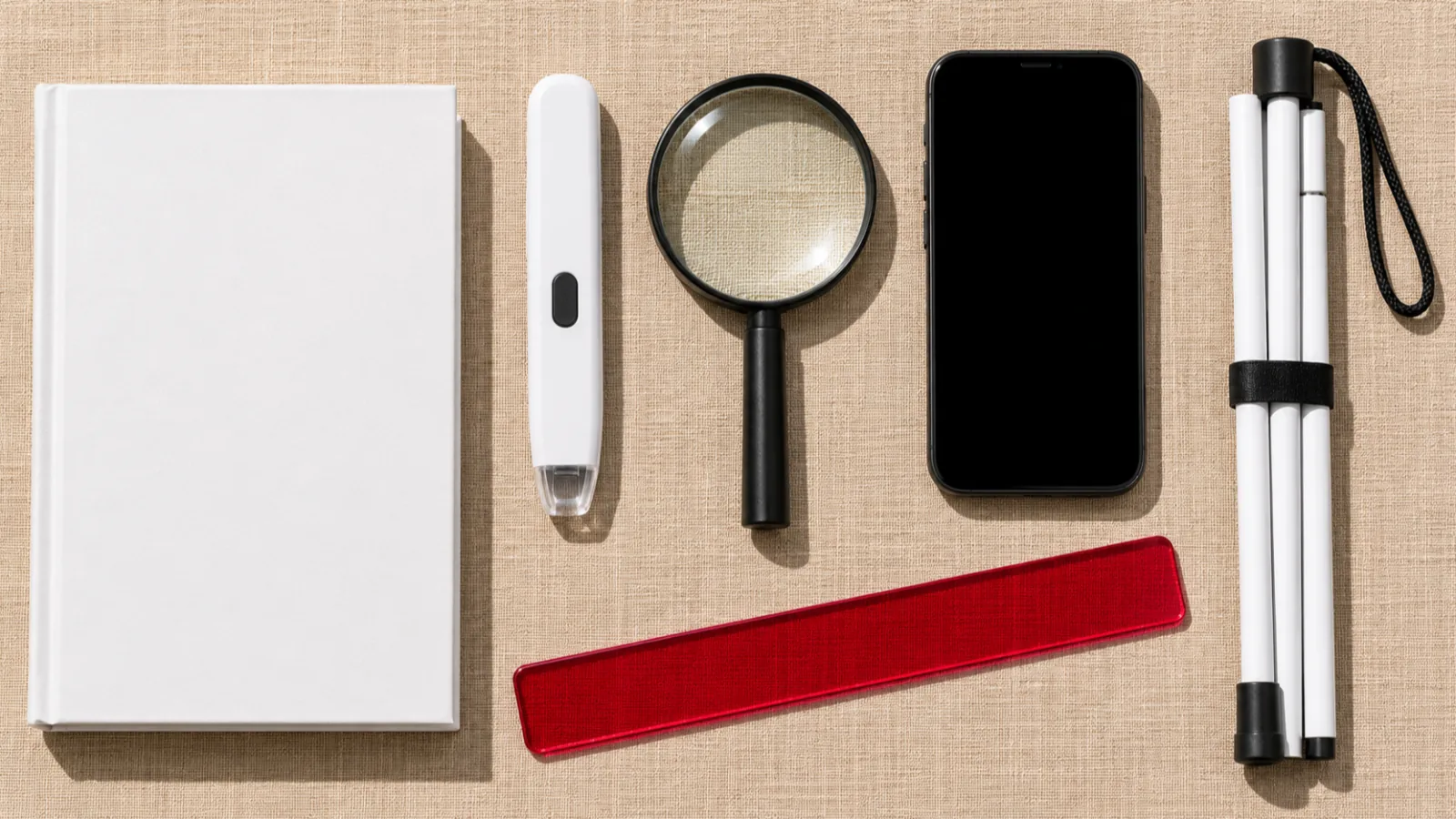
The best assistive technology for reading in 2026 is a text-to-speech app such as Speechly for documents on phone and computer, Read&Write or Kurzweil 3000 for school, the free readers built into Apple and Microsoft devices, a C-Pen Reader 2 for printed pages without a phone, and Bookshare or Learning Ally for accessible books.
Text to speech is the core reading tool for dyslexia, ADHD, low vision and fatigue, and every phone and computer already has a free version.
Scanning pens and camera readers handle printed pages; the C-Pen Reader 2 costs $349 and Seeing AI is free.
In US public schools, the IEP team must consider whether a student needs assistive technology.
Try before you buy: state assistive technology programs lend devices so you can test them.
The best assistive technology for reading turns text into something you can hear, see more clearly or navigate more easily, so a reading barrier doesn't block you from the content. We compared 10 tools for 2026, from free readers already on your phone to scanning pens, handheld camera readers and accessible libraries, with prices checked on official sites and retailer listings on November 18, 2026.
Short version: start with text to speech, which helps the widest range of readers and is free on every device. Add a dedicated app such as Speechly when you read long documents every day, and add hardware only when you need to read print without a phone.
Quick picks: the best assistive technology for reading
| Product | Best for | Type | Price (Nov 2026) |
|---|---|---|---|
| Speechly | Documents, PDFs and printed pages on phone and computer | Text-to-speech app | Free plan; $14.99/mo or $139/yr |
| Read&Write | Reading and writing support for school and work | Literacy toolbar | $184/yr; free for K-12 teachers |
| Kurzweil 3000 | School literacy and test-taking tools | Literacy software | Free trial; quote from sales |
| Microsoft Immersive Reader | Free line focus, syllables, picture dictionary | Built-in reading view | Free in Edge and Word for the web |
| Apple Accessibility Reader and Magnifier | Free read-aloud and camera reading on Apple devices | Built-in | Free |
| C-Pen Reader 2 | Printed lines read aloud, no phone needed | Scanning pen | $349 |
| Seeing AI | Free camera reading of mail, labels and pages | Camera app | Free |
| OrCam Read 3 | Full pages and screens read aloud, offline | Handheld device | About $2,790 |
| Bookshare and Learning Ally | Accessible and human-narrated books | Library | Free for qualifying US students (Bookshare) |
| NVDA and built-in screen readers | Navigating everything by speech or braille | Screen reader | Free |
Types of assistive technology for reading
| Type | What it does | Who it helps most | Examples |
|---|---|---|---|
| Text to speech | Reads digital text aloud, often with highlighting | Dyslexia, ADHD, low vision, fatigue | Speechly, Immersive Reader, Speak Screen |
| Literacy software | Text to speech plus dictionaries, note and writing tools | Students with reading and writing difficulties | Read&Write, Kurzweil 3000 |
| Scanning pens | Reads a scanned line of print aloud | Students and adults reading print | C-Pen Reader 2 |
| Camera readers (OCR) | Photographs a page and reads it | Low vision, dyslexia, print on the go | Seeing AI, OrCam Read 3 |
| Accessible libraries | Books in audio, braille and accessible formats | Anyone with a qualifying print disability | Bookshare, Learning Ally, NLS |
| Screen readers | Speaks everything on screen, with keyboard or gesture navigation | Blind and some low-vision readers | NVDA, VoiceOver, TalkBack |
| Display tools | Changes fonts, spacing, colors, line focus | Dyslexia, ADHD, visual stress | Accessibility Reader, Chrome Reading mode |
For a longer explanation of each category, see our guide to what assistive technology for reading is.
1. Speechly: best text-to-speech app for documents on every device
Speechly is a text-to-speech reader for iPhone, iPad, Android, Mac and Windows. It reads PDFs, Word documents, EPUB books, TXT files, web pages, emails and pasted text aloud with 25+ natural AI voices, highlighting each word as it's spoken.
It's the most practical everyday tool here for students and adults who read a lot of documents. Take a photo of a printed handout, book page or letter and listen to it. On iPhone and iPad it can skip repeating headers and footers in PDFs, so they aren't read on every page.
Standout features:
- Word-by-word highlighting, and you can jump to any sentence and start there.
- Speed from 0.5× to 2×, slower for dense text as well as faster for easy text.
- On a Mac, select text in any app and press ⌘E; on Windows, press Alt+R. A floating player reads it aloud.
- One account covers every device, with your place saved, and reading continues with the phone locked.
- Voices in eight languages, including American and British English, Spanish and French.
Downsides: Speechly has no browser extension, no web app and no Chromebook app, and it needs an internet connection to play its voices. It's not a screen reader, and it has no writing, dictionary or display tools. The free plan covers two files with premium voices.
Price: free to download; Premium is $14.99/month or $139/year for unlimited listening. See how it supports readers with dyslexia.
2. Read&Write: best all-in-one toolbar for school and work
Read&Write by Everway adds a toolbar to Google Docs, Word, PDFs and web pages with text to speech and two-color highlighting, a picture dictionary, word prediction, speech-to-text, Screen Masking, a Screenshot Reader for images and scanned PDFs, and highlighters that collect notes.
It's the strongest choice when a student needs help writing as well as reading, and many schools, colleges and employers already license it.
Downsides: expensive for one person, a lot to learn, and some tools need an internet connection.
Price: $184 per year for an individual license, per Everway's pricing page. K-12 teachers get it free.
3. Kurzweil 3000: best for school literacy and test taking
Kurzweil 3000 from Kurzweil Education, a Cambium Learning brand, is long-standing literacy software used by many schools. It reads text aloud in 13 languages and adds speech-to-text for writing, bubble notes, markup and study tools, dictionaries and translation. It opens PDF, Word, EPUB and image files and connects to Google Drive, OneDrive, Google Classroom and Bookshare. Its sister product, Kurzweil 1000, is designed for people who are blind or have severe visual impairments.
Downsides: pricing isn't published, and it's built for schools more than for individual adults.
Price: free trial; licenses are sold through Kurzweil Education's sales team.
4. Microsoft Immersive Reader: best free reading support on Windows and the web
Immersive Reader is Microsoft's free reading view in Word, OneNote, Teams and Edge. In Word for the web (free with a Microsoft account), choose View > Immersive Reader for Read Aloud with highlighting, Line Focus (one, three or five lines in view), text spacing, page color, syllables and a picture dictionary, per Microsoft's guide. In Edge, press F9 on an article for a clutter-free view, or Ctrl+Shift+U to have any page read aloud.
Downsides: features differ by app, Word for Mac lacks Line Focus, and it doesn't read photos of printed pages.
Price: free in Edge and Word for the web; desktop Word needs Microsoft 365.
5. Apple Accessibility Reader, Speak Screen and Magnifier: best free tools on Apple devices
Every iPhone, iPad and Mac includes reading assistive technology at no cost:
- Accessibility Reader (iOS 26, iPadOS 26 and macOS 26 and later) opens the text of almost any app in a reading view where you choose the font, colors, size and spacing, then tap Play to listen. Turn it on in Settings > Accessibility > Read & Speak > Accessibility Reader, per Apple's guide.
- Speak Screen reads everything on screen when you swipe down with two fingers from the top. Turn it on in Settings > Accessibility > Read & Speak.
- Magnifier reads printed text aloud: open the app, tap Detection Mode, make sure Text is selected, and point the camera at a page, per Apple's Magnifier guide.
On a Mac, turn on Speak selection in System Settings > Accessibility > Read & Speak, then select text and press Option-Esc.
Downsides: no library or saved place for long documents, and the built-in voices are plainer than AI voices.
Price: free.
6. C-Pen Reader 2: best scanning pen for printed text
The C-Pen Reader 2 is a pen-sized scanner: run it along a line of printed text and it reads the words aloud through its speaker or headphones. It works on its own, with no phone, computer or internet connection, and includes dictionary definitions and a scan-to-file mode. It scans English, French, Spanish and Italian text.
It suits students who read printed textbooks and worksheets and adults who want help with letters and forms without using a phone. Scanning Pens also sells the C-Pen Exam Reader 3 ($449), which it describes as approved for tests.
Downsides: it reads one line at a time, which is slow for whole pages, and smooth scanning takes a little practice.
Price: $349 for one pen on Scanning Pens' store.
7. Seeing AI: best free camera reader
Seeing AI is a free Microsoft app for iPhone, iPad and Android that reads text as soon as the camera sees it, and can capture and read full documents, handwriting and product labels. Its App Store listing also lists photo descriptions, barcode scanning, currency and color recognition, in English and 18 other languages.
It's designed for blind and low-vision users, but it's useful for anyone who wants mail, menus or handouts read aloud on the spot.
Downsides: you need to aim the camera, which takes practice, and it isn't built for long documents you want to come back to.
Price: free.
8. OrCam Read 3: best handheld reader for full pages
OrCam Read 3 is a small handheld device: point it at a page, a screen or a sign and it reads the text aloud. It works offline, supports more than 20 languages, weighs about 1.6 oz and runs about four hours per charge, according to OrCam.
It's the most capable reading hardware here and suits people with low vision, dyslexia or reading fatigue who read a lot of print and prefer a dedicated device to a phone.
Downsides: the price. It's sold through distributors, and OrCam's product page doesn't list a price.
Price: about $2,790 at US low-vision retailers as of November 2026. Ask about state programs or vocational rehabilitation, which may help pay.
9. Bookshare and Learning Ally: best accessible book libraries
Bookshare is an online library of more than 1.4 million accessible ebooks for people with visual impairments, dyslexia and other print disabilities. It's free for qualifying US students and schools, funded by the US Department of Education; qualifying adults who aren't students pay a small annual fee. Read with its apps for iPhone and Android or apps such as Voice Dream Reader.
Learning Ally offers more than 80,000 human-narrated audiobooks for students with dyslexia, blindness or low vision, on iPhone, Android and the web. Our Bookshare vs Learning Ally comparison covers the differences. In the US, the National Library Service also lends talking books and braille free to eligible readers.
Downsides: you need a documented qualifying disability, and the catalogs depend on publisher permissions.
Price: Bookshare is free for qualifying US students. Learning Ally is often provided through schools; check its site for individual memberships.
10. NVDA and built-in screen readers: best for blind readers
A screen reader speaks everything on screen and lets you navigate by keyboard, gestures or a braille display. NVDA is a free, open-source screen reader for Windows 10 and 11 that supports many refreshable braille displays. Apple devices include VoiceOver, Android includes TalkBack, and Windows includes Narrator.
Who it's for: people who can't use the screen visually. If you can see the screen and only need text read aloud, text to speech is simpler; our guide to screen readers vs text to speech explains the difference.
Price: free.
How we chose
We compared each tool on what decides whether it actually gets used, based on official sites, help pages, app store listings and retailer listings checked on November 18, 2026:
- Reach. How many kinds of reading barriers it helps with.
- What it reads. Digital documents, web pages, printed pages, screens.
- Ease of use. Steps from opening the tool to hearing text.
- Supports for understanding. Highlighting, speed control, dictionaries, line focus.
- Portability. Phone, computer, standalone device, offline use.
- Real cost. Free options first, with yearly prices or one-time hardware prices.
How to choose the right assistive technology for you
Match the tool to the barrier and to where the reading happens:
- Dyslexia: text to speech with word highlighting first, plus display tools if they help. Our assistive technology for dyslexia guide goes deeper.
- ADHD: text to speech with a saved place, plus line focus in Immersive Reader or Chrome.
- Low vision: Apple's or Android's built-in readers and magnifiers, Seeing AI for print, and an app like Speechly for long documents.
- Blindness: a screen reader, plus Bookshare or the National Library Service for books.
- Lots of printed textbooks: a scanning pen, or photograph pages with Speechly or Seeing AI.
- A student in a US public school: under IDEA, the IEP team must consider whether the student needs assistive technology, and the school provides what the IEP includes. See our guide to IEP and 504 accommodations for reading.
Before buying hardware, borrow it. Every US state and territory has an assistive technology program, 56 in all, funded under the Assistive Technology Act. They run device demonstrations, short-term loans and reuse programs. An occupational therapist, low-vision specialist or school assistive technology specialist can also help you choose.
Assistive technology gives access to text; it doesn't replace reading instruction or professional support. If reading is a struggle for you or your child, an educational psychologist, reading specialist or eye doctor can find out why.
The bottom line
Start with the free text to speech on your phone and computer, then add what fills the gap: literacy software for school, a scanning pen or camera reader for print, an accessible library for books. If you want one app that reads your documents, PDFs and photos of printed pages aloud with word highlighting on every device, download Speechly free and try it on today's reading.
Every pick at a glance
Listening to documents, PDFs and printed pages on phone and computer
Free plan (two files with premium voices); Premium $14.99/month or $139/year
iPhone, iPad, Android, Mac, Windows
Reading and writing support in one toolbar for school and work
$184/year individual license; free for K-12 teachers
Windows, Mac, Chromebook, iPhone, iPad, Android
School literacy software with study and test-taking tools
Free trial; pricing through Kurzweil Education sales
Windows, Mac, Web
Free read-aloud with line focus, syllables and a picture dictionary
Free in Edge and Word for the web; desktop Word needs Microsoft 365
Windows, Mac, Web, iPad
Free read-aloud and printed-text reading on Apple devices
Free, built in
iPhone, iPad, Mac
Reading printed lines aloud without a phone or internet
$349 from Scanning Pens
Standalone device
Free camera reading of mail, labels and documents
Free
iPhone, iPad, Android
A handheld reader for full pages and screens, offline
About $2,790 at US retailers
Standalone device
Accessible and human-narrated books for print disabilities
Bookshare free for qualifying US students; Learning Ally memberships vary
iPhone, iPad, Android, Web
Frequently asked questions
What are examples of assistive technology for reading?
Text-to-speech apps, scanning pens, camera reading apps, audiobooks and accessible ebook libraries, screen readers, and display tools that change fonts, spacing and colors. Low-tech tools such as reading guides and colored highlighters count too.
What is the most common assistive technology for reading?
Text to speech. It's built into every major phone, computer and browser, and it's a common reading accommodation in US schools.
Is a reading pen allowed in exams?
Only models your school or exam board approves. Scanning Pens sells a separate C-Pen Exam Reader for tests, but the exam body decides what's allowed, so check with them first.
Who pays for assistive technology in school?
In US public schools, if the IEP team decides a student needs an assistive technology device or service, the school must provide it at no cost to the family. Students with 504 plans can also receive assistive technology as an accommodation.
Can adults get assistive technology for reading?
Yes. Most tools here are sold to individuals, the free built-in readers work for anyone, and state assistive technology programs lend devices to try. At work, assistive technology can be a reasonable accommodation.
Is assistive technology a substitute for reading instruction?
No. It gives access to text, while structured, evidence-based instruction builds reading skills. Most students with reading disabilities benefit from both.
Listen with Speechly
Natural AI voices on iPhone, iPad, Android, Mac and Windows, with word highlighting and your place saved on every device. Free to download.
Prices and features of other products were checked on November 18, 2026 and can change. Speechly is not affiliated with the other companies named here.
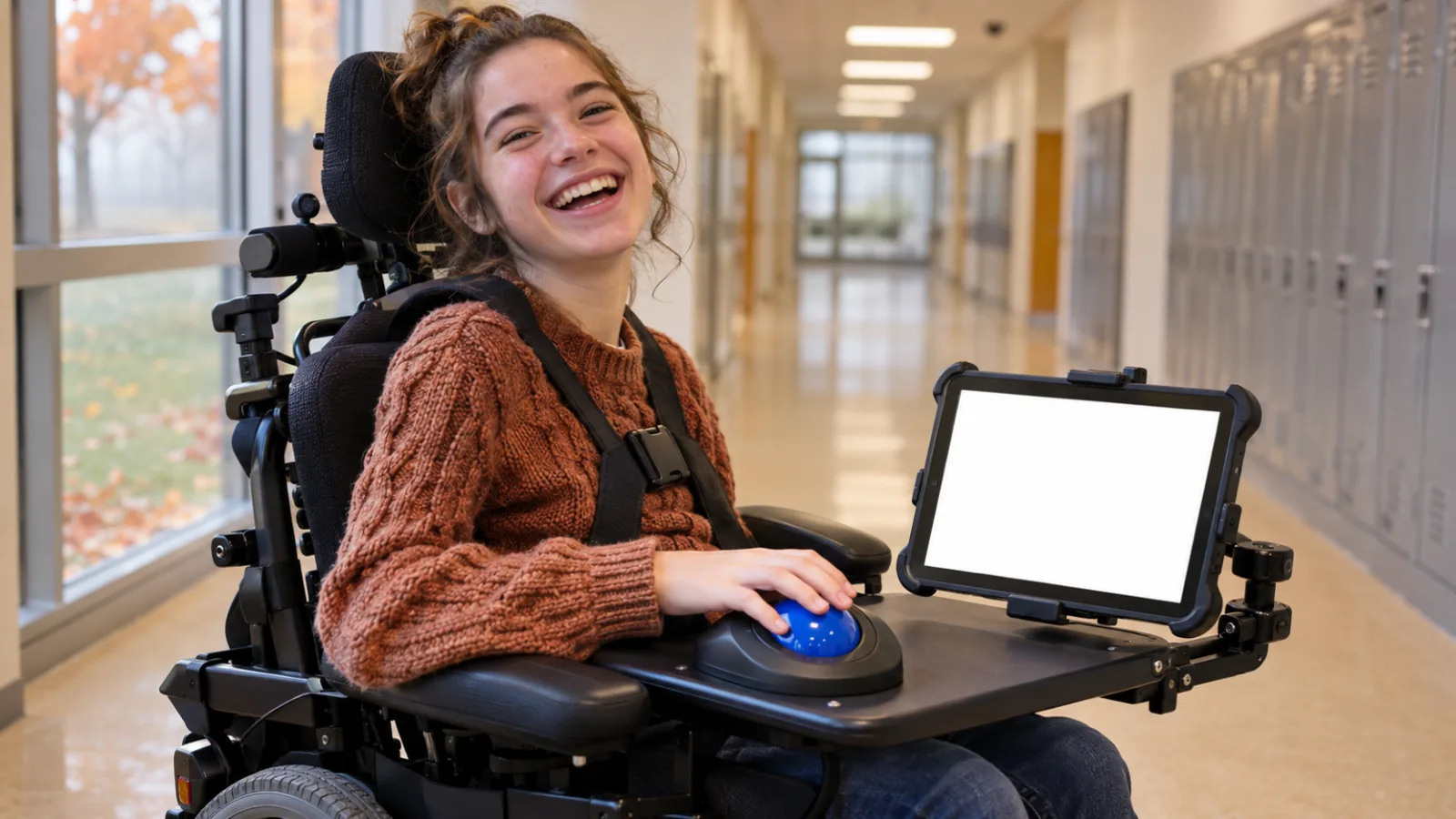
What Is Assistive Technology? Examples for Reading
What is assistive technology? Examples for reading, from line guides to text to speech, who uses them, and how to get them free at school, work or home.
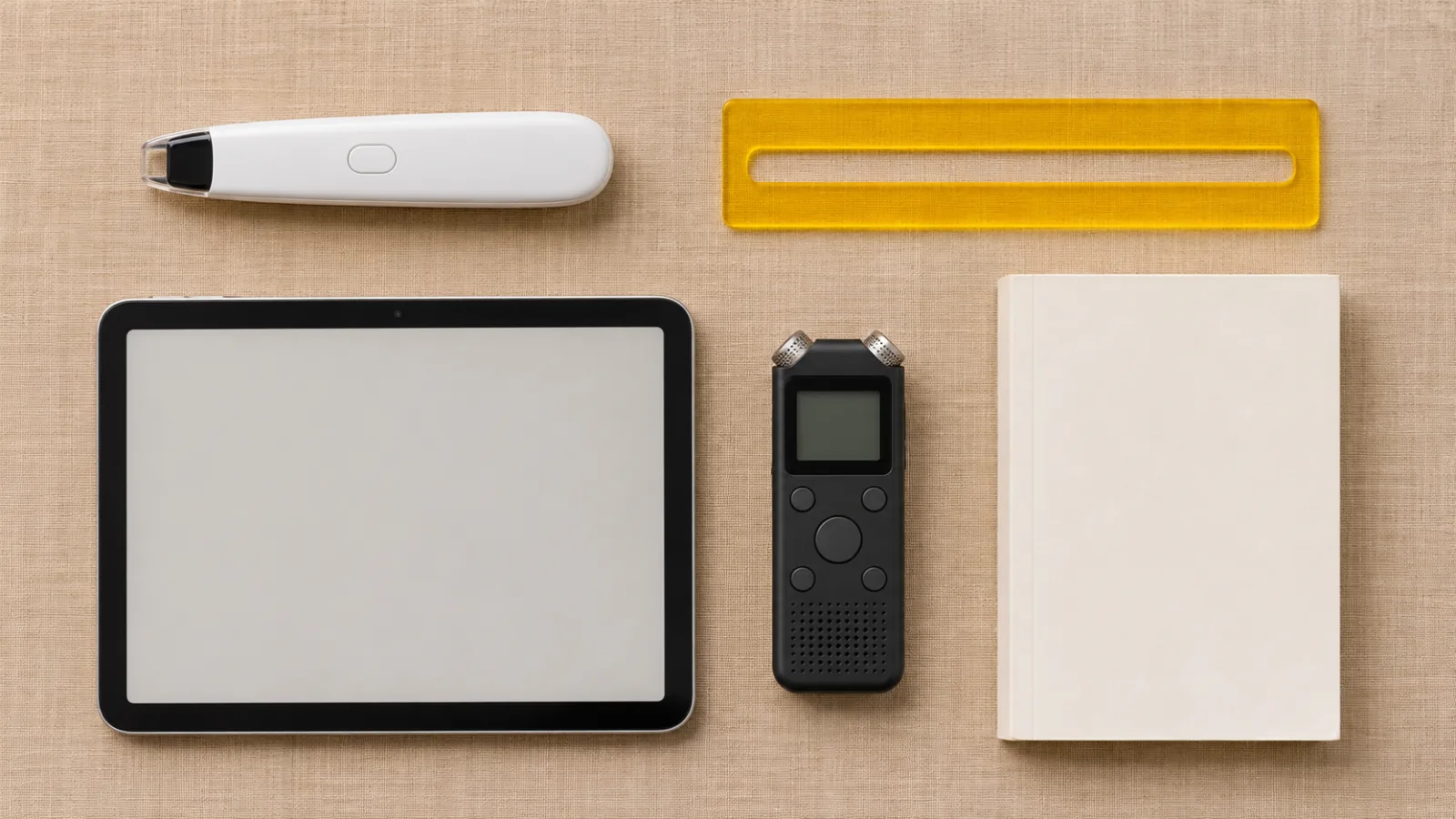
Assistive Technology for Dyslexia: A Complete Guide
Assistive technology for dyslexia by task: text to speech, dictation, reading pens and audiobooks, the free tools on your devices, and who pays for more.

IEP and 504 Plan Accommodations for Reading
IEP and 504 plan accommodations for reading: a full list, how to word them so they're used, test rules, and what to do if the school says no.