


How to Listen to a Textbook
How to listen to a textbook for free, step by step: Read Aloud in Pearson+, VitalSource and Cengage, PDF textbooks on any device, and printed pages.
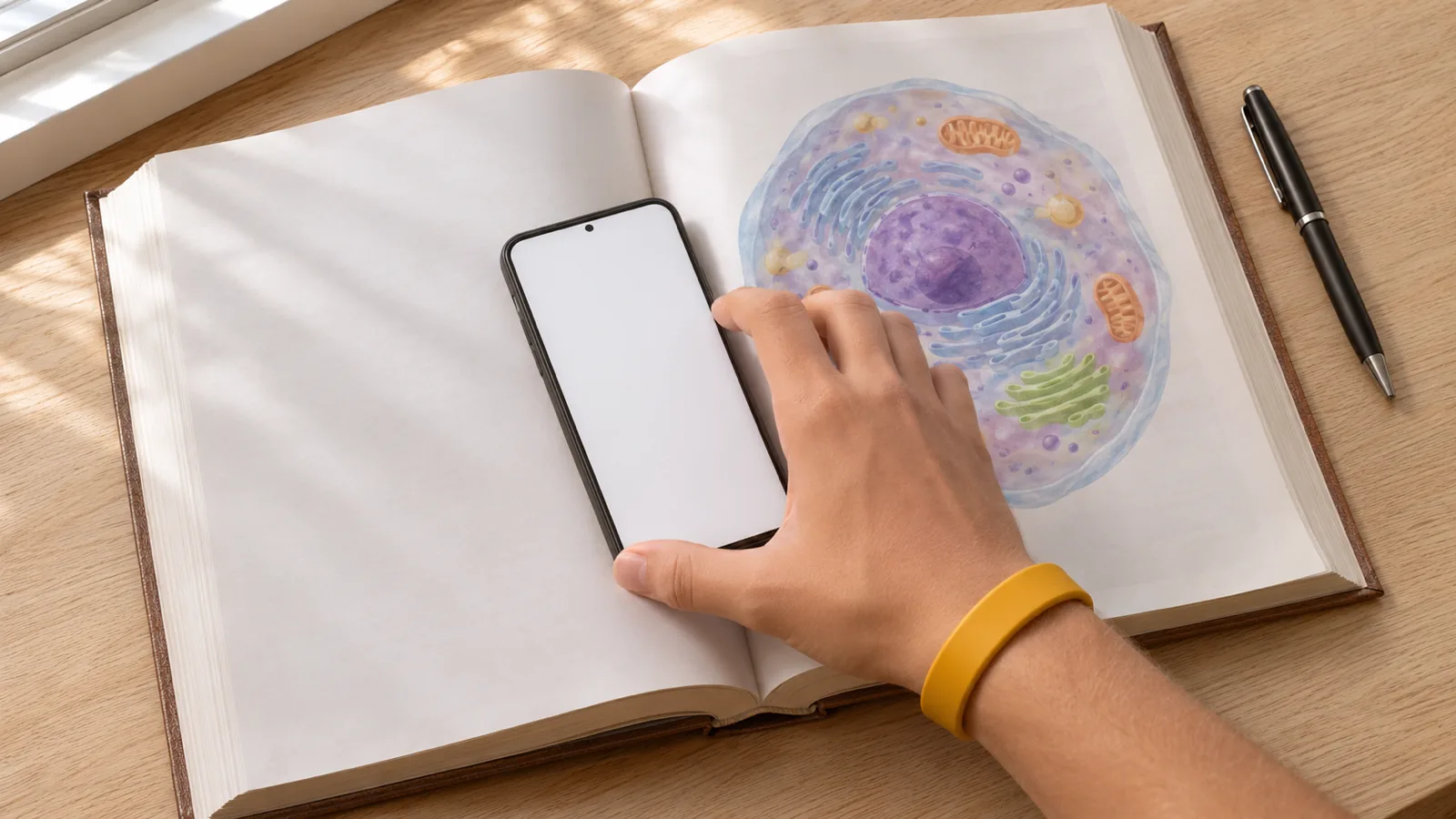
To listen to a textbook, press the Audiobook or Read Aloud button built into your eTextbook reader; Pearson+, VitalSource and Cengage all have one. For a PDF textbook, open it in Microsoft Edge and press Ctrl+Shift+U. For a printed textbook, photograph the page and let your phone or a reader app read it aloud.
Check your eTextbook first: Pearson+, VitalSource Bookshelf and Cengage all have a built-in Audiobook or Read Aloud button with speed control.
Pearson+ has an audiobook for most eTextbooks but not for PDF eTextbooks, and its app needs internet to play audio.
PDF textbooks play free in Microsoft Edge with Ctrl+Shift+U (Command+Shift+U on Mac), and every phone, Mac and Chromebook has a built-in read-aloud tool.
Printed textbooks: point Android's camera at the page with Select to Speak on, or photograph the page and use Speak on iPhone.
U.S. students with a print disability such as dyslexia can get textbooks free in audio and word-highlighted formats from Bookshare, with no IEP required.
The quickest answer to how to listen to a textbook: press the Audiobook or Read Aloud button already built into most eTextbook readers, including Pearson+, VitalSource Bookshelf and Cengage. PDF textbooks play free in Microsoft Edge or with your device's accessibility features. Printed textbooks need a photo first.
Below are the exact steps for each format and device, how to get natural voices and word highlighting with Speechly's PDF and document reader, and what to do when the audio trips over equations, footnotes or columns.
Which listening method fits your textbook?
Start with the format you have. For publisher eTextbooks, the built-in reader is the quickest option, because those files usually can't be opened in other apps.
| Your textbook | Fastest free way to listen | For natural voices on every device |
|---|---|---|
| Pearson eTextbook (Pearson+) | Audiobook icon at the bottom of the page | Not needed |
| VitalSource Bookshelf | More options (⋮) > Read Aloud | Not needed |
| Cengage eBook | Read Aloud icon in the sidebar | Not needed |
| PDF textbook or course pack | Microsoft Edge: Ctrl+Shift+U | Speechly |
| EPUB or Word file | Speak Screen (iPhone) or Select to Speak (Android) | Speechly |
| Printed textbook | Android camera + Select to Speak, or iPhone Photos + Speak | Photo in Speechly |
How to listen to an eTextbook with its built-in Read Aloud
If you bought or rented your textbook through your course, open it in the publisher's reader first. Not every title has audio, so if you don't see the button, skip to the PDF or printed-book methods below. Library ebooks are worth the same check: some library ebook readers have their own listen button in the toolbar.
Pearson eTextbook (Pearson+)
Pearson calls it an audiobook. Per Pearson's help page:
- Open the eTextbook in a web browser or the Pearson+ app. In the app, you may need to tap a page to show the menu.
- Select the Audiobook icon at the bottom of the page, then Play Audio.
- To start from a specific spot, select text on the page and choose Start audio here.
- Open Audiobook Settings (the gear) to change the speed with – and +, switch rewind and forward from paragraphs to 10 sec, or turn on Pause at end of page.
The read-along highlight is on by default. Most Pearson eTextbooks have an audiobook, except PDF eTextbooks, and the app needs internet access to play audio.
VitalSource Bookshelf
These steps, from Unizin's VitalSource eReader guide, cover the Windows, Mac and browser reader:
- Open the book, click the three-dot More options menu, then Read Aloud.
- Click Play. Reading starts at the top of the screen.
- To start elsewhere, click the text and choose Read aloud from here.
- Click the settings icon on the player to change Speed and Voice. Under Content, Simplified Reading Mode skips footnotes, image descriptions and links. It works only in EPUB books.
If Read Aloud is missing, check VitalSource's Read Aloud help page for your title and device.
Cengage eBook
In Cengage's reader:
- Click the Read Aloud icon in the sidebar, then click Play.
- Open Settings (the gear) in the Read Aloud menu to pick a Speed and a Voice.
- To hear one passage, highlight it and choose Read Aloud in the pop-up menu.
Cengage says some Read Aloud features aren't available for every product.
How to listen to a PDF textbook for free
PDF textbooks, scanned chapters and course packs need a separate read-aloud tool. These are free and already on your devices.
- Windows or Mac: Open the PDF in Microsoft Edge and press Ctrl+Shift+U (Command+Shift+U on Mac) to start or stop Read Aloud. Change the voice and speed under Voice options.
- Mac, any app: Turn on Speak selection in System Settings > Accessibility > Read & Speak. Select a passage and press Option-Esc, the default shortcut.
- iPhone or iPad: Turn on Speak Screen in Settings > Accessibility > Read & Speak (Spoken Content on iOS 18 and earlier). Open the PDF and swipe down with two fingers from the top of the screen.
- Android: Go to Settings > Accessibility > Select to Speak and turn on the Select to Speak shortcut. Open the PDF, start Select to Speak with the shortcut, and tap Play to hear the whole screen.
- Chromebook: Turn on Select-to-speak under Settings > Accessibility > Text-to-Speech. Highlight text and press Search + S. More in how to make a Chromebook read PDFs aloud.
If nothing is read, the PDF is probably a scan with no text layer. Fix it with the steps in how to listen to a scanned PDF.
How to listen to a printed textbook
A paper textbook has to become text first, and your phone's camera can do that.
Android: With the Select to Speak shortcut on, open the Google Camera app and point it at the page. Start Select to Speak and drag your finger across the text you want read. Google supports this in 18 languages, including English, Spanish, French and German.
iPhone: Turn on Speak Selection in Settings > Accessibility > Read & Speak. Photograph the page and open it in Photos. Touch and hold a word, drag the grab points over the text, then tap Speak.
Both work for a page or two. For a whole chapter, an app that reads photos of pages saves you selecting text page by page.
How to listen to a textbook with Speechly
Built-in voices handle a quick passage. For a 40-page chapter, you'll want a natural voice, highlighting to follow along and a saved place. Speechly reads PDFs, EPUBs, Word documents and photos of printed pages, with one account across iPhone, iPad, Android, Mac and Windows.
- Open your PDF, EPUB or Word file in Speechly, or take a photo of each page of a printed textbook.
- Pick one of 25+ natural AI voices and press play. Each word is highlighted as it's read, and you can jump to any sentence to start there.
- Set the speed from 0.5× to 2×. Speechly shows how long the document will take to listen to.
- Lock your phone and keep listening. Your place is saved, and it syncs across devices when you sign in.
On iPhone and iPad, Speechly can skip repeating headers and footers, so you don't hear the chapter title and page number on every page.
Reading an eTextbook in a browser or desktop app? If the platform lets you select text, select a passage and press ⌘E on a Mac or Alt+R on Windows to hear it in Speechly's floating player.
The free plan includes two text-to-speech files with premium voices, with no card needed. Premium is $14.99/month or $139/year for unlimited listening on every device. See Speechly for students for how it fits into studying.
How to get free audio textbooks with a print disability
U.S. students with a qualifying disability, such as dyslexia, blindness or low vision, or a physical disability like cerebral palsy, can get textbooks free from Bookshare. Bookshare offers audio, word highlighting, enlarged text and braille. An IEP isn't required: a teacher, reading specialist, school psychologist, doctor or other qualified professional can certify eligibility. For the other big option, see Bookshare vs Learning Ally.
At college, ask your disability services office for accessible copies of required textbooks. They can often request a digital version from the publisher that reads cleanly aloud.
Troubleshooting
There's no Audiobook or Read Aloud button. Audio isn't available for that title, or it's a PDF eTextbook. Use your device's read-aloud tools above, or ask your instructor or disability office for an accessible version.
Pearson audio won't play in the app. The Pearson+ app needs an internet connection for audiobooks. Reconnect, or open the book in a web browser.
Audio stops at the end of every page. In Pearson, open Audiobook Settings and turn off Pause at end of page.
It reads nothing at all. The page is an image. Run OCR on the PDF, or photograph the page in a reader app.
Equations come out as gibberish. Math, formulas and tables rarely read well aloud. Pause and look at the page for those parts. How text to speech handles math, tables and footnotes explains why.
Footnotes and captions interrupt every paragraph. In a VitalSource EPUB, switch to Simplified Reading Mode under the player's Content settings. In other tools, skip ahead past them.
Sentences jump between columns. The tool is reading straight across a two-column page. See how to listen to two-column PDFs.
The voice uses the wrong language or accent. In VitalSource, pick another language and voice in the player's settings (language choice is available on Mac and Windows). Elsewhere, change your device's speech voice.
Tips for studying a textbook by listening
- Skim the headings first. Thirty seconds on the chapter outline gives your ears a map to follow.
- Follow the text for hard chapters. Reading along lets you slow down at a definition or diagram, which audio alone can't do. Save audio-only listening for review.
- Start at 1× and speed up. Raise the speed once the vocabulary feels familiar, and slow back down for new topics.
- Pause after every section. Say the main point out loud or jot it down before moving on. More in how to read a textbook effectively.
Frequently asked questions
Can I get my textbook as an audiobook?
Rarely as a narrated audiobook, but most digital textbooks can be read aloud. Most Pearson eTextbooks have an audiobook mode, VitalSource and Cengage have Read Aloud, and any PDF or photographed page can be played with text to speech.
Is there an app that reads textbooks aloud?
Yes. Your textbook platform's own app is the first place to look, since it opens the protected file directly. For PDFs, EPUBs and photos of printed pages, reader apps such as Speechly read them with natural voices and word highlighting.
Is listening to a textbook as good as reading it?
For understanding, often close. A 2021 meta-analysis of 46 studies found no reliable overall difference between reading and listening comprehension, though reading did better on inference questions and when readers set their own pace. Following the text while you listen lets you slow down where you need to.
Can text to speech read math equations in a textbook?
Usually not well. Equations, chemical formulas and tables are often skipped or read as a string of symbols, so keep the page open for those parts and listen to the explanations around them.
Can I listen to my textbook offline?
It depends on the tool. Pearson says its audiobook needs internet access in the Pearson+ app, so plan on a connection there, and check your platform's help page for the others.
How long does it take to listen to a textbook chapter?
Narrators read about 9,300 words an hour, according to ACX, so a 7,000-word chapter takes roughly 45 minutes at normal speed and about 30 minutes at 1.5×.
Listen with Speechly
Natural AI voices on iPhone, iPad, Android, Mac and Windows, with word highlighting and your place saved on every device. Free to download.
Prices and features of other products were checked on November 18, 2026 and can change. Speechly is not affiliated with the other companies named here.

How to Read a Textbook Effectively
How to read a textbook effectively in 6 research-backed steps: preview, question, recall, review. Plus what to skip and why highlighting fails you.

How to Study with Text to Speech
How to study with text to speech: a 7-step read-along and recall method, the best listening speed, and free setup on iPhone, Android, Mac and Windows.
How to Listen to a Scanned PDF
Scanned PDF silent in Read Aloud? Here's how to listen to a scanned PDF: free OCR in Chrome, Google Drive or Adobe, then play it on any device.